8.16 Page Up/Page Down
In Channel list, press [Page+/Page-] key to page
up and page down in the channel list.
8.17 TEXT
1 Press [TTX] key in full screen, you can
open Teletext page on a channel which has
Teletext information.
2 If the channel has no Teletext information,
it will show “No Teletext Data” on the
screen.
8.18 Subtitle
Press [Subtitle] key in full screen to switch
subtitles “On” or “Off”.
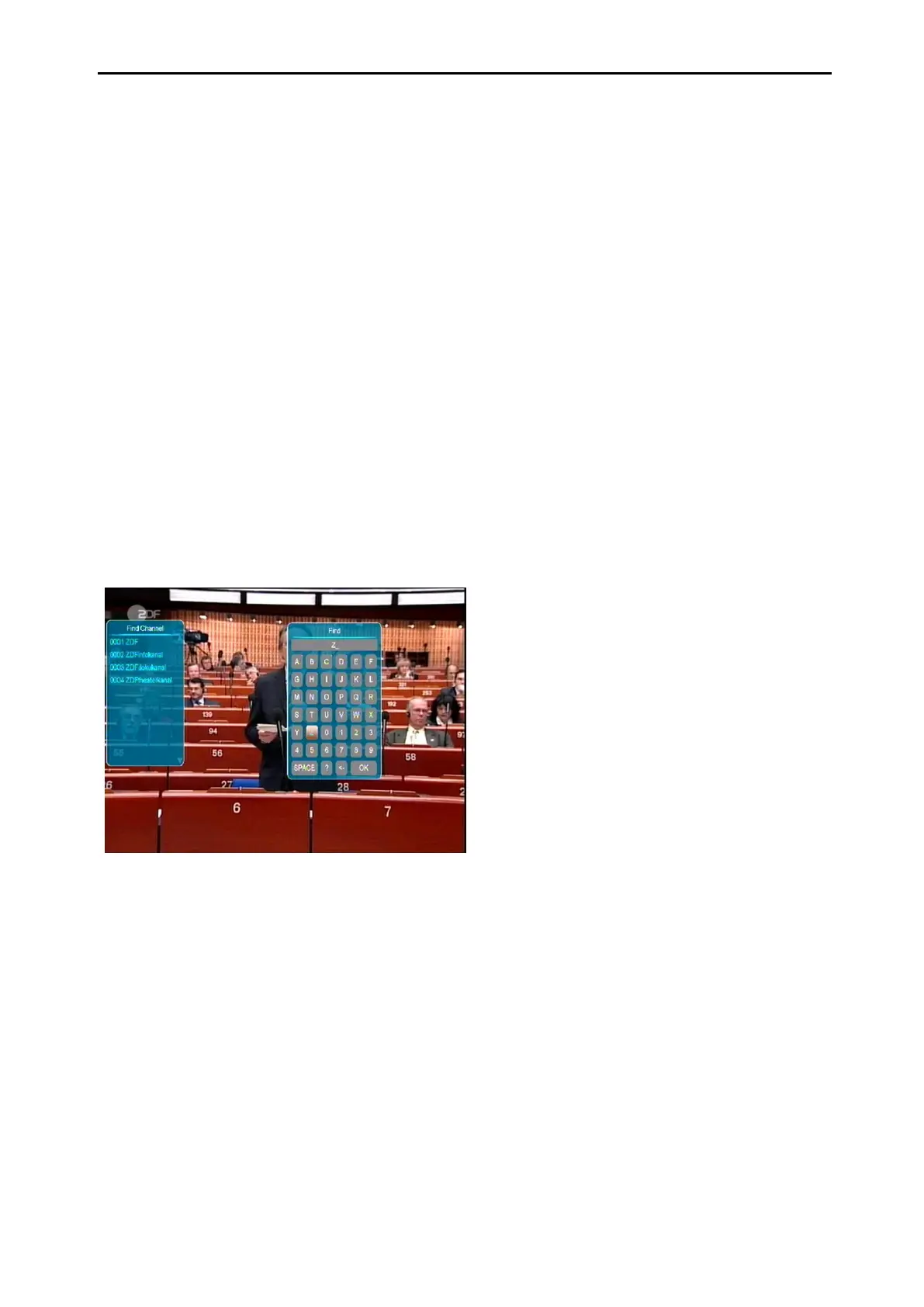
8.19 Find
1 Press [Find] key in full screen to open the
“Find” window like above. You can press
[Channel Up/Channel Down/Volume
Up/Volume Down] key to move highlight
and press [OK] key to input the selected
symbol or letter into the Find Box.
2 After entering each character, the
programme list on the left will search the
channel according your input, and list the
matched channel.
3 Move highlight to “OK” and press [OK] key
to close “Find” window and you can select
channel from the channel list directly.
8.20 Zoom
1 The [ZOOM] key allows you to magnify a
certain area on the screen.
2 Press [ZOOM] key again, the image will
enlarge x1, x2, x4, x6, x8, x12, x16.
3 In “x2 ~ x16” image, using [Up/ Down/ left/
right] keys to move the image area you
want to see.
4 In zoom mode, press [Exit] to close “Zoom”
window.
8.21 TV/ SAT
Press [TV/ SAT] key to switch between TV
mode and STB mode
8.22 Menu
Press [MENU] key to open the menu, exit the
current menu to last menu or close the
window.
8.23 Video Format
Press [P/N] (white) key under Full Screen
playback to show the current video resolution.
Press this key again to video resolution in the
sequence “480i->480p ->576i-> 576P->
720p-50-> 720p-60-> 720P-60->
1080i-50->1080i-60 ->1080p-50->1080p-60”.



 To Next Page