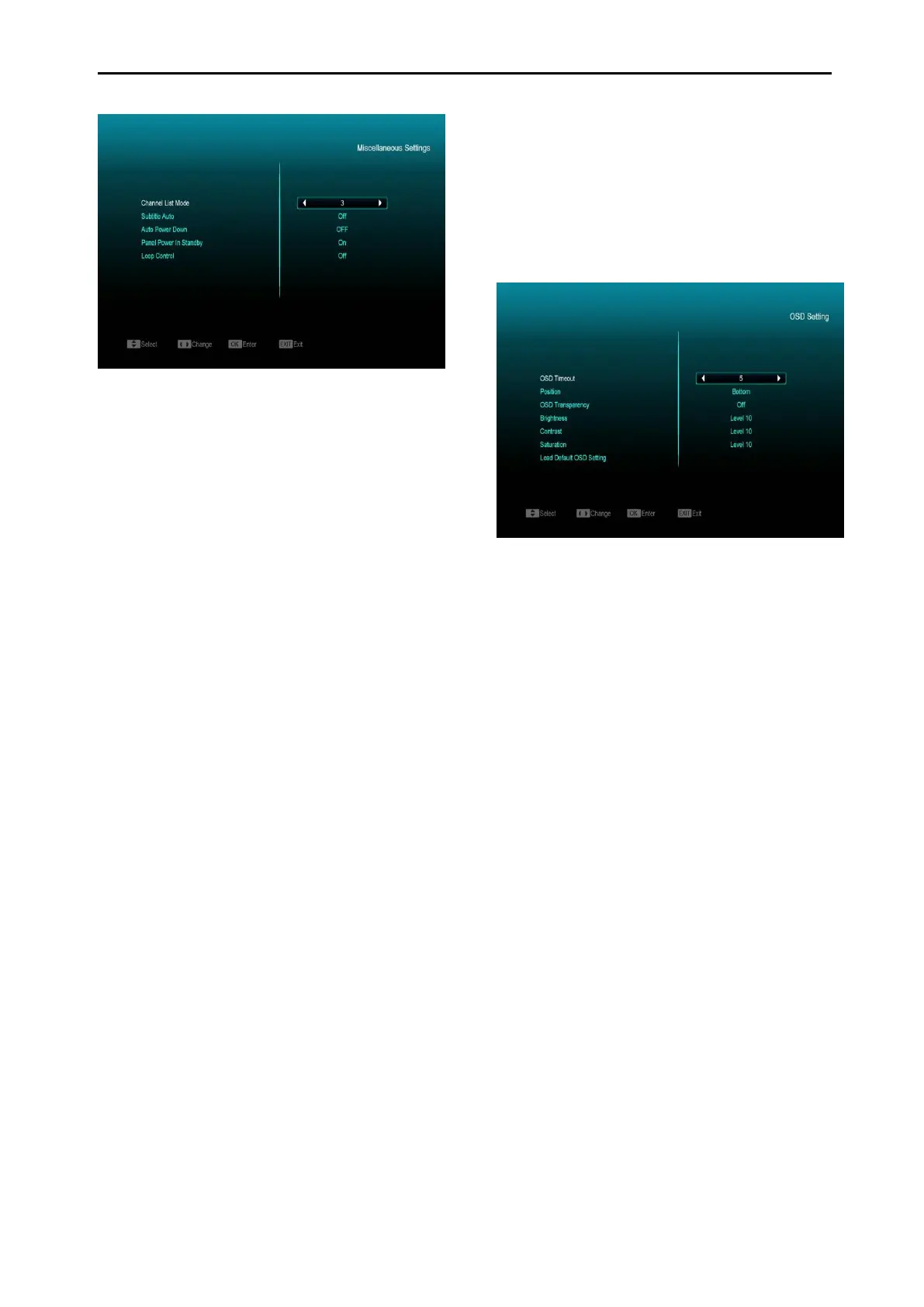
1 Subtitle Auto: You can press [Volume
Up/Volume Down] key to select “On” or
“Off”. If the current channel has subtitle
information, it will show up automatically
while this function is “ON”, if this function is
“OFF”, you need turn on the subtitle
manually by pressing [Yellow] key.
2 Auto Power Down: You can press [Volume
Up/ Volume Down] key to select a time or
“Off”. If you select a time, after duration if
there is no operation on receiver, it will go
into standby mode.
3 Panel Power In Standby: If set to “ON”, the
front panel will display time or some other
information in standby mode; if set to
“OFF”, it will display nothing in standby
mode.(Note: this function only available
when the “Deep Standby” item is set to
“ON”)
4 Loop Control: if set to “ON”, the receiver will
enable SCART LOOP and TUNER LOOP
function, if set to “OFF”, it will disable these
functions.
5 Standby Mode: If set to “Real” pressing
power key will put receiver in “Real
Standby” status, the power consumption
will less than 1 Watt.(Note: the “Panel
Power In Standby” option needs to be set
to “OFF”); if it’s set to “Fake” pressing
power key means the receiver will be in
fake standby status (quicker boot time).
11.7 OSD Setting
When you enter the “OSD Setting” menu, you
will see a screen like below:
1 OSD Timeout: When you switch channels
in full screen, it will display some
information about current channel at the
bottom of the screen. Use this to set the
duration that this information shows up on
the screen, you can press [Volume
Up/Volume Down] key to set the time. The
range is “1 second ~ 10seconds”.
2 OSD Position: Control display position of
the info bar in full screen mode. You can
choose “Bottom” or “Top”.
3 OSD Transparency: Besides the setting of
“OSD Menu Style”, you also can set the
transparency of OSD. You can press
[Volume Up/Volume Down] key to select
the values. There are 5 levels of
transparency, 10%, 20%, 30%, and 40%
and “NO” (means no transparency
function).
4 Brightness/Contrast/ Saturation: You can
adjust the parameter for the Video image
by using the [OK] button or pressing
[Volume Up/Volume Down] key, the default
value is Level 10.



 To Next Page