top left comer. Press [ENTER] again, to
show video in centre of screen. Now press
[zoom] key, the video will play in full
screen.
3. Press [vol+/vol-] to control volume.
4. Press [pause] key to pause video, or press
[stop] key to stop play.
5. Press [red] key to display the featured
video.
6. Press [green] key to sort by site and
duration. The site has Germany,
Worldwide, Poland and so on. Duration
has All Time, This Week, This Month and
so on.
7. Press [yellow] key to switch group. These
are Game, News, Tech, Movie and so on.
8. Press [blue] key to display the top video.
These are top favourites, top rated, most
views, most recent and so on.
9. Press FIND [ ] key in full screen to open
the "Find” window. You can press
[,,,] keys to move highlight and press
[ENTER] key to input the letters .Then
press [red] key to find.
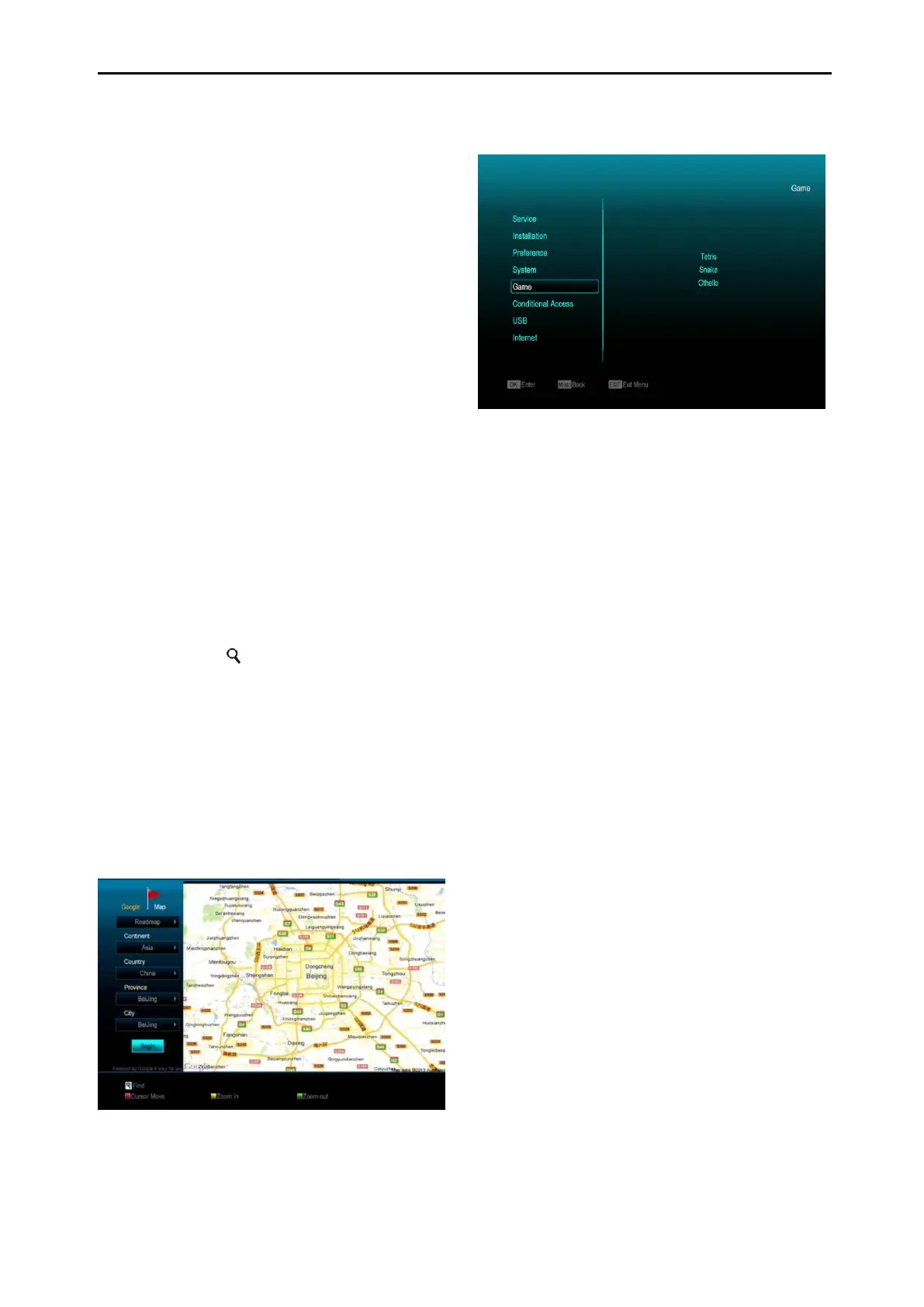
15.9 Google Maps
Inside the menu you can browse Google Maps.
16. Game
When you enter “Game” menu, you will see
three Games including Tetris, Snake and
Othello.
Basic operation statement:
16.1 Tetris
a) Move highlight to “Setup” and press
[Volume Up/Volume Down] key to select
the game level (speed).
b) Move highlight to “Start” and press [OK]
key to start the game.
c) Move highlight to [Cancel] keys and
press [OK] key to exit from the game.
d) Playing the game:
[Volume Up/Volume Down] Move
shape left or right
“Channel Up” Rotate clockwise
“Channel Down” Faster drop
[OK] Pause/Play the game
[Exit] Quit game and return to “Game”
menu.
16.2 Snake
a) Move highlight to “Setup” and press
[Volume Up/Volume Down] key to select
the game level (speed).



 To Next Page