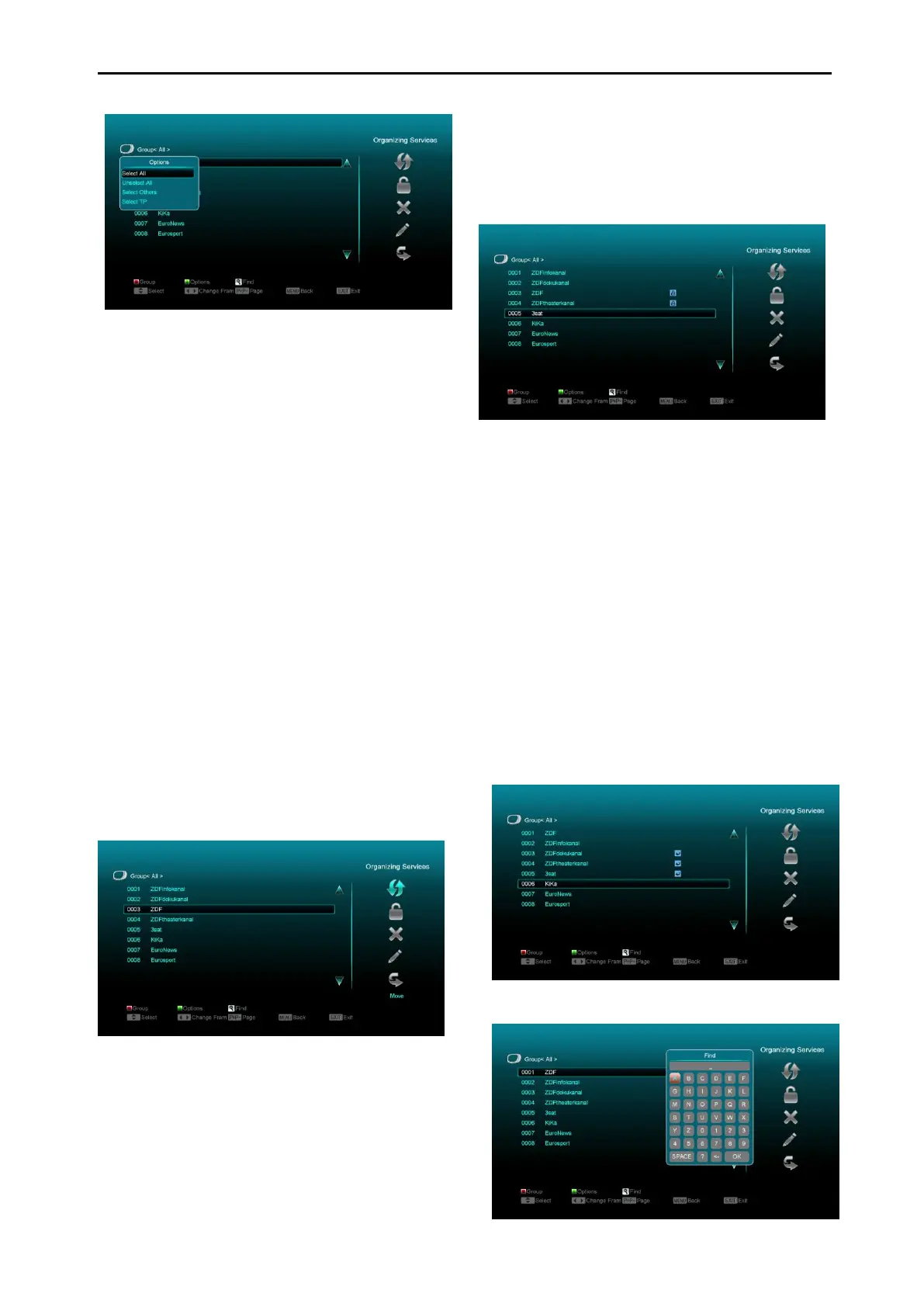
1. Press [Green] key to open the “Options”
window like above.
2. You can press [Up/Down] key to move
highlight and press [OK] key to confirm the
selection.
3. Press [Menu] key to close “Options” List.
Move
1. Select the channels which you want to edit
in channel list by pressing [OK] key.
2. Then press [Right] key to move the high
light to right toolbar.
3. Select Move icon by pressing [Channel
Up/Channel Down] key and [OK] key.
4. Move the channels to the position which
you want and press [OK] key to confirm.
Like the following picture:
Lock
1 Select the channels which you want to edit in
channel list by pressing [OK] key.
2 Then press [Right] key to move the high light
to right toolbar.
3 Select Lock icon by pressing [Channel
Up/Channel Down] key and [OK] key.
4 Lock the channel by pressing [OK] key.
Like the following picture:
Delete
a) Select the channels which you want to
edit in channel list by pressing [OK] key.
b) Then press [Right] key to move the high
light to right toolbar.
c) Select Delete icon by pressing [Channel
Up/Channel Down] key and [OK] key.
d) Delete the channel by pressing [OK]
key.
Skip and rename
In the same way you can set a channel to Skip,
or rename a selected channel.
Find



 To Next Page