92
1
7
4
10
15
18
2
8
13
5
11
16
3
9
14
6
12
17
WLAN SETTING
11
■ Connecting to the CT-M500
Set the CT-M500 in the “CT-M500 settings” of the IC-M510/IC-M510E.
NOTE: Install the transceiver within approximately 15 meters from the CT-M500 or
an existing access point, and in a place where there are no obstacles between the
transceiver and the CT-M500.
To expand the communication range, use a user supplied wireless access point.
1. Install the CT-M500 and turn it ON.
2. On the transceiver, open the “Configuration” screen.
[MENU] > Settings > WLAN > Advanced Settings >
CT-M500
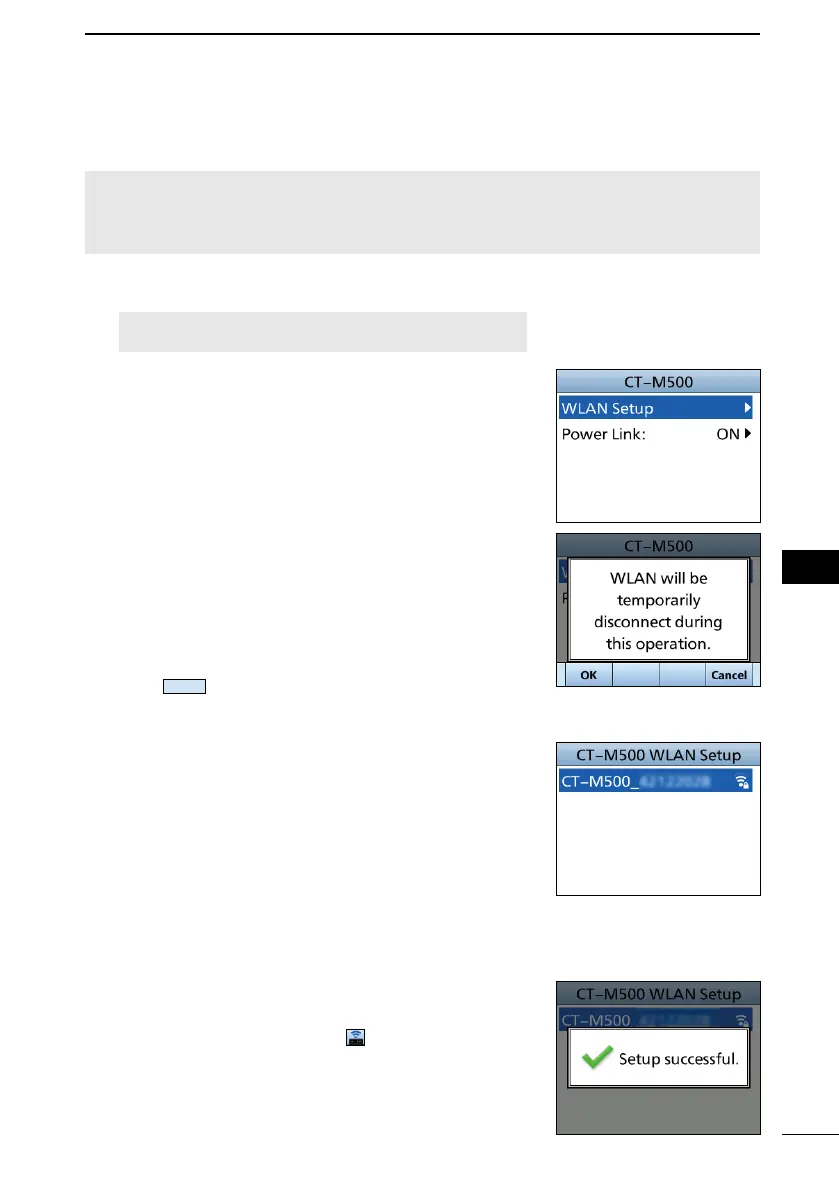
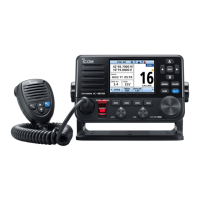
3. Select “WLAN Setup” then push [ENT], [CH/ENT], or
• “WLAN will be temporarily disconnect during this
operation.”, or “This menu resets the CT-M500. Also,
WLAN is temporarily disconnect.” is displayed.
4. Push
• The transceiver starts searching the devices connected
to the CT-M500 network.
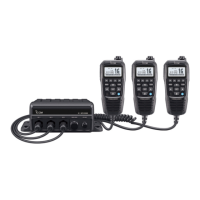
5. A list of CT-M500 is displayed.
L If the CT-M500 you want to select is not found, wait
to repeat step 3.
6. Select the device to send the data to the transceiver,
and push [ENT] or [CH/ENT].
• The transceiver starts setting up the CT-M500, and then
automatically connects to the CT-M500.
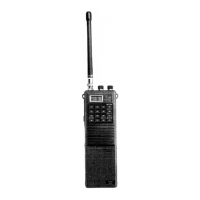
7. “Setup successful” is displayed when the CT-M500
and the transceiver are connected.
• When the setup is successful, is displayed.


 To Next Page