94
1
7
4
10
15
18
2
8
13
5
11
16
3
9
14
6
12
17
WLAN SETTING
11
■ Using a mobile device as a microphone
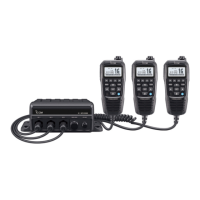
You can use your mobile device as a wireless microphone or the remote controller by
installing RS-M500.
L Up to 3 mobile devices can be used as a wireless microphone or remote controller.
L Refer to the RS-M500 manual for details on the RS-M500 operation. The manual can be
downloaded from the Icom website: https://www.icomjapan.com/support/
D Connecting your mobile device to the transceiver
1. Access the Play Store (Android OS) or App Store (iOS), then find and download the
RS-M500 to your mobile device.
2. Open the wireless LAN setting screen of your mobile device.
3. Select the SSID (for example: IC-M510_12345678) you set to your transceiver.
4. Enter the password (for example: M510_12345678), and then join the mobile device
to the network.
5. Open the RS-M500 application.
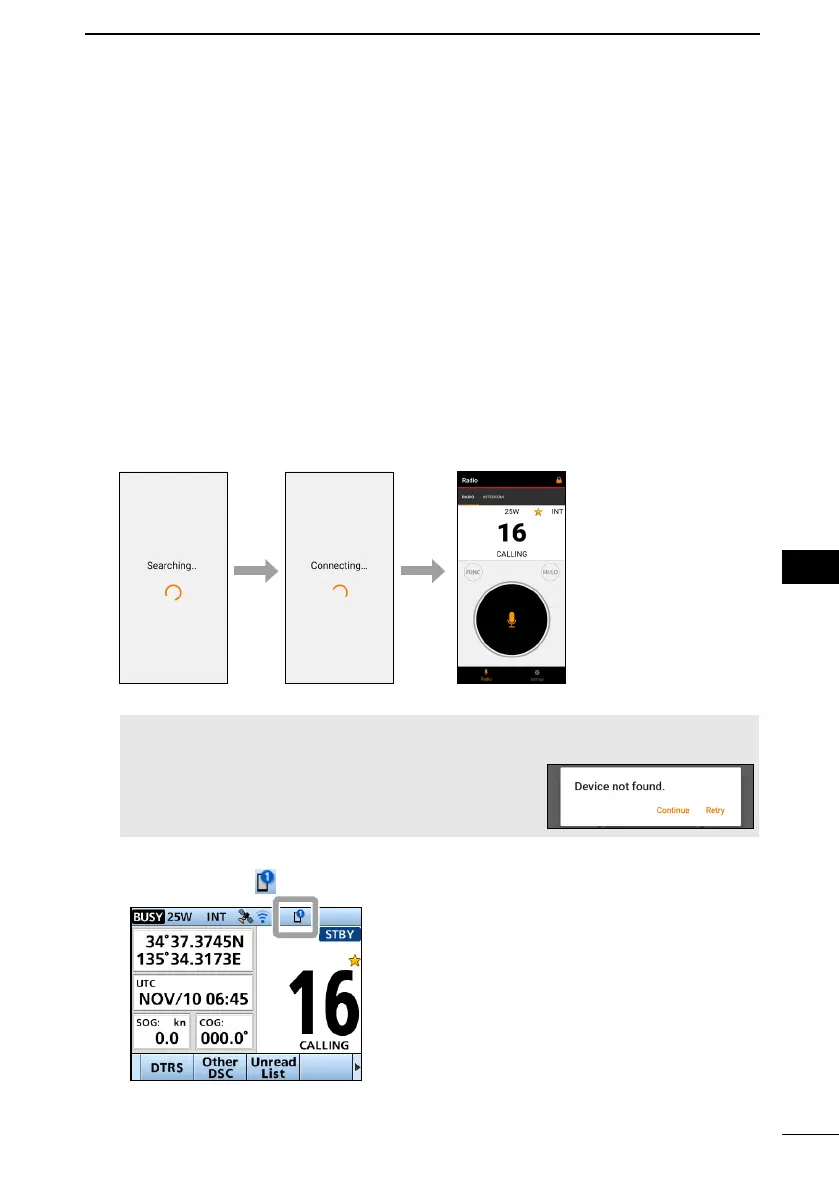
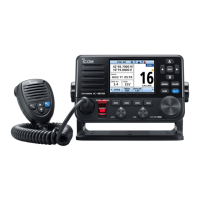
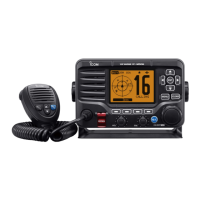
• The RS-M500 automatically searches and connects to the IC-M510/IC-M510E. When
the screen shown below is displayed, the RS-M500 is ready to operate.
NOTE: If an error message is displayed, check that the WLAN is properly set and
connected, the transceiver is turned ON, and then touch “Retry.”
Touching “Continue” starts the application
without connecting to a transceiver.
• When the connection between the RS-M500 and the IC-M510/IC-M510E is
successful, the “
” icon is displayed at the top of the IC-M510/IC-M510E screen.


 To Next Page