If you setup network automatically,
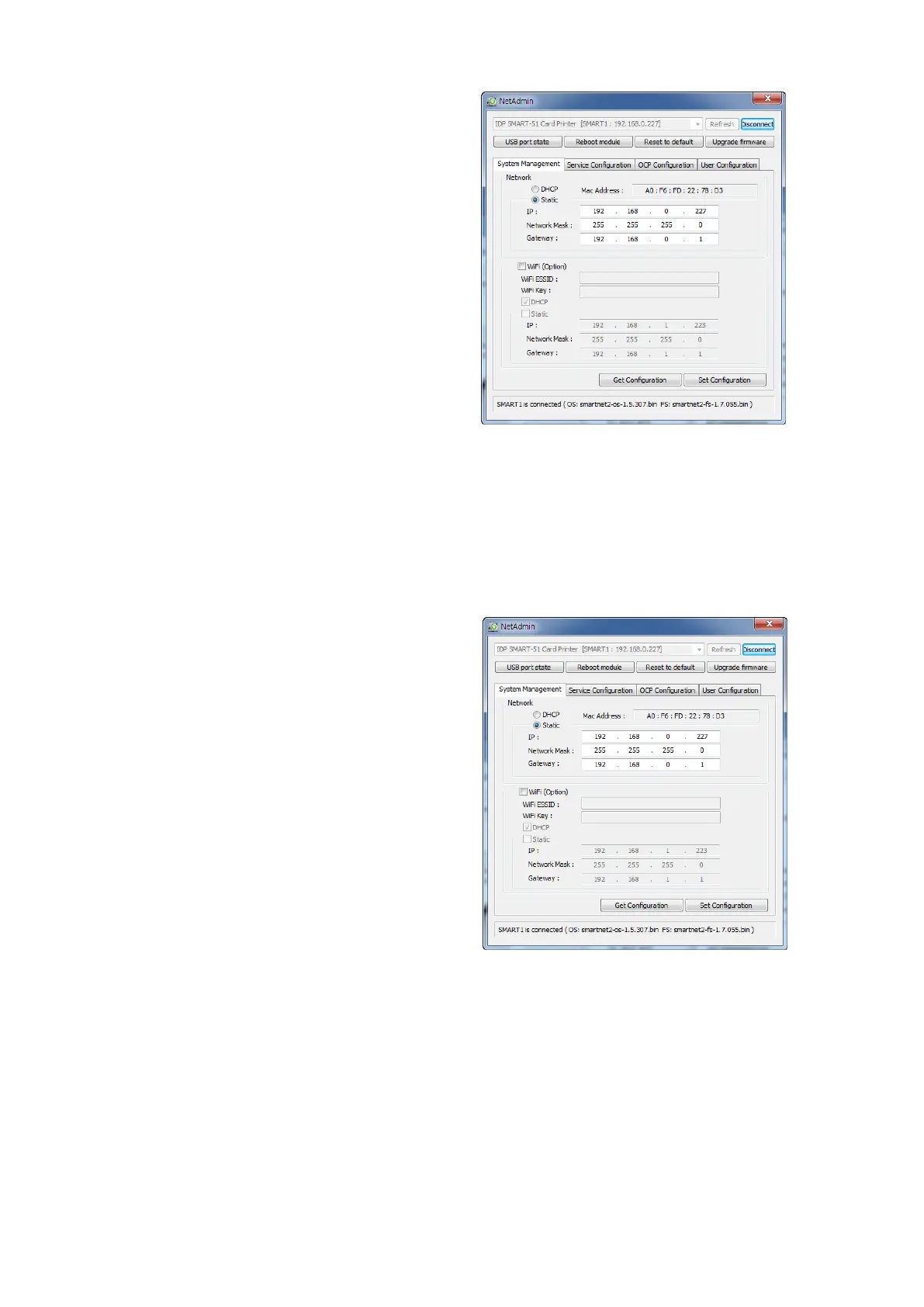
please choose DHCP.
Please select DHCP or Static.
“DHCP” is default for SMART-51 printer.
Please enter values for “IP”, “Network
Mask”, and “Gateway”. Click “Set
Configuration”.
Static IP is recommended. DHCP server
assigns IP address automatically but
this IP address is temporary, so the IP
address may be changed. In this case,
the network error may occur in
connecting to SMART-51 network
printer.
If you are not aware of static IP, please
ask network administrator for Static IP.
We recommend using Static IP because
it is more stable for using SMART-51
network printer.
Wireless Network Configuration
For wireless network, the WIFI option
should be installed in the Network
Module
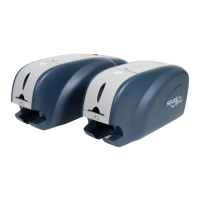
Check “WiFi (Option)” button to activate
it
Enter the ESSID value in “WiFi ESSID”
to access
Enter the Key value in “WiFi Key”
Set the IP address as the same way of
LAN network
Click “Set Configuration” to save the
configuration value and reboot the
printer



 To Next Page