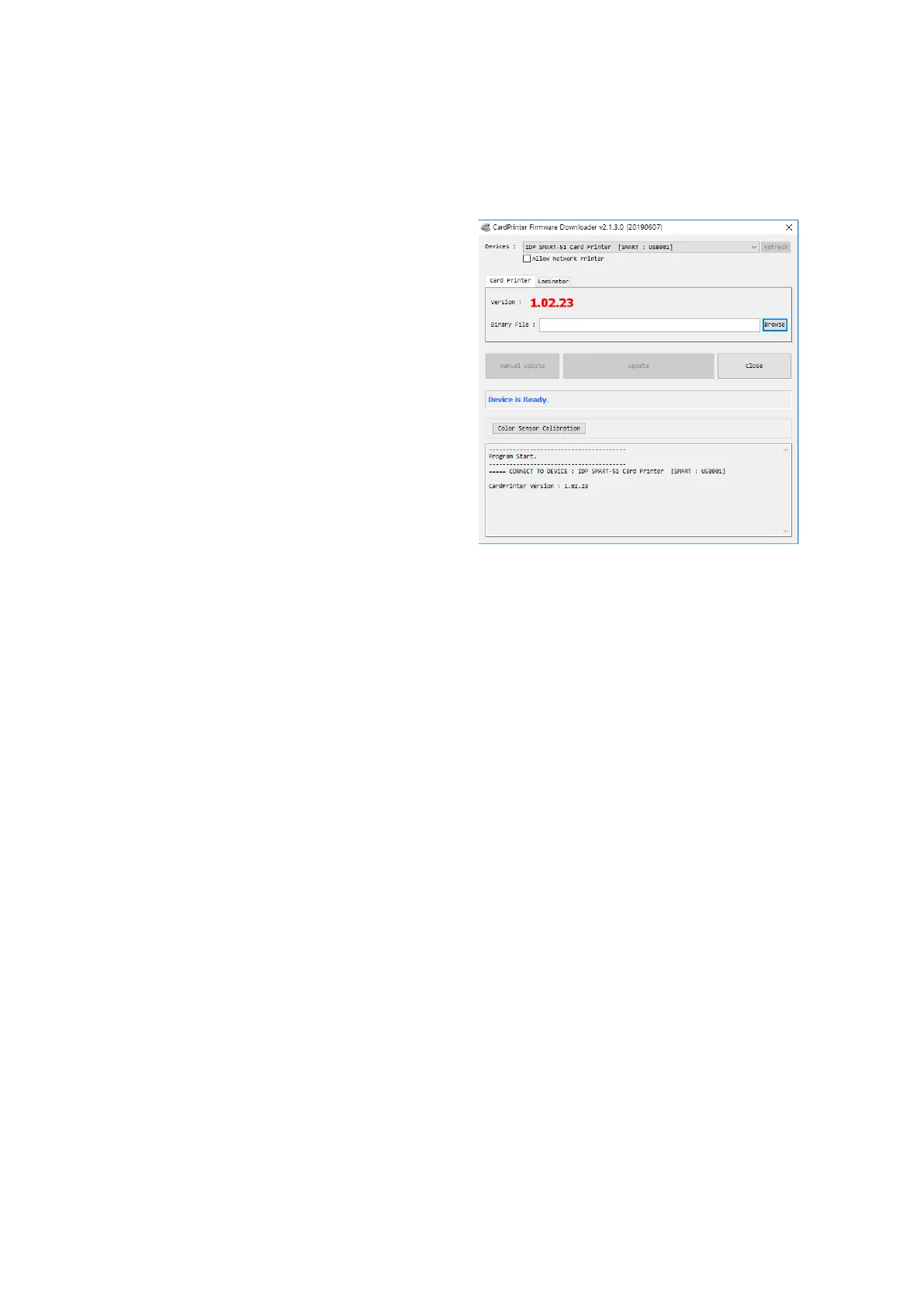
(1) CardPrinterFirmware Menu
Device: Select the local printer that you
want to upgrade.
Card Printer / Flipper / Laminator: Select
the device you want upgrade.
Device Version: Displays the current
firmware version of selected printer.
Binary File: Click “Browse” button and
select new firmware file to update.
Manual Update: It is used when you want
to update manually.
Update: Updates automatically. In
generally, we recommend updating
automatically.
Close: Exit.
Color Sensor Calibration : To re-adjust
the measured value of the color sensor.
Message : It displays information of
updating.



 To Next Page