(2) Ready for Firmware Update
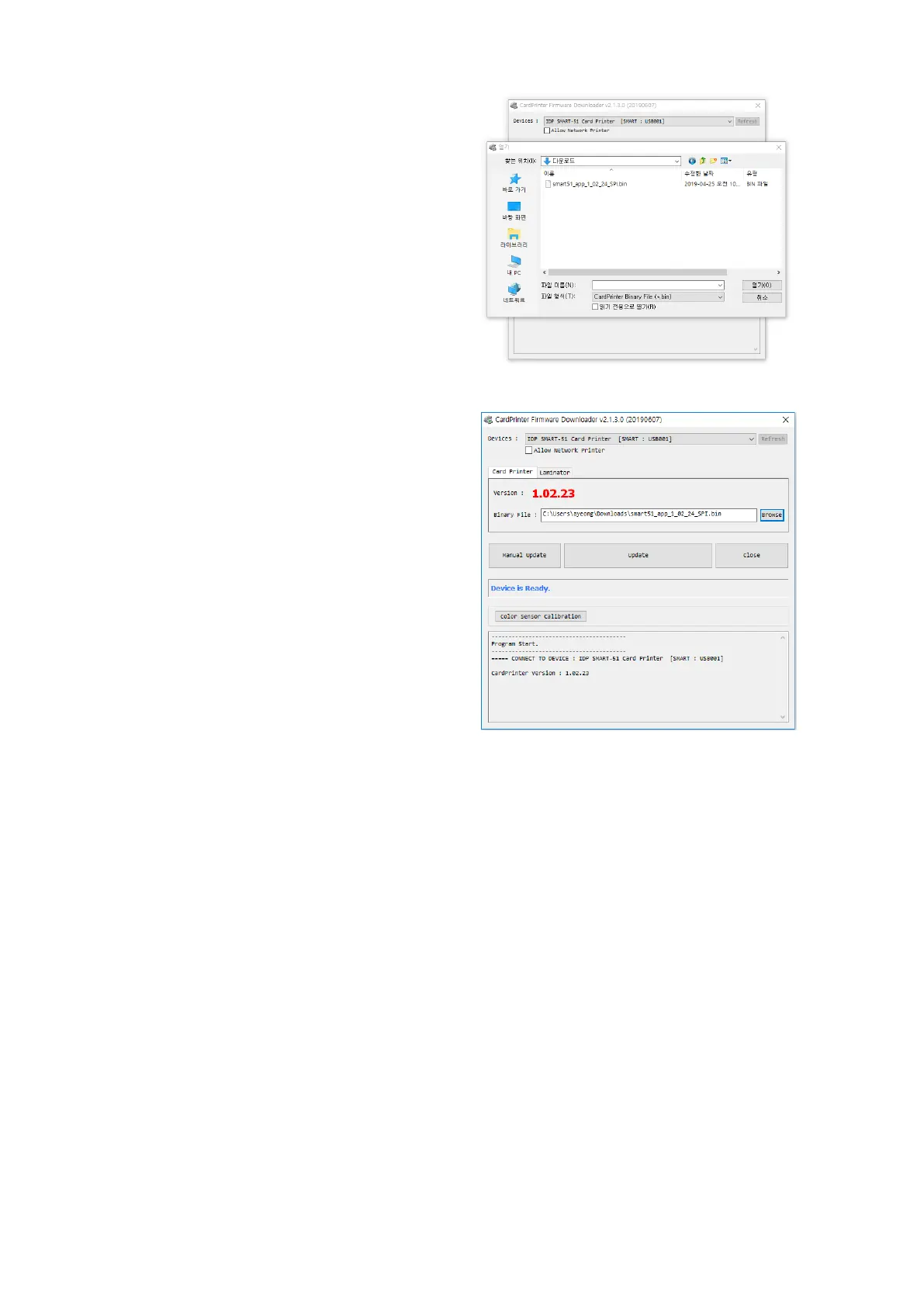
Select the printer to update the
firmware on the ‘Device’ list.
Select the device to update the
firmware among
Printer/Flipper/Laminator tab. The
Flipper and Laminator tab is shown if
that option is installed only.
Click “Browse” and select the new
firmware
(3) Firmware Update
Click “Update” button to upgrade
automatically, then the printer is
upgraded after rebooting.
In case there are some problems in the
automatic upgrade, you click “Manual
Update” and can see the pop-up widow
as below picture. It shows procedure of
manual upgrade. You can upgrade
manually according to this procedure.
(Caution: Please do not close upgrade
dialog box until it is completed successfully
and do not turn off the printer.)



 To Next Page