23
Hydronic Networks
Explanation of Function
Hydronic systems are easily created and managed in HySelect and then downloaded to TA-SCOPE, see page
40.
Hydronic Networks is the function where hydronic systems can be explored and used for all TA-SCOPE options:
Quick Measure, Balancing, Troubleshooting and Data Logging.
New networks can be created with this function. After taking actual measurements on the hydronic network,
these together with the updated network design and layout, can be uploaded to HySelect.
Both networks designed for manual balancing and balancing with Dp control are manageable in the Hydronic
Networks function.
Navigate Hydronic Networks
1 Select Hydronic Networks from the main menu.
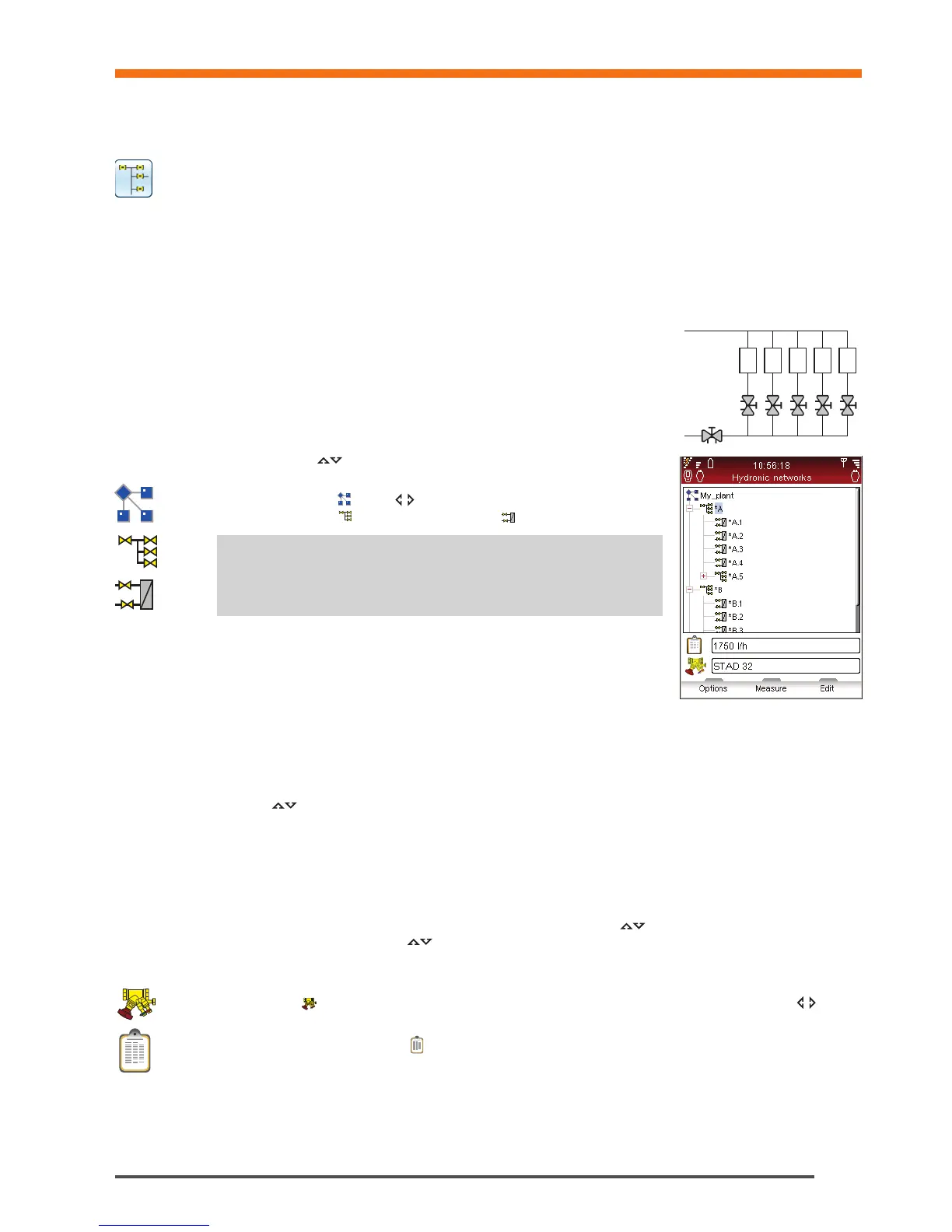
2 Networks stored in Hh memory are displayed in a list. If no network has been
created or downloaded No Hydronic Network is displayed.
3 Additional information is shown for the network in focus at the bottom part of
the display.
4 Select a network
and press enter or press function key Navigate to
open.
5 Explore the network
. Press or enter to expand/collapse the structure of
non-terminal circuits
and terminal with circuits .
6 Press function key Options to select the measuring type to perform.
E.g., Measure will start a Quick Measure operation, select Balance for
performing balancing of the network and Log Data to use the network for a
logging.
Edit Existing Network
Hydronic Networks can be modified in TA-SCOPE where changes from the original design are discovered while
on site.
Depending on which level of the network is in focus, several different options can be performed.
1 Navigate
to the circuit to be modified.
2 Press function key Options.
3 From here the edit options Add circuit, Cut, Copy, Paste and Delete are accessible.
4 Add circuit can only be performed from the top level of the network and from any non-terminal circuit.
5 Select Add circuit from the Options menu. Define if the new circuit is a terminal or non-terminal circuit.
6 TA-SCOPE enables several balancing options for the circuits. Navigate
to the Balancing With drop down
list and press enter. Scroll the list
and press enter to select. Contact your local IMI Hydronic Engineering
sales office for more details on hydronic systems with Dp control.
7 Press the function key Continue.
8 Define Valve
for the circuit. Valve type and size from previous input is default, cycle the sizes with or
press enter to open Define valve menu.
9 For terminal circuits Design flow
can be entered (optional).
10 Enter number of circuits to add to duplicate the same circuit several times.
11 Press function key Add.
1 2 3 4 5
Hydronic Networks
Tips! Levels in a Hydronic Network *A and *A.1 are non-terminal
circuits. Possible to add both terminal and non-terminal circuits to
this level *A.1.1 are terminal circuits. No circuits can be added
!


 To Next Page