31
13 For non-IMI TA valves press the function key Option, select Switch to
Kv-mode and press enter. Enter information regarding the valve.
14 Press the function key Continue for further settings of the logging.
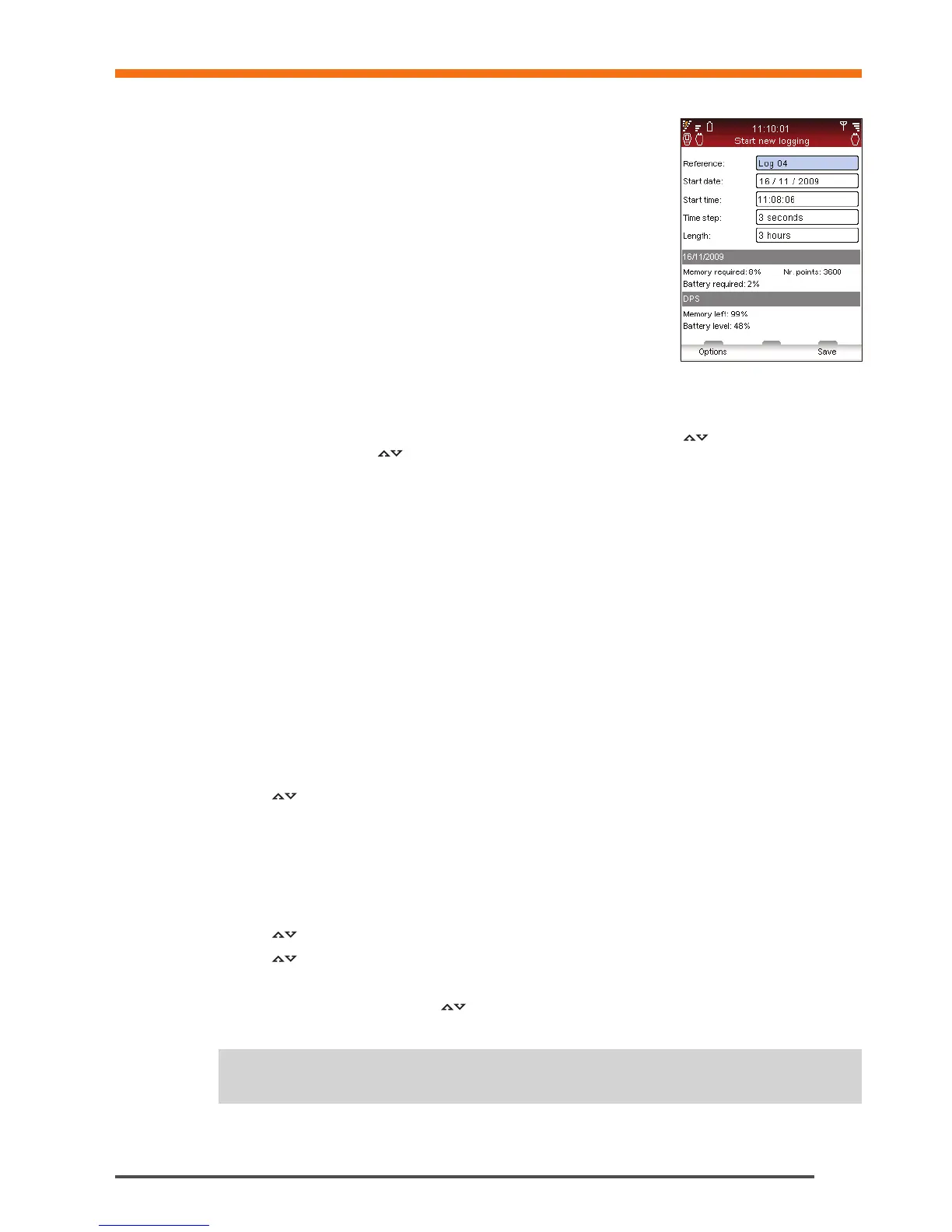
15 Reference name is by default “Log” followed by a figure which increments by
the number of loggings stored. Optional; enter a reference name of your own
preference.
16 Set Start Date and Start Time for the logging.
17 Set Time Step, in seconds, to be measured. The interval is selectable within 3
to 240 seconds.
18 Define Length of the logging which is limited by remaining memory and
battery capacity of the Dp Sensor displayed on the screen.
19 Release memory by erasing old loggings. Press the function key Options and
select List loggings in memory, press enter.
20 A list of loggings and the occupied memory is displayed. Press the function
key Delete to remove the one in focus or Delete all for clearing the whole memory.
21 Press function key Done to return to the logging preferences.
22 Edit any of the parameters by pressing function key Options to select or navigate
to the item, press enter
and adjust the settings with
. Press enter.
23 Press function key Save and logging will be executed accordingly to settings.
24 Leave Dp Sensor switched on at the valve for logging. It will automatically go into sleep mode between the
measurements to minimize battery consumption.
25 Pick up the Dp Sensor when logging is completed.
Download Loggings
When a logging is finalised the data is ready to be downloaded from Dp Sensor to Handheld for viewing and
upload to PC for further analysis.
1 Make sure the communication, wireless or by cable, between Handheld and Dp Sensor is established.
2 Select Download logging from Dp sensor from the Data Logging main menu.
3 The status of Dp Sensor is displayed and can be;
• Available – logging finished and ready to download
• Logging in progress – logging is being performed
• Logging programmed – Dp Sensor prepared to perform logging
4 Press function key View to display the loggings stored in Dp Sensor.
5 Navigate
to the logging you wish to download.
6 Press function key Download to start. During download you can select the option to delete after completion of
the download process.
View Loggings
Logged data is stored and reached with the function View Loggings in handheld. Possible to view data as
graph or listed in several ways. Select Data Logging from the main menu, press enter.
1 Navigate
to View Loggings in handheld, press enter.
2 Navigate
to preferred logging, press the function key View.
3 A summary of the logging is displayed.
4 Press function key Options and select
display alternative for the data.
• View logging data – measuring points listed displayed with time and values for each one.
Data Logging
Tips! It is possible to download the data of a logging while this logging is in progress.
!


 To Next Page