23
English
Using the On-Screen Display
1. The projector has a multi-language On-Screen Display (OSD) Menu that can be
displayed with or without an input source.
2. Press the button on the control panel or the Menu button on the remote control to
enter the Main Menu.
3. To select an option, press the or button on your projector’s control panel or
remote control.
4. Use the or button on the control panel or remote control to adjust the settings.
5. Press the Enter button on the remote control or the button on the control panel to
select highlighted menu items.
6. To exit the OSD, press the button directly on the control panel or the Menu button
on the remote control.
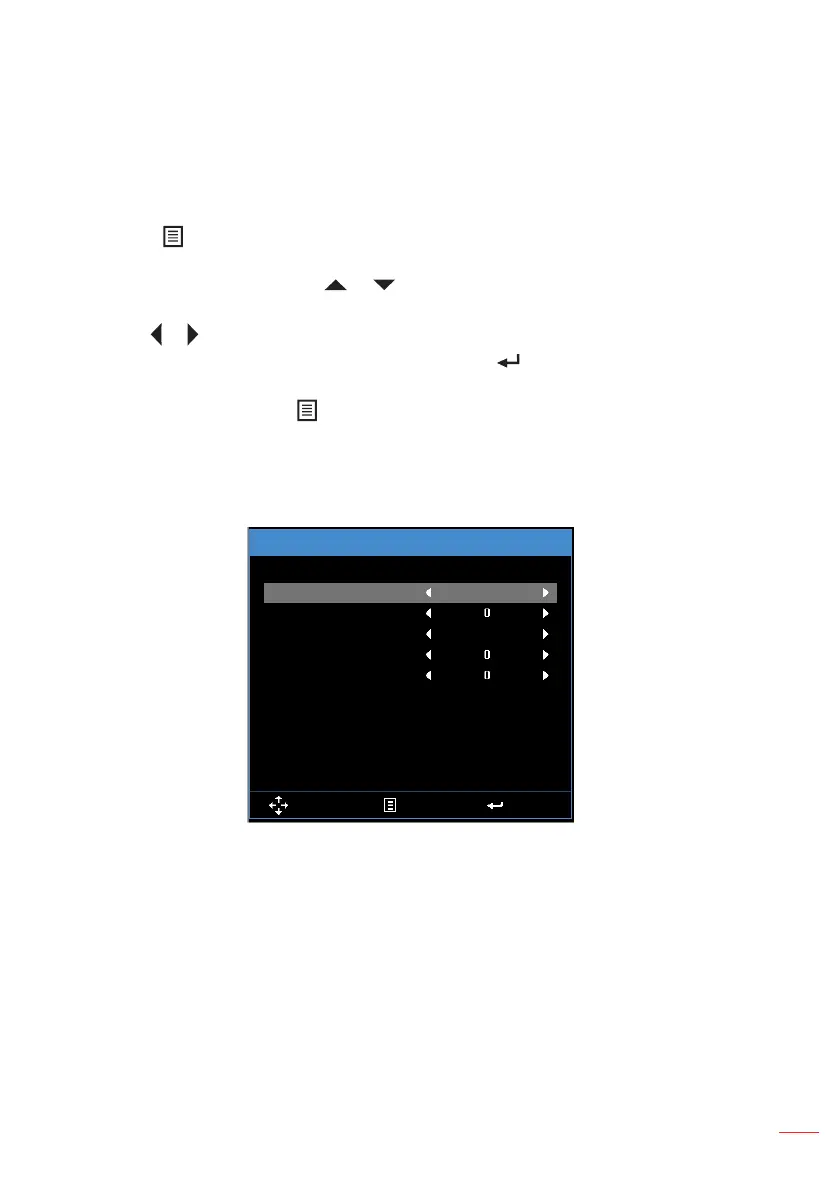
Main Menu (WXGA model)
Input Source
Menu
HDMI
Volume
Display Mode
Brightness
Contrast
Image
Display
Setup
Bright
Select Exit Enter
Info
Input Source
:
Select your projector’s input source. The options are: VGA, HDMI,
Media, and Video.
Volume
:
Adjust the volume.
Display Mode
:
Optimize the display image. The options are: Bright, PC, sRGB
Cinema, Photo
, and
Eco..
Brightness
:
Adjust the display brightness.
Contrast
:
Adjust the display contrast.
User Controls



 To Next Page