24
English
Image
Image
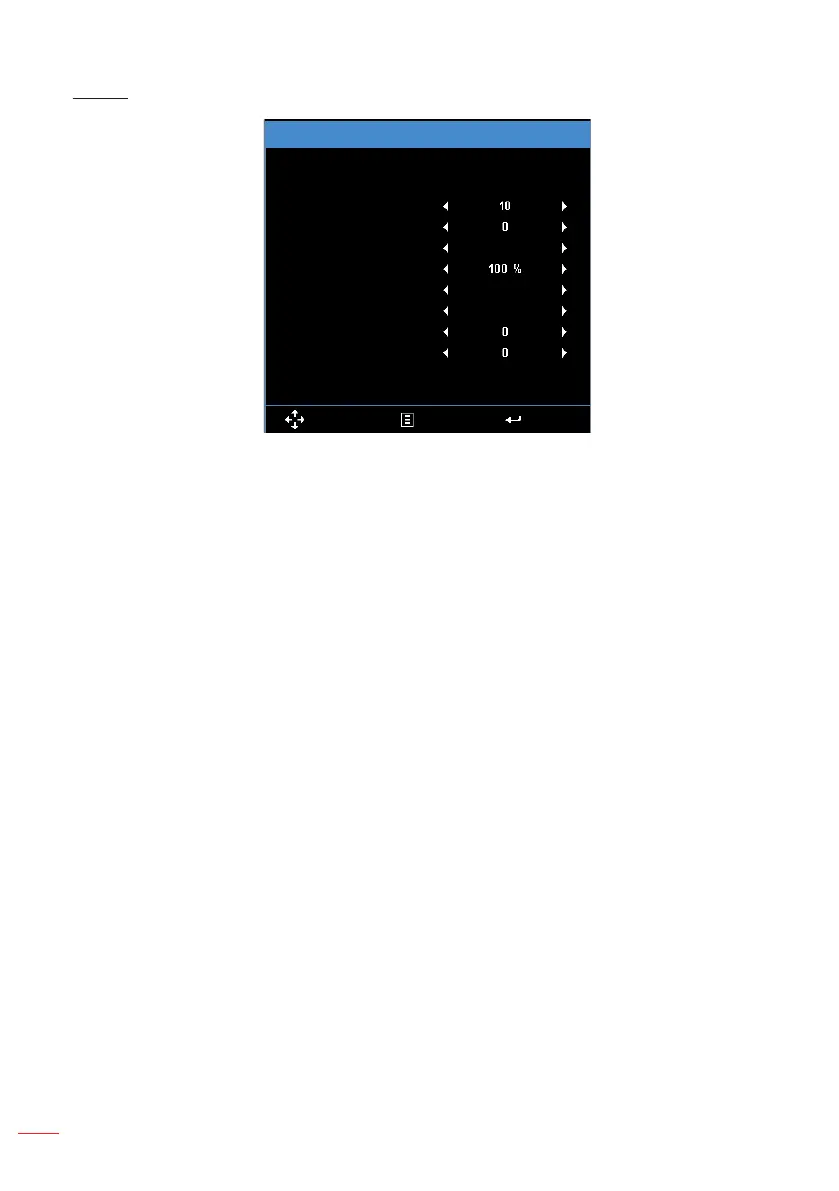
Saturation
Hue
Aspect Ratio
Zoom
Color Temperature
Color Space
Frequency
Select Exit Enter
Auto
Warm
RGB
Phase
Saturation
:
Adjust the saturation of the image.
Note: Not available with computer sources.
Hue
:
Adjust the hue of the image.
Note: Not available with computer sources.
Aspect Ratio
:
Adjust the aspect ratio to match the video source. Options are:
y
Auto: Automatically selects the appropriate display format.
y
4:3: The input source scales to fit the screen and projects a 4:3 image.
y
16:9: The input source scales to fit the screen and projects a 16:9 image.
y
16:10: The input source scales to fit the screen and projects a 16:10 image.
Zoom
:
Zoom in or out of the image. Options are 50%, 75%, 100%, 125%, 150%.
Color Temperature
:
Select the color temperature. Options are: Warm, Medium
,
and
Cold.
Note: The Color Temperature function is not supported in Bright, Eco, and 3D modes.
Color Space
:
Select an appropriate color matrix type. Options are: Auto, RGB, and
YCbCr.
Note: The Color Space function is supported only in HDMI mode.
Frequency
:
Change the display data clock frequency to match the frequency of your
computer’s graphics card. If you see a vertical flickering wave, use the Frequency
control to minimize the bars. This is a coarse adjustment.
Note: The Frequency can be adjusted only in VGA mode.
Phase
:
Synchronize the signal timing of the display with the graphic card. If the
image appears to be unstable or flickers, use the Phase to correct it. This is a fine
adjustment.
Note: The Phase can be adjusted only in VGA mode.



 To Next Page