49
English
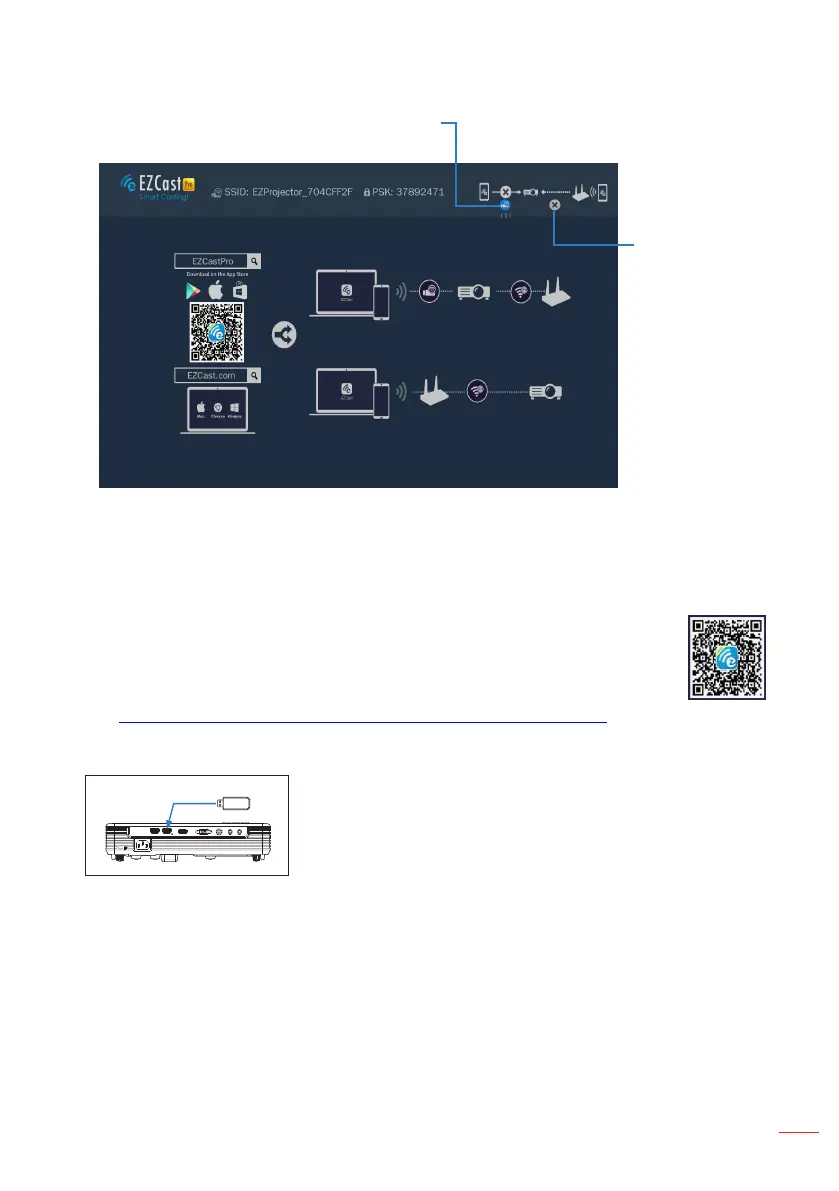
The EZCast Pro menu opens.
A blue icon indicates mobile devices
are connected to the projector.
If this icon is
blue it indicates
the projector is
connected to an
Access Point.
3. Do one of the following:
• Depending on the operating system of your mobile device, open the App Store
(iOS) or Google Play (Android) and install the EZCast Pro app on your mobile
device.
• Scan the QR code on the EZCast Pro menu with your mobile device
and then follow the on-screen instructions to install the EZCast Pro
app.
If you are using a laptop, download EZCast app from
www.ezcast.com/upgrade/download.php?vendor=ezcastpro website.
4. Insert the optional Wireless adapter into USB2.
USB 1
READER/DISPLAY
USB 2
WIRELESS DONGLE
HDMI
VGA-IN/YPbPr
VIDEO
AUDIO IN AUDIO OUT
5. Connect your portable device via Wi-Fi to the projector. Example connection
parameters:
• SSID of the projector: EZProjector_704CFF2F
• PSK: 37892471
Note: The projector SSID and PSK vary depending on the connected Wireless adapter.



 To Next Page