User’s Manual Innomar SES Parametric Sub-bottom Profilers 145
Innomar Technologie GmbH (2020-09) 145
11.6 Post Processing (Innomar ISE Software)
This section briefly shows basic post-processing using the ISE software, for a full description of
the processing capabilities and features see the INNOMAR ISE manual. Data have been stored
during the survey in two different data formats (*.raw / *.ses). Both file formats can be used for
the processing, but for high-resolution results using the RAW data is recommended. During the
processing the data will be converted into a colour (or greyscale) coded picture which is used to
digitise the sediment layers or positions of targets like buried pipelines or cables. For post-pro-
cessing the INNOMAR ISE software needs to be started with USB dongle to enable all features.
First check sensor data, especially GNSS position, for gaps and outliers. For this the recorded
data can be visualized within the ISE software (“Extra View SIS value graph”).
Usually the INNOMAR SBP ping rate during data acquisition is much higher than the GNSS posi-
tion update rate. Thus, in the data file several pings have the same position and time stamps. For
processing there should be unique positions and time stamps for every ping. For this the ISE
software provides a processing tool which works on all data files within a file folder: ISE menu
“Tools SIS Process”.
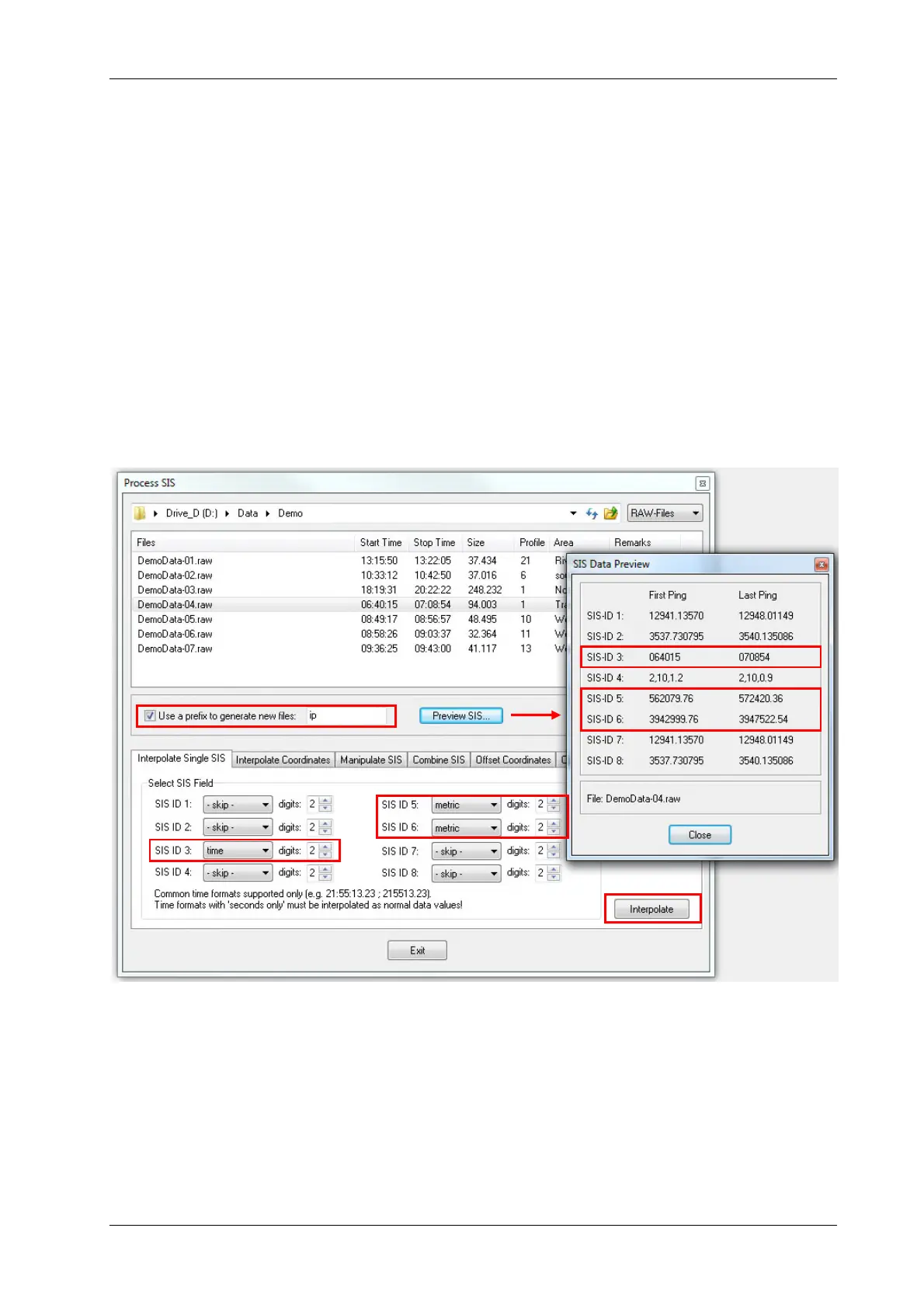
SIS data processing to interpolate GNSS position and time stamps to provide unique data for each ping. Check SIS
IDs (“Preview SIS” button) and set processing as required. In the example there are metric UTM positions on SIS IDs
5 and 6 and GNSS UTC time stamp on SIS ID 3. Be aware that the data files will be touched, therefore either make a
backup beforehand or tick the “Use prefix …” check box to generate a data copy automatically. It is possible to process
all files in the folder (“Ctrl-A”), there will be a summary shown as soon as the conversion processing is finished.
Single data files to be processed are loaded with the “File Load” dialogue, see picture on next
page. Make sure to select the correct SIS-IDs for position data and to apply tide correction if
appropriate. Metric position data and PC time stamp can be interpolated during the file open
process, too. But it is recommended to do this as standard processing step at the very beginning
for all data files, see above.



 To Next Page