32 User’s Manual Innomar SES Parametric Sub-bottom Profilers
32 Innomar Technologie GmbH (2020-09)
4.2.2 Innomar “light”, “standard” and “medium-100” models
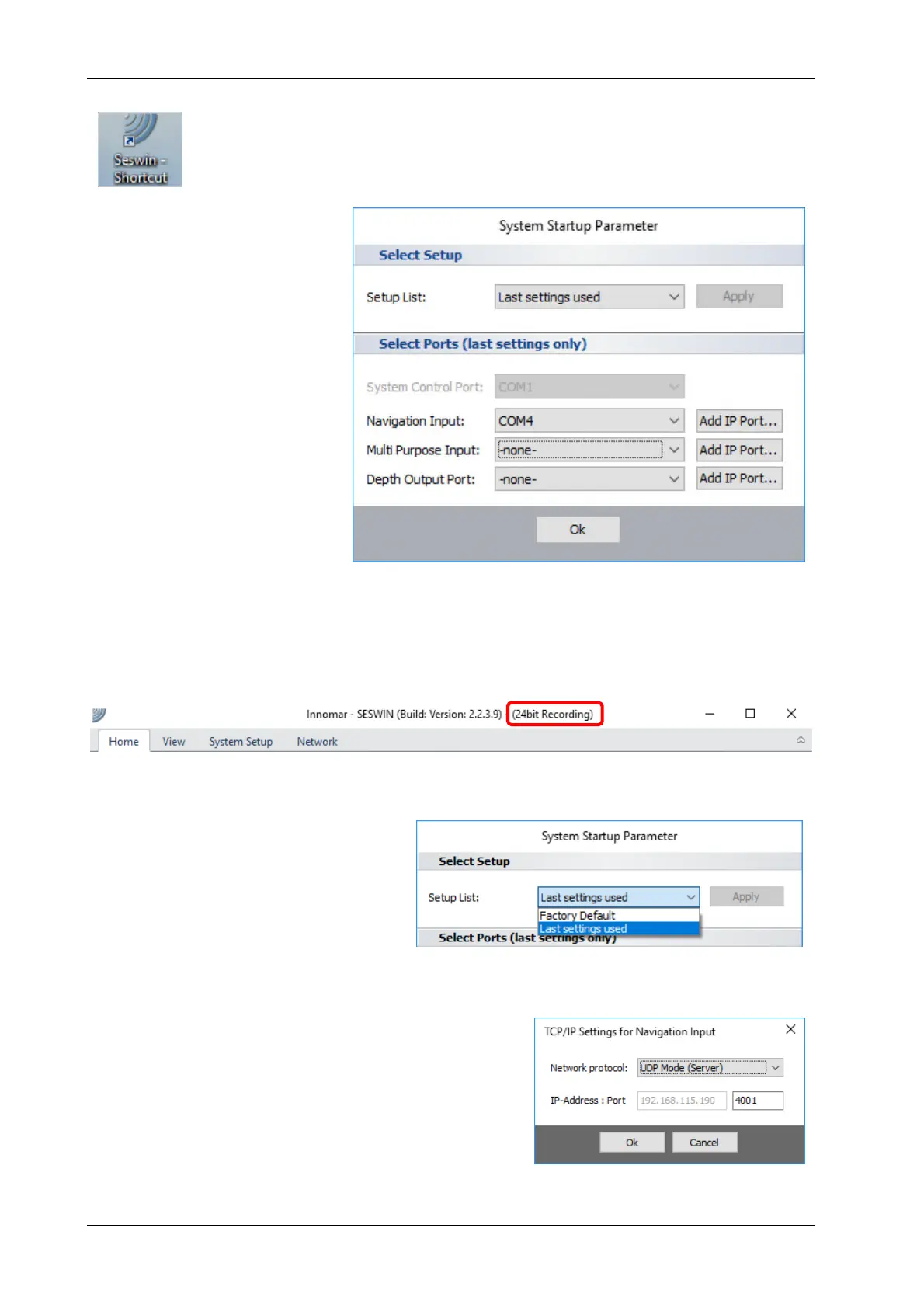
Usually there is a SESWIN shortcut placed on the Windows desktop.
To start the program, just double-click the icon.
There might be a Windows message box popping up and asking if the program
is allowed to make changes to the system; simply press “Yes”.
After starting SESWIN a “Sys-
tem Start-up Parameter” dialog
is shown where all COM port
settings are listed. You should
check if these settings are cor-
rect.
The “system control port” can-
not be changed.
After pressing “OK”, the
SESWIN main screen shows
up, see next page.
4.2.3 SESWIN with 24-bit data recording
!
For some units of the “medium-100” and “standard” models, 24-bit data recording
(*.ses3 data files) is possible. For this a special SESWIN version (“Seswin24bit.exe”)
is required. This version shows a hint in the application bar:
4.2.4 User Profiles / Reset to Factory Defaults
It is possible to store and re-use settings
via “user profiles”. If there are user pro-
files stored previously, the will appear in
the “Setup list” drop down box (default:
“last settings used”). It is also possible to
reset the system to “factory defaults”.
4.2.5 Serial/UDP Input/Output Connections
For the Navigation data input, “multi-purpose” input and
the depth output of the INNOMAR system it is possible to
assign COM or IP (TCP or UDP) ports. Factory defaults
are COM2–4. These settings cannot be changed later;
this is possible at the program’s start only.



 To Next Page