VN415 / VO425 Instructions for Use - English
Date: 2010-12-20 Page 2
Calibration
To make an allowance for different depths of patient eye orbits a calibration procedure can be
performed.
This is initiated using the button. The setup of this procedure can be altered in the configuration
screen. Calibration points can be presented to the patient via the VisualLab software or via dots on the
wall.
Placement of the mask
The mask should be placed on the head. Tighten the headband around the head.
Make sure that the pupil is visible and in the centre of the eye image. The Infra-red mirrors inside the
cover have two possible positions. Make sure that they are adjusted to the most suitable position.
Adjust the cameras with the vertical and horizontal adjustment knobs. The image must be brought
into focus with the focus knob – always avoid unfocused, blurred images since this will disrupt
eyetracking.
Setting of the pupil identification threshold
The software will automatically detect the optimum grey scale for pupil identification, but this may also
be done manually. To adjust the threshold manually simply find the optimum position for the slider
controlling the setting for the grey-scale.
This is done by tweaking the and arrows on the sliders either side of the eye images.
Short Instruction
HELP
The Operation Manual is a very important partner in getting to know your VNG unit.
This is available in hard copy and Online in the Electronic operation manual: Select Help/Help in
the main menu bar, and a comprehensive list of help topics makes up an operation manual
including easy searching and cross referencing functions.
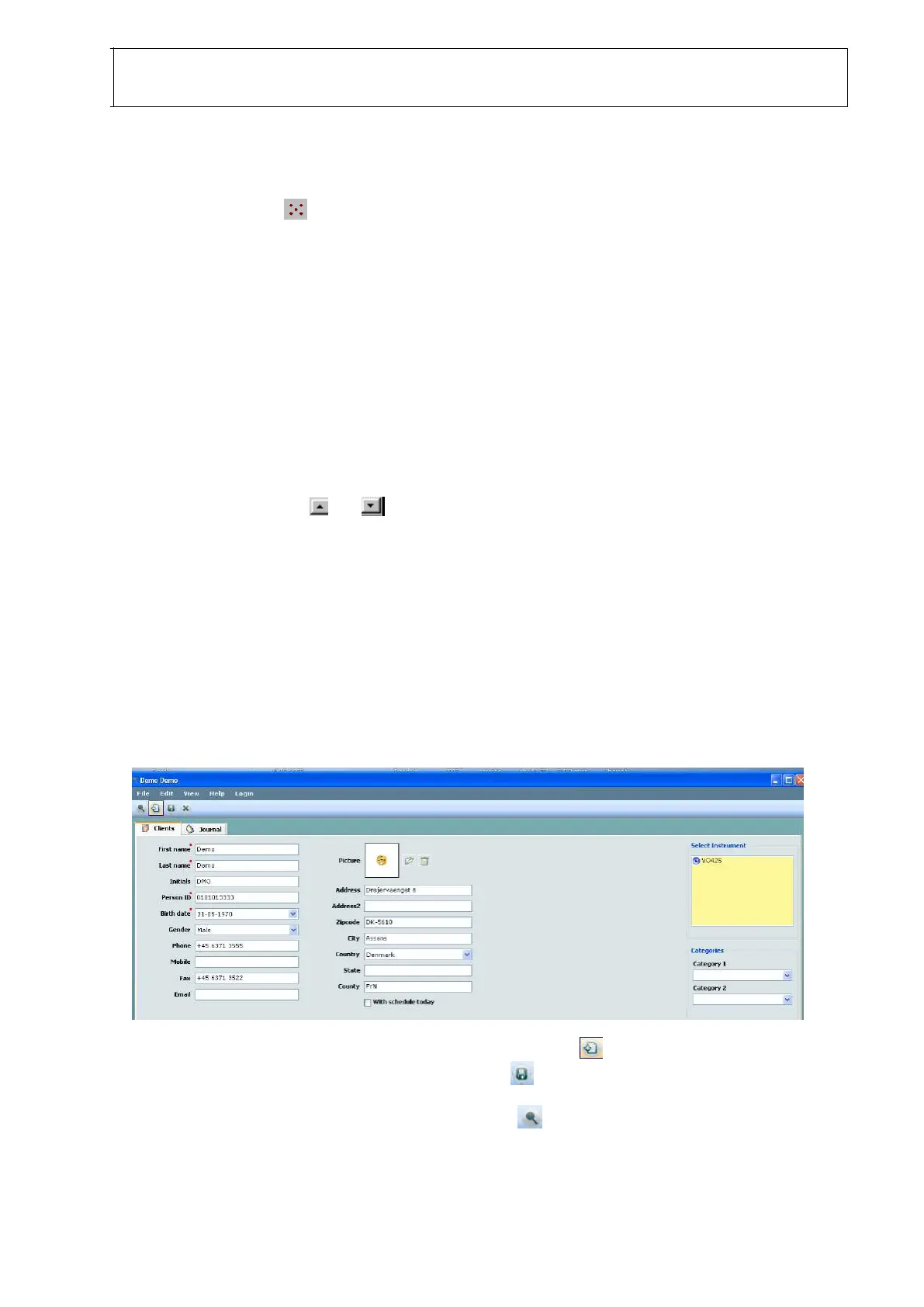
Operating the OtoAccess™ database
The first screen that will come up after the system has been turned on is the OtoAccess™
database screen.
To add a new client to the database click the “New Client” button and after entering the
required details such as name, person ID etc, save by
To search for any client, click the “Search Client” button , write client details (e.g. Person ID)
and use Enter.














 To Next Page