VN415 / VO425 Instructions for Use - English
Date: 2010-12-20 Page 3
To add a new examiner, open the File tab and click “Setup” in the pull-down
menu. Open the “Examiners” panel and enter the relevant details for the new examiner. Left click
on the “Save” button to store the examiner.
New Test
To enter test mode from the name database, double click the instrument symbol in the “Select
Instrument” box .
Open a new session from the Session Template by clicking , or simply click one of the test
icons to prepare for immediate testing.
Start the test with the button
Then use the return key or the IR remote control to progress through the steps of each test. The IR
remote control acts as a functional return key and can be used to start and stop testing, and for
switching on the fixation light.
Activating the fixation light
To activate the fixation light inside the goggle the can be used. Automatic activation can be set
in the Configuration dialogues.
Manual Edit Mode
To enter manual editing mode, click the “Toggle edit mode” button . In this mode graphs are
displayed in single mode, and in a larger scale than in the normal mode.
Video recording
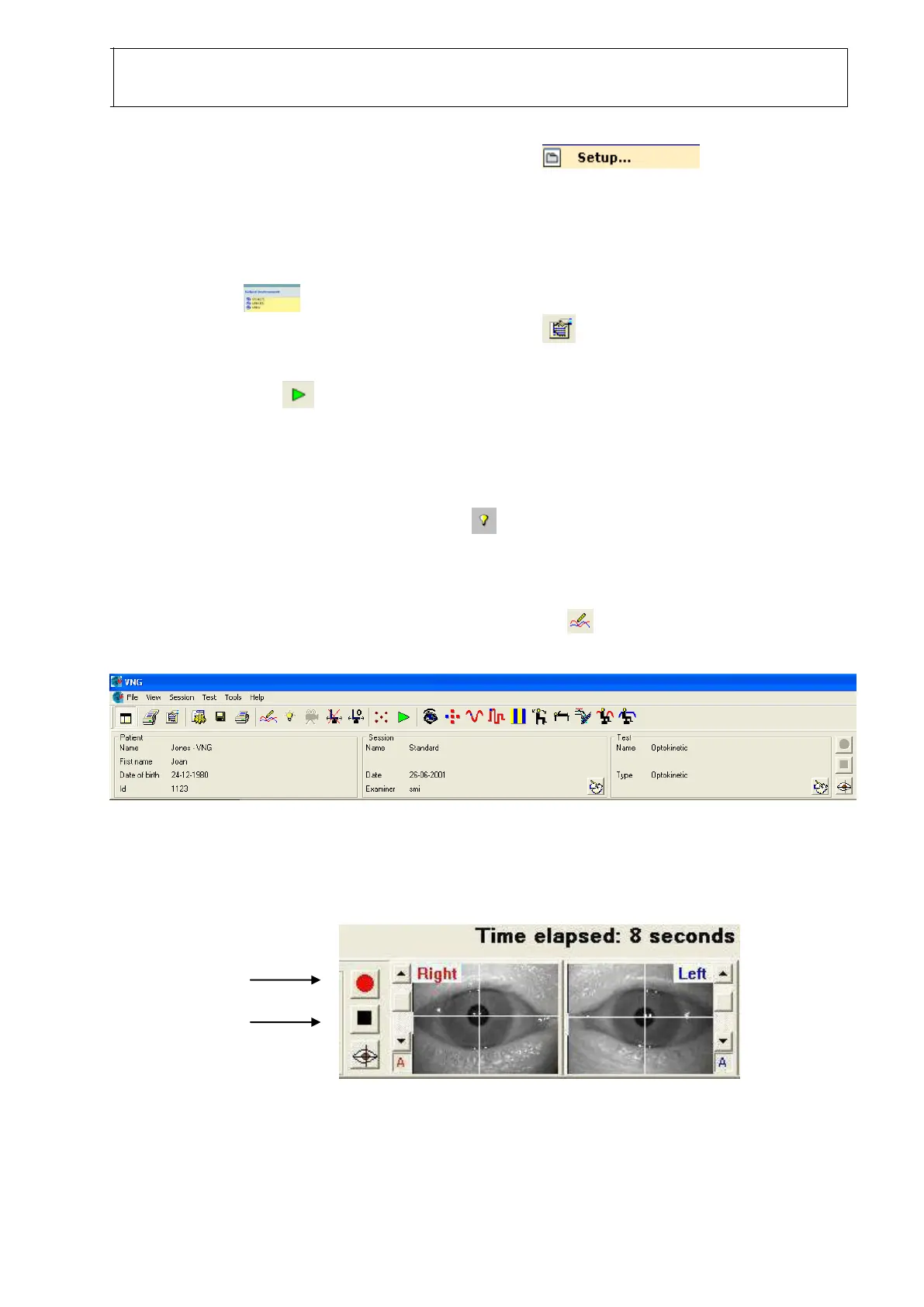
With the test in progress, click the ’Start Record’ button located on the left of the eye images.
To change the default setting of a test into automatic video recording, this option must be activated in
the test configuration dialogue under ‘Configure Test’.
When ‘Record’ button has been activated it will flash until the test is stopped, or until you press the
‘Stop recording’ button. Recording will automatically stop when the test is stopped or finished.














 To Next Page