Performing a Firmware Update
This section describes how to update your ATOMAS-MINI to newer firmware versions from the
web application.
1. Navigate to your device’s web application using your favorite web browser.
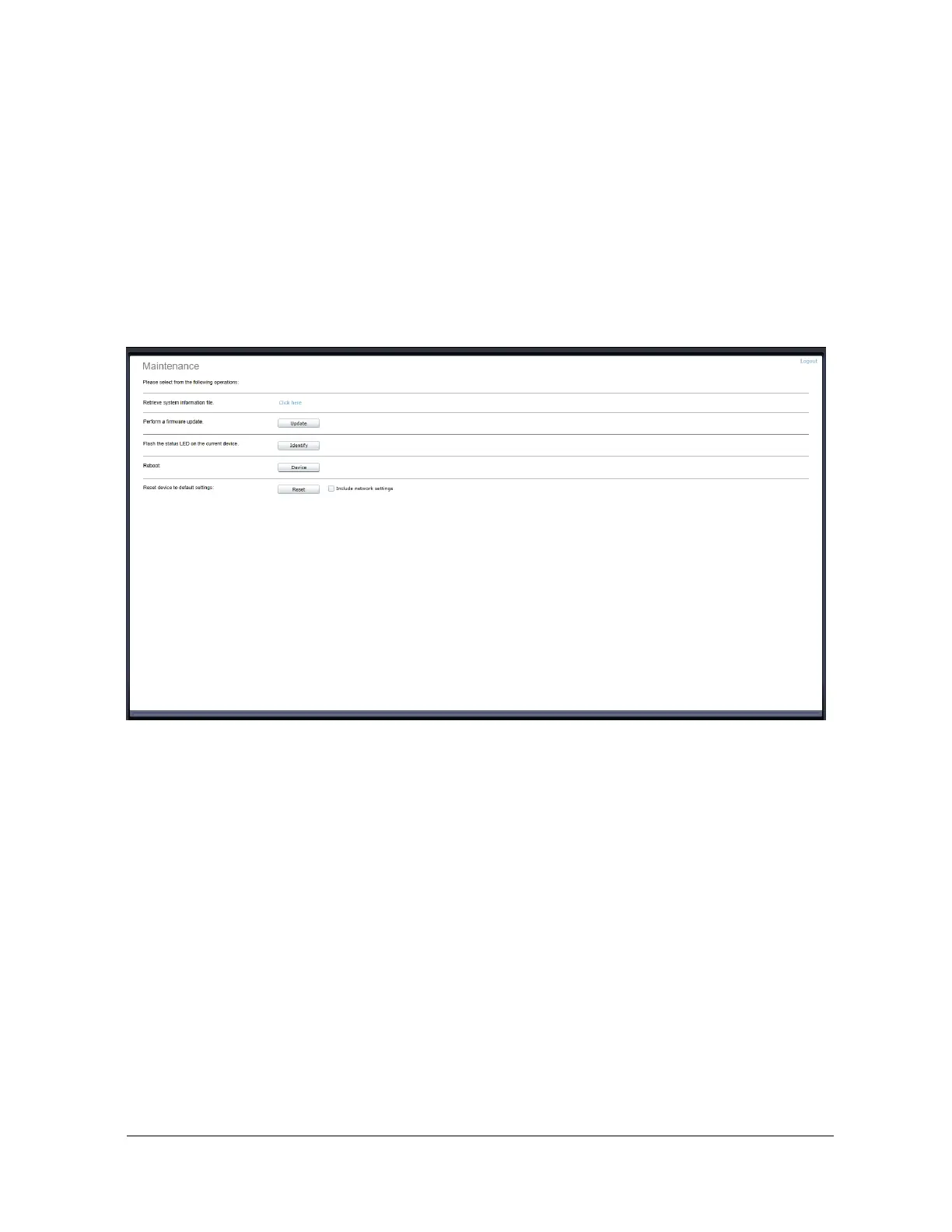
2. Click on the Maintenance tab.
3. Click on the Update button. You will be asked for the firmware update file; please select
the .iof file which was provided by IONODES.
4. You will see the following messages indicating the status of the update:
o Firmware upload in progress... (100%)
Lasts around 95 seconds.
Status LED is green.
o Firmware uploaded. Saving to internal storage... (0%)
Lasts around 45 seconds.
Status LED is flashing red-green.
o Validating and decompressing firmware... (0%)
Lasts around 105 seconds.
Status LED is flashing red-green.
o Firmware ready for installation. Rebooting device... (0%)
Web page will disconnect from device until device has rebooted.
You will be prompted for login once the device is up again.
Lasts around 110 seconds.
Status LED is orange.
o Testing firmware stability... (26%)
Lasts 120 seconds.


 To Next Page