36
Remote diagnosis
The remote diagnosis function helps you in case of a possible problem with your Programat furnace and facilitates the
communication between users and the After Sales Service team.
If the diagnosis function is executed, the furnace generates a diagnosis file, which is automatically saved on a USB flash
drive. The file can be forwarded by e-mail or analyzed by means of PrograBase X10 on a laptop computer / PC.
The diagnosis file provides furnace information (e.g. installed software version, set modes, etc.), operating data (e.g.
operating hours, firing hours, etc.), calibration data (e.g. calibration values, date of the last calibration, etc.), test results and
saved error messages.
The diagnosis file can be generated in ony a few steps:
Step 1:
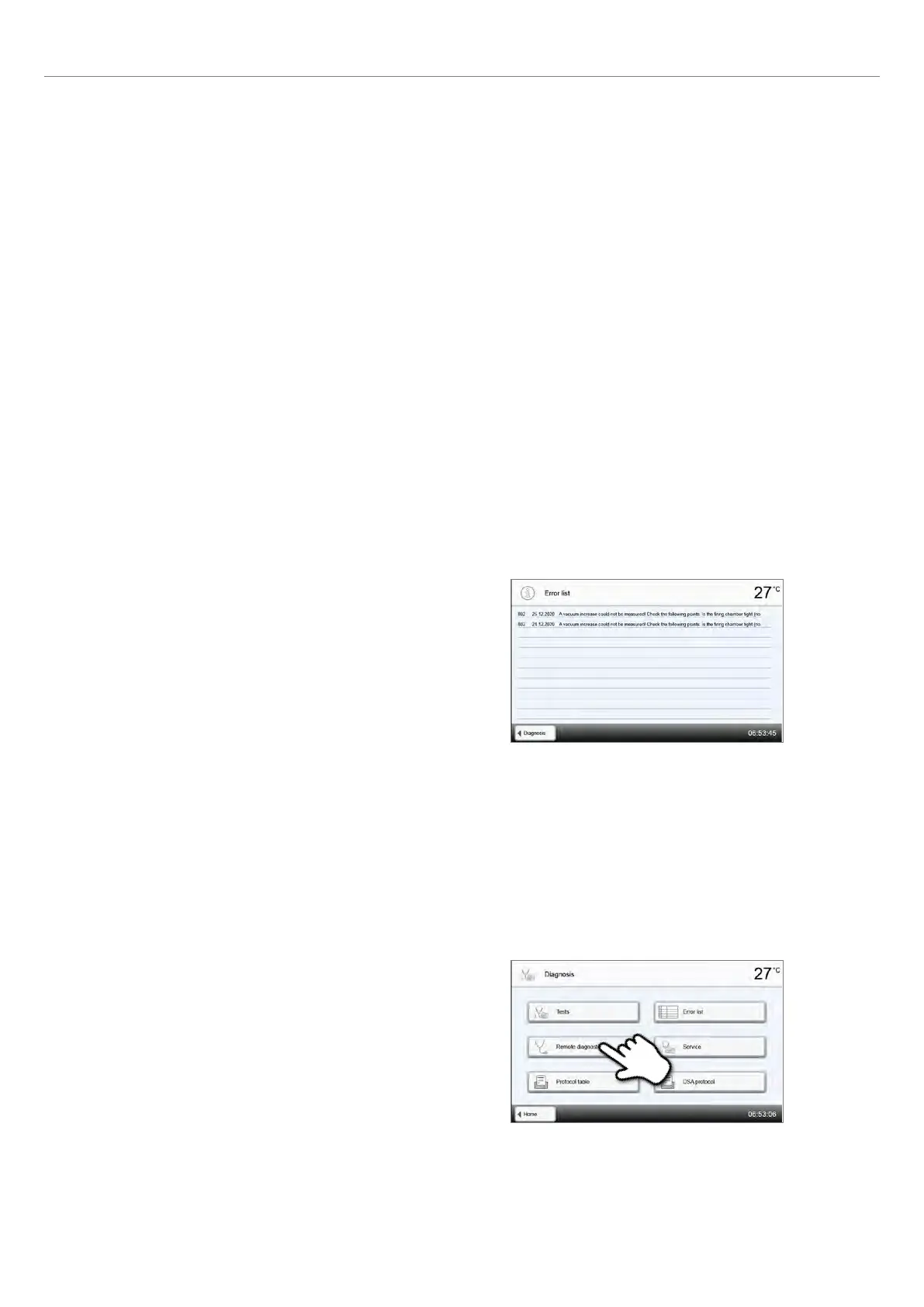
Open the diagnosis function
Press the [Remote diagnosis] button in the Diagnosis menu.
Tests (test programs)
– Vacuum test
With the vacuum pump test program, the vacuum performance and tightness of the furnace vacuum system can be
automatically tested. For that purpose, the achieved (minimum) pressure in mbar is measured and indicated. If the
pressure value is below 80 mbar (hPa), the vacuum performance of the system is adequate.
– Heater test
The heater test automatically checks the quality of the heating muffle. The heater test should only be conducted with
the empty firing chamber, since an object in the chamber (e.g. firing tray) may influence the test result. Conduct the
heater test immediately after switching on the furnace and before any actual firing procedures are conducted. If the
furnace is too hot, an incorrect heating muffle quality will be indicated.
– Keypad test
Each time the keypad or the touch buttons are pressed, a short acoustic signal sounds to confirm its function.
– Display test
Two different checkerboard patterns are alternately shown on the entire display. Every individual pixel can be visually
checked.
– OSD test
This test is used to test the correct function of the Optical Status Display. For that purpose, the OSD alternately flashes
in different colours.
Error list
Every error message is saved in an error table after it occurred. The
[Arrow] buttons are used to scroll through the list. The last 20 error
message are displayed.
2. Application



 To Next Page