XT200 Setup XT200 User Manual
Janam Technologies LLC Version 2, April 2020 XT200 Setup 3—5
Restoring the XT200
Data backed up to the cloud can be restored to an XT200 upon factory reset or onto a new XT200.
Upon initial boot, there will be a “Welcome to your XT200” message, with the option of either
setting the device up from scratch, or restoring data from another device or from the cloud. If cloud
is selected, you must first get connected to a Wi-Fi network. Once connected, the “Bring your data
from...” screen again presents the option to a) copy data wirelessly from your old device, an iPhone
device, or from the cloud. Selecting from the cloud will bring up the Sign in screen. Once signed in,
if you have backed up data from more than one device, you will be asked “Which device?” you wish
to restore apps and data from. Select the device to start the restore process.
Soft reset (“warm boot”)
A soft reset may be required 1) when the XT200 fails to respond, 2) after installing software applica-
tions that request a reboot, or 3) after changing to certain system settings. A soft reset reboots the
XT200 without losing RAM data. It terminates all running applications, reloads the OS, and launches
Autoinstall, which re-initializes any APK (Android Package Kit) files. To perform a Soft Reset:
1. Press the Power button for 3 seconds and select the Reboot on the power menu.
2. When the reset is complete, the Android lock screen appears.
Hard reset (“cold boot”)
A hard reset erases all of the data and applications stored in the XT200’s RAM memory. It then reloads
the OS, and launches Autoinstall, which re-initializes any APK (Android Package Kit) files. To perform
a cold Reset:
1. Press the Power button for 8 seconds until the XT200 begins rebooting.
2. When the reset is complete, the Android lock screen appears.
Resetting the XT200 to factory condition
Resetting the XT200 erases all personal data from internal device storage. This includes Google Ac-
count information, information about any other accounts, system and application settings and con-
figurations, and any downloaded apps. In essence, the device is returned to factory condition.
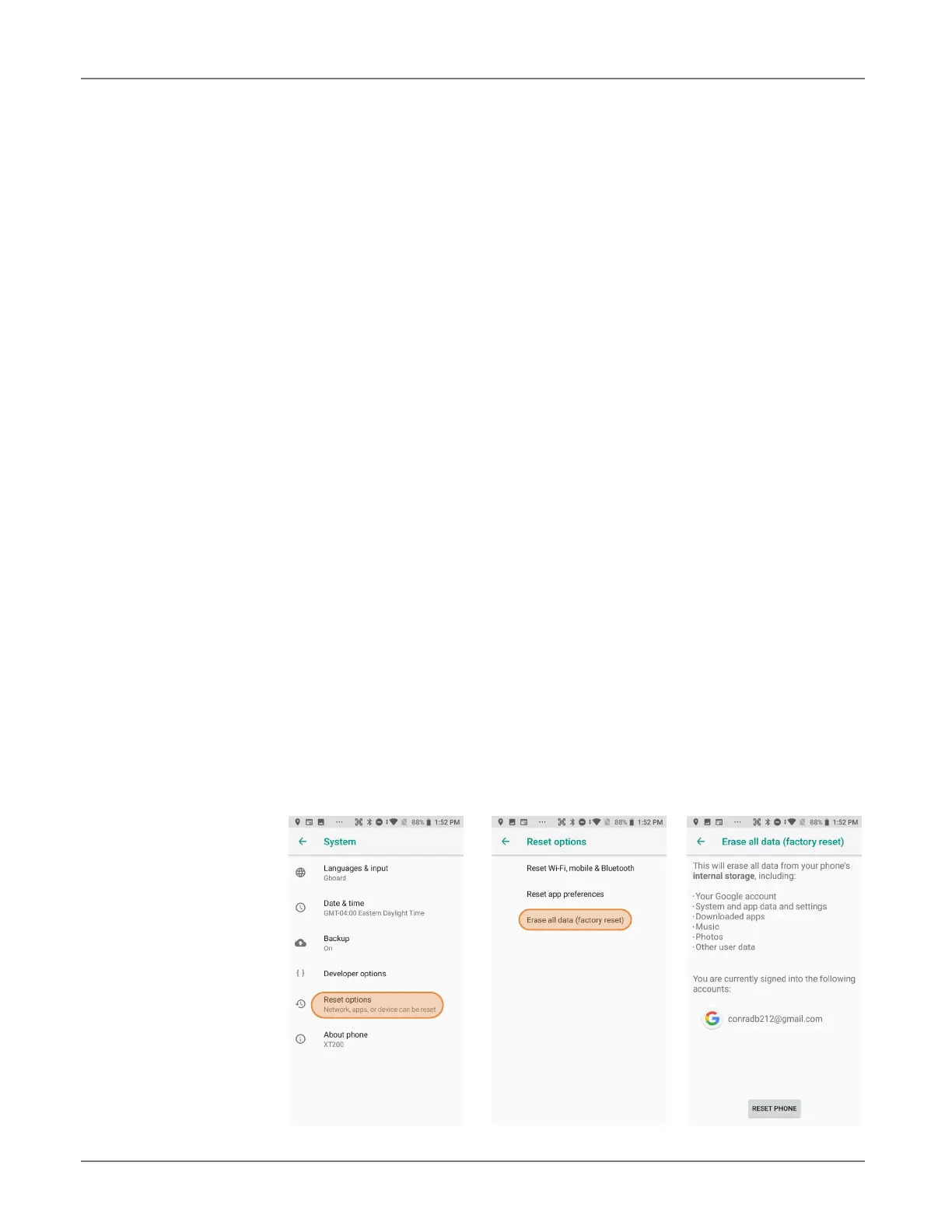
To perform a full reset,
tap Settings > System
> Reset options, and
then tap on Erase all
data. This brings up a
warning. To proceed, tap
on Reset phone. You
will be asked to supply
your PIN, password, or
pattern. Once erased,
you may turn off the de-
vice, or opt to reboot and
set it up from scratch or
from a backup.


 To Next Page