Barcode Scanning XT200 User Manual
Janam Technologies LLC Version 2, April 2020 Barcode Scanning 9—2
Scan Settings
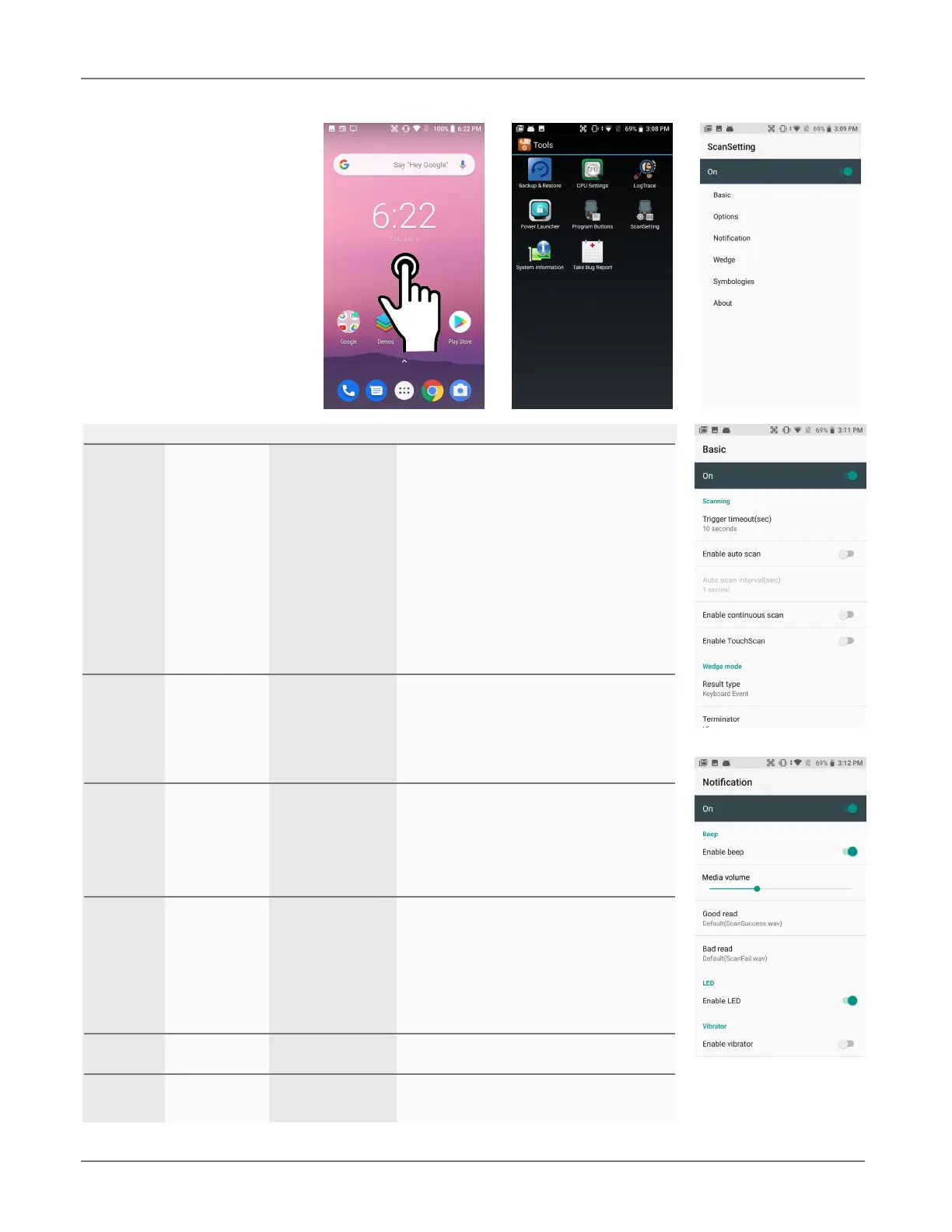
Go to
Tools > Scan Settings
to configure the XT200’s scan
engine and software. This is
where you set how the scan-
ner will work, how it will an-
nounce and communicate re-
sults, what all the scan
operation settings should be
and, most importantly, which
of the numerous code sym-
bologies the scanner should
read.
Tab Section Option Description
Basic Scanning Trigger timeout (sec) Specifies the trigger time out in seconds. If a
barcode is not decoded within the specified
timeout, the default Notifier indicates that
decoding is failed.
Enable Auto Scan Enable Auto Scan with specified interval.
Auto Scan interval Set Auto Scan interval time.
Enable Cont. Scan Enable Continuous Scan without any interval.
Enable TouchScan Brings up scan touch button.
Wedge mode Result Type Select Result Type:
User Message, Keyboard Event (default)
Clipboard, Intent Broadcast
Terminator Select the desired barcode end method from the
pull down list.
Values: None, Space, Tab, LF, Tab & LF
Custom intent Selectable events Can be part of a datawedge profile.
Options Options Enable Center Window Set enable/disable plays audio sound.
Decode Mode Standard or Quick Omni.
Decoding Delay Delay decoding up to 1 second.
Inverse 1D mode Reade regular or inverse or do autodetect.
Power Save Mode On or off.
Enable aimer On or off.
Enable illumination On or off.
Notification Beep Enable Beep Set enable/disable plays audio sound.
Media Volume Slider to set volume
Good/bad read Set sound to indicate good/bad read.
LED Enable LED Set enable/disable visual scan indicators.
Vibrator Enable Vibrator Set enable/disable vibrator operation.
Good read Set vibration time after good read.
Bad read Set vibration time after bad read.
Wedge Barcode ID Transmit Barcode ID Enable to transmit predefined barcode ID.
Transmit AIM ID Enable to transmit predefined AIM ID.
Group separator Set to one of 30 codes (default is GS).
Label Prefix Prefix sent prior to the decoded/received data.
Suffix Suffix to be sent after decoded/received data.
Character set Charset Select one of 14 character sets.
Extend. wedge Enable Toggle to select extended wedge.
Configuration Allows configuration and adding of styles
Symbologies Select barcode types you want to read
There is “Enable All” and “Disable All” to enable/disable all symbologies
About Scanner Show scanner type and software revision
Data Factory reset Restore scan settings to default.


 To Next Page