XT200 Setup XT200 User Manual
Janam Technologies LLC Version 2, April 2020 XT200 Setup 3—16
Device Settings (continued)
System: Languages & input
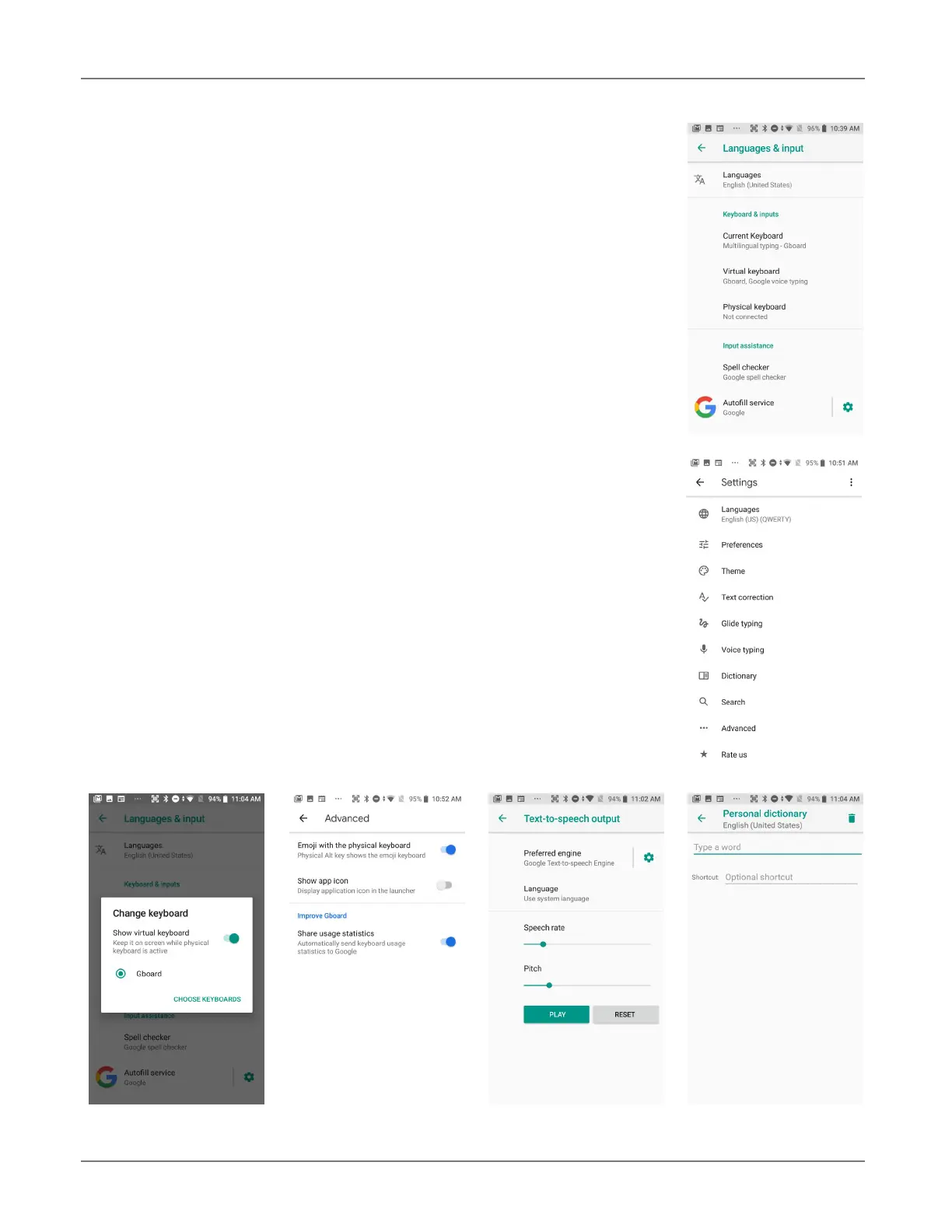
To configure and customize language and input settings of your
XT200, go to Settings > Languages & input:
c Language: Select from a long list of available languages.
c Keyboard & Inputs: By default, the enhanced virtual keyboard appears
when you open an application or select a field that requires text or numerical
input. The content of the keyboard may vary depending on the selected
default, the application in use, and the input field requirements.
To modify keyboard operation, go to Settings > System > Languages &
input and tap on Virtual keyboard. Here you can also configure and
customize your keyboard. If a Physical keyboard is connected, you can opt
to turn off the virtual keyboard and there is a Keyboard shortcuts helper.
c Input assistance: Turn the Spell Checker on and off, select which one you
wish to use, and allow or deny looking up of names in your contact list. You
can turn, per account, personal Autofill (passwords, addresses, credit cards,
etc.) on and off. You can add, edit, or delete words from an optional Personal
dictionary.
c Pointer speed: Adjusts the speed of the touch screen response to your
finger swipe.
c Text-to-speech output: Here you can configure Text-to-Speech, including
engine, language, speech rate, speech pitch, speech volume, intonation
(“expressive,” “somewhat expressive,” “flat”), how numbers in dates are
spoken, etc.


 To Next Page