XT200 Setup XT200 User Manual
Janam Technologies LLC Version 2, April 2020 XT200 Setup 3—15
Device Settings (continued)
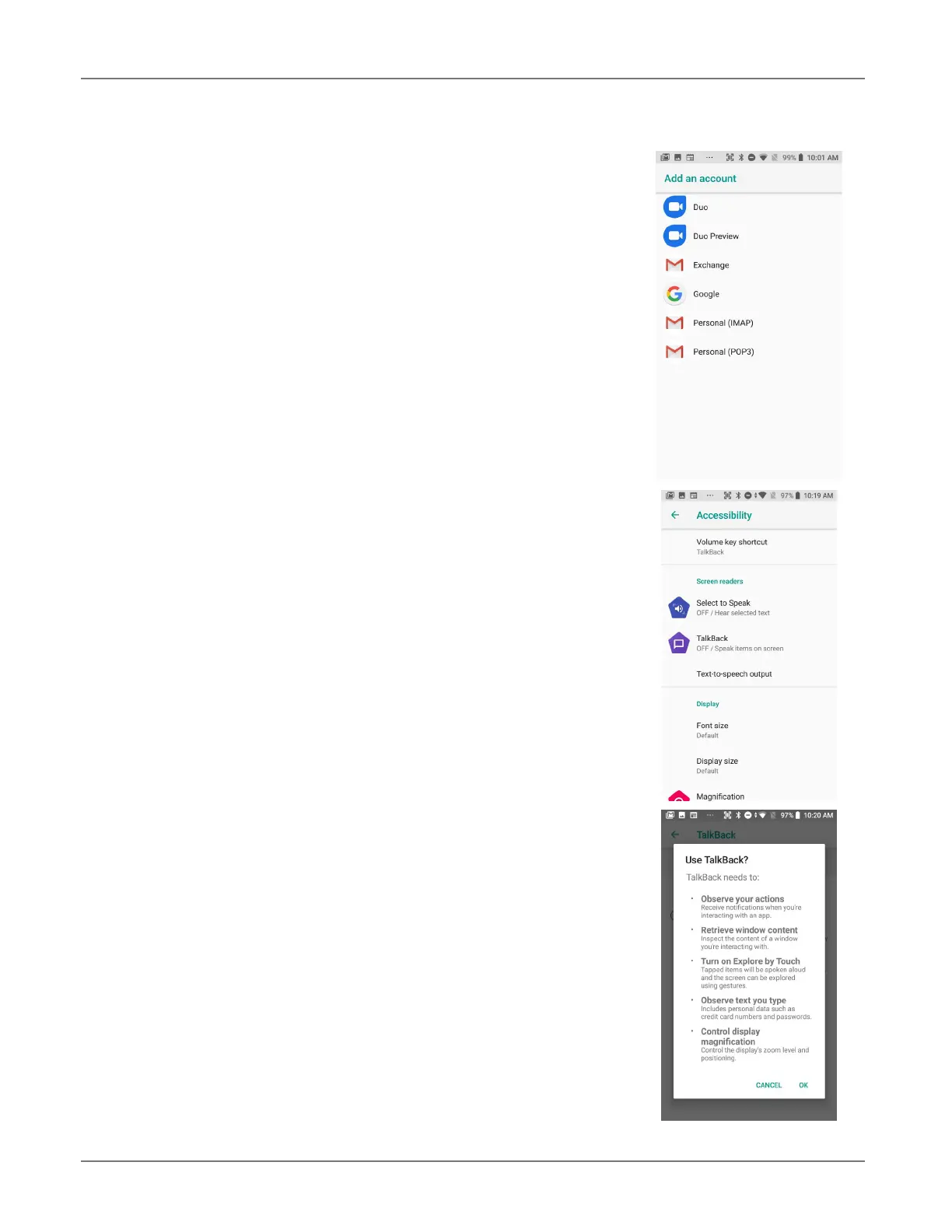
Users & accounts
Settings > Users & accounts is where email accounts are set
up. To add an account, tap Add account, then tap the type of
account to add. Follow the on-screen instructions to enter the re-
quired information for the account type selected.
Depending on the type of account, you may need to provide a
user name and password, select security settings, and configure
data sync preferences during the setup.
The account appears on the Accounts list when setup is com-
plete. Depending on the settings you selected during the account
configuration, your XT200 may automatically start to sync ac-
count data (e.g., email, contacts, music and calendar, etc.).
To remove an account, go to Settings > Users & accounts. Tap
the account you wish to delete. Press the Menu button at the right
top of the screen and then select Remove account. Tap Remove
account to confirm deletion.
Accessibility
To configure features that make using the XT200 easier for people
with certain physical disabilities, go to
Settings > Accessibility.
Services, system settings and display settings include:
c Select to Speak: When on, you can tap single or multiple (drag to
select) items to hear them read aloud.
c TalkBack: When on, provides spoken feedback such as describing what’s
been touched, selected or activated.
c TalkBack: When on, speaks items on the screen.
c Text-to-Speech output: When checked, turns on text-to-speech and
allows configuration of a large variety of TTS options.
c Display options: Adjust font and display size, toggle magnificatio and a
large mouse pointer.
c Magnification gestures: When on, triple tapping the screen zooms in
and out. Allows panning while zoomed, as well as triple tap and hold to
zoom into details.
c Switch Access: Enables switches to select items, scroll, enter text, etc.
Interaction controls also set touch sensitivity, touch & hold delay, etc.
c Power button ends call: When checked, makes it easier to hang up on
a call by simply using the power button.
c Auto-rotate screen: When checked, makes it easier to hang up on a
call by simply using the power button.
c Captions: When on, displays captions in various languages, sizes and
formats in apps that support it.
c High contrast text: When checked, tries to use higher contrast text
styles.
c Color inversion: Switches from dark on light background to light on
black background.
c Mono audio: Combines audio channels.


 To Next Page