NT–2000 REF Manual
Customizing Operation via Menu System
4-2
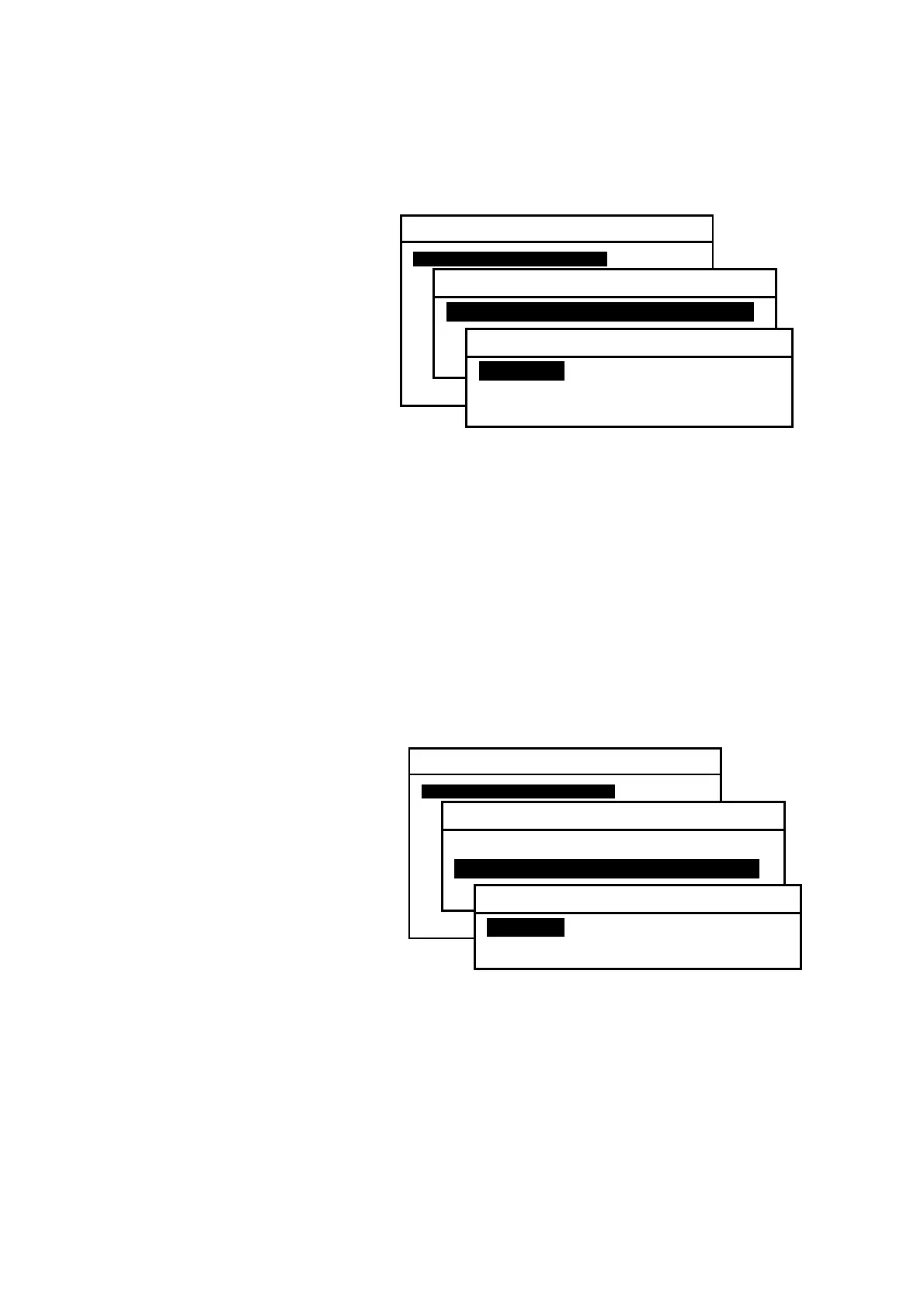
4.3. Selecting Screen Background Colors
Figure 4-3 Selecting Screen Background Colors
Three different colors (white,
black and blue) are selectable
for the text screen background.
Initially the background is set
to white.
The two others can be selected
via the following steps:
(1) Highlight option “1:MAKE DISPLAY SETTINGS” by pressing
/
,
followed by
.
(2) Select option “1:SELECT BACKGROUND COLORS” in the same manner.
(3) Highlight the desired color option by pressing
/
again, and then press
.
(4) Press
or
to return to the text screen.
4.4. Selecting Message Font Types
Figure 4-4 Selecting Message Font Types
NAVTEX messages are initially
displayed in a bold font for ease
of reading from a distance (2–3
meters away).
A thinner type font can be
selected via the following steps.
(1) Highlight option “1:MAKE
DISPLAY SETTINGS” by
pressing
/
and
then
.
(2) Select option “2:SELECT MESSAGE FONT TYPES” in the same manner.
(3) Highlight “2:NORMAL” by pressing
/
again, and then press
.
(4) Press
or
to return to the text screen.
SYSTEM MENU
1: MAKE DISPLAY SETTINGS
2: SELECT 2ND RECEIVER FREQUENCIES
3: SELECT 2ND RECEIVER LANGUAGES
4: TURN ON/OFF KEYPRESS BEEP
5: MAKE SEL /REJ SETTINGS
6. SELECT OUTPUT MESSAGES
7. SET OUTPUT PORTS
8. START SELF–DIAGNOSTIC TESTS
9: TURN ON/OFF MESSAGE ALARM
0. RESET TO FACTORY DEFAULTS
1: MAKE DISPLAY SETTINGS
1: SELECT BACKGROUND COLORSI
2: SELECT MESSAGE FONT TYPES
3: TURN ON/OFF SLEEP MODE
1:SELECT BACKGROUND COLORS
1: WHITEI
2: BLACK
3: BLUE
SYSTEM MENU
1: MAKE DISPLAY SETTINGS
2: SELECT 2ND RECEIVER FREQUENCIES
3: SELECT 2ND RECEIVER LANGUAGES
4: TURN ON/OFF KEYPRESS BEEP
5: MAKE SEL /REJ SETTINGS
6. SELECT OUTPUT MESSAGES
7. SET OUTPUT PORTS
8. START SELF–DIAGNOSTIC TESTS
9: TURN ON/OFF MESSAGE ALARM
0. RESET TO FACTORY DEFAULTS
1: MAKE DISPLAY SETTINGS
1: SELECT BACKGROUND COLORS
2: SELECT MESSAGE FONT TYPESI
3: TURN ON/OFF SLEEP MODE
2:SELECT MESSAGE FONT TYPES
1: BOLDI
2: NORMAL



 To Next Page