26
When using the Feature Tracker, Stencil 2 handles upside-down configurations by itself and the
parameter “upward” does not apply. If you are mapping / localizing without the Feature Tracker,
then you need to set the “upward” parameter to false
RECORDING COLOR IMAGES WHILE MAPPING
Stencil 2 saves 1.3 Megapixel color images from the camera. Saving color images cannot be done
while using one of the three Feature Tracking (with Camera) modes.
If you select Record Images along with a mode that uses the Feature Tracker, you can select the
frequency, but only monochrome subsampled images as used for feature tracking will be saved.
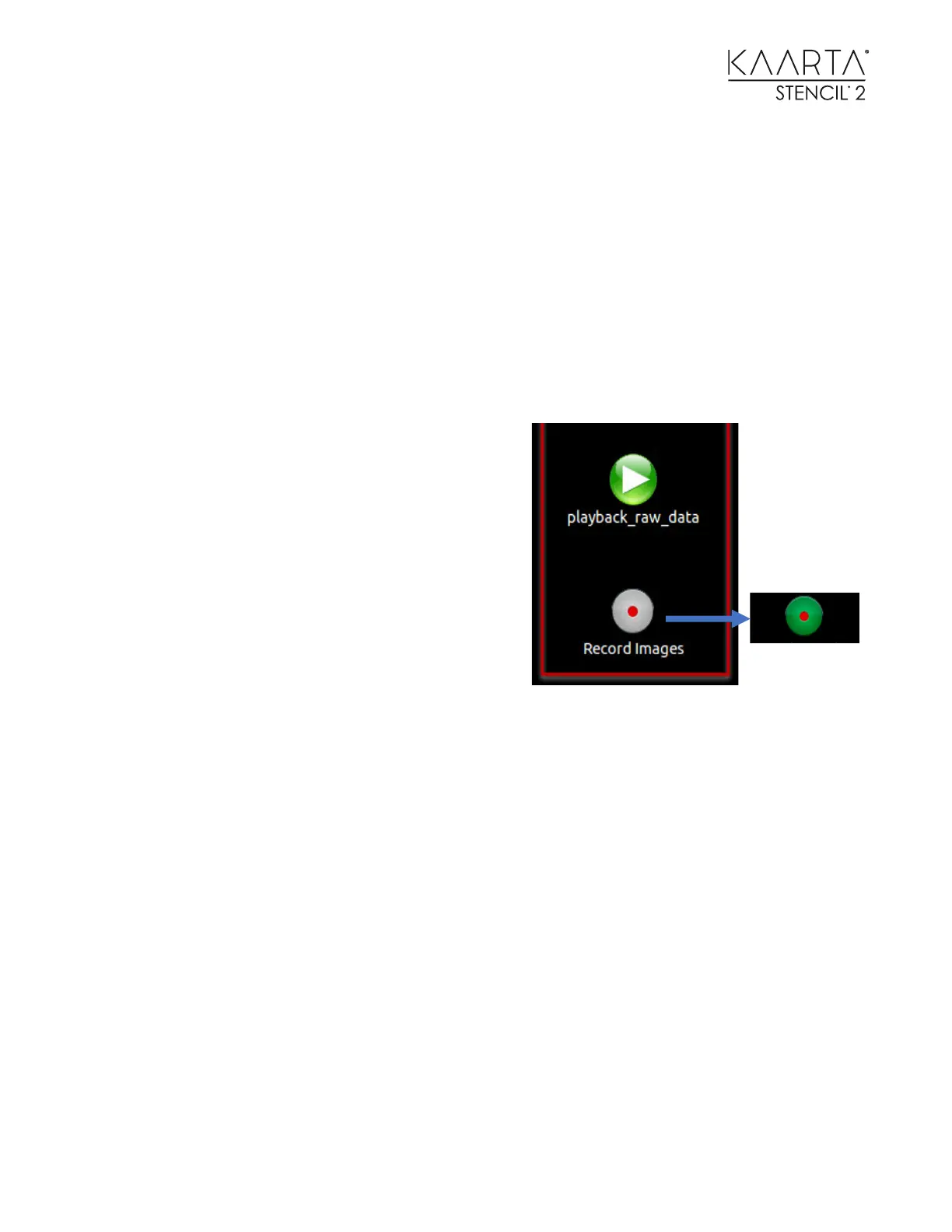
Image-saving mode is selected by selecting the
Record Images icon which will turn it from grey to
green. Images recorded will be saved in the Images
subfolder within the scan folder associated with each
scan.
The parameter file has three parameters related to
saving images. They are:
Image saving rate
Image horizontal resolution (not used in with_camera
modes.
Image vertical resolution (not used in with_camera modes.
The Record Images will create a sub-folder with the time-stamped images and also create an avi
movie file in the scan folder.
USING THE MODE SWITCH ICONS
There are six Mode Switch icons located on the upper the left side of the screen. These change
the operating modes from mapping or localization, whether operating with or without Feature
Tracker, and whether you are localizing from the start or end of a prior map. Visual confirmation
of the current mode is shown by a check mark on the icon.
After running these Mode Switch operations, the front panel Operating Mode pushbutton switch
starts and stops in the mode shown. These changes are saved and continue to be active even
after powering the system down and back up.
Stencil mapping/localization can also be started from the desktop Stencil Icon or by with remote
scripts using ssh. See Appendix VI – Synchronizing Customer Computer with Stencil 2 for
information on commands that Stencil 2 supports for remote operation.



 To Next Page