76
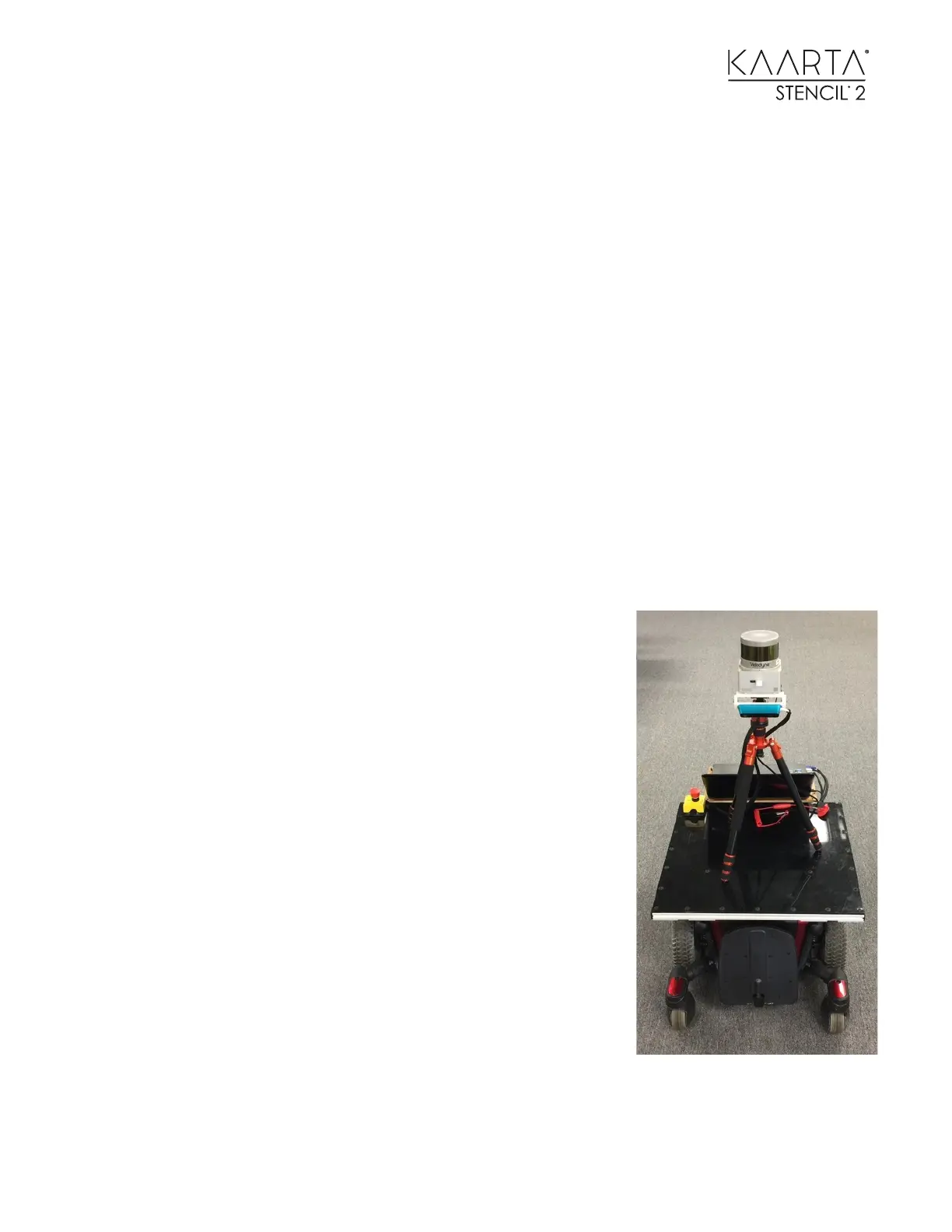
CASE STUDY 2: GROUND VEHICLE NAVIGATION
A ground vehicle can use Stencil 2 pose output for navigation as follows:
• Mount Stencil 2 horizontally on the ground vehicle, preferably high above the ground (>
1m) and occluding the Lidar field of view as little as possible. If you are indoors in a
constrained environment, you can tilt Stencil 2 up to 15 degrees, but if there are bright
lights overhead, be sure to point the camera towards the ground (forward or backward)
• Choose a mapping mode (can be with camera or without) and build a prior map by driving
the vehicle around.
• Examine the map to ensure it has registered correctly. You can run the Loop Closure Tool
on it if needed to remove any drift errors.
• Select Choose Map for Localization. The window will auto-populate the options with the
maps from the latest run. To use a loop-closed or sharpened map, you will need to select
the map from the window using the browser to the right of the file name.
• Select a localization mode (can be with camera or without). Start localization at origin of the
prior map. Alternately, if starting where Stencil 2 was stopped in the last mapping /
localization run, choose from last. You should also select the last pose for the map.
• Change blindRadius to a value that represents the vehicle
radius to exclude the vehicle points from the map. If maps
from localization runs are not needed, set saveLaserCloud
to false.
• Look at Localization Confidence topic to verify that you have
achieved lock-on at the start of the scan and that you do not
lose it during the scan.
• If vehicle is stopped, Stencil 2 pose can be locked by sending
false on /isSensorMoving topic. Sending true unlocks Stencil
2 pose.
Stencil 2 also supports acquiring lock through the current GNSS
position. If you created a loop-closed map using GNSS, you can
select that map for localization. To achieve lock-on with GNSS, you
start the Localize using GNSS Tool. Stencil will try to match the
current scan with the geo-located map by rotating the scan
through the 8 Octants to find the best match for starting yaw
position.



 To Next Page