94
GEO- LOCATING POINT CLOUDS
If you have survey GNSS data such as Ground Control Points (GCP) but no trajectory or time
estimates, you can still geo-locate / geo-reference your point cloud using CloudCompare, even
though you cannot geo-register your data with the Loop Closure Tool. Geo-location will rotate
and offset your locally-consistent point cloud into the world coordinate frame based on the
GNSS data.
CloudCompare allows data scaling to fit the GCPs onto physical features identifiable in the point
cloud, but this is not a full rubber-sheeting approach to warping the point cloud onto the
surveyed data. The Loop Closure Tool described elsewhere actually corrects the point cloud data
by geo-registering the point cloud along the trajectory path. This allows for drift-error correction
over the data collection. The geo-location only method of moving the local point cloud into world
coordinates is limited because it is only a rotation and translation correction.
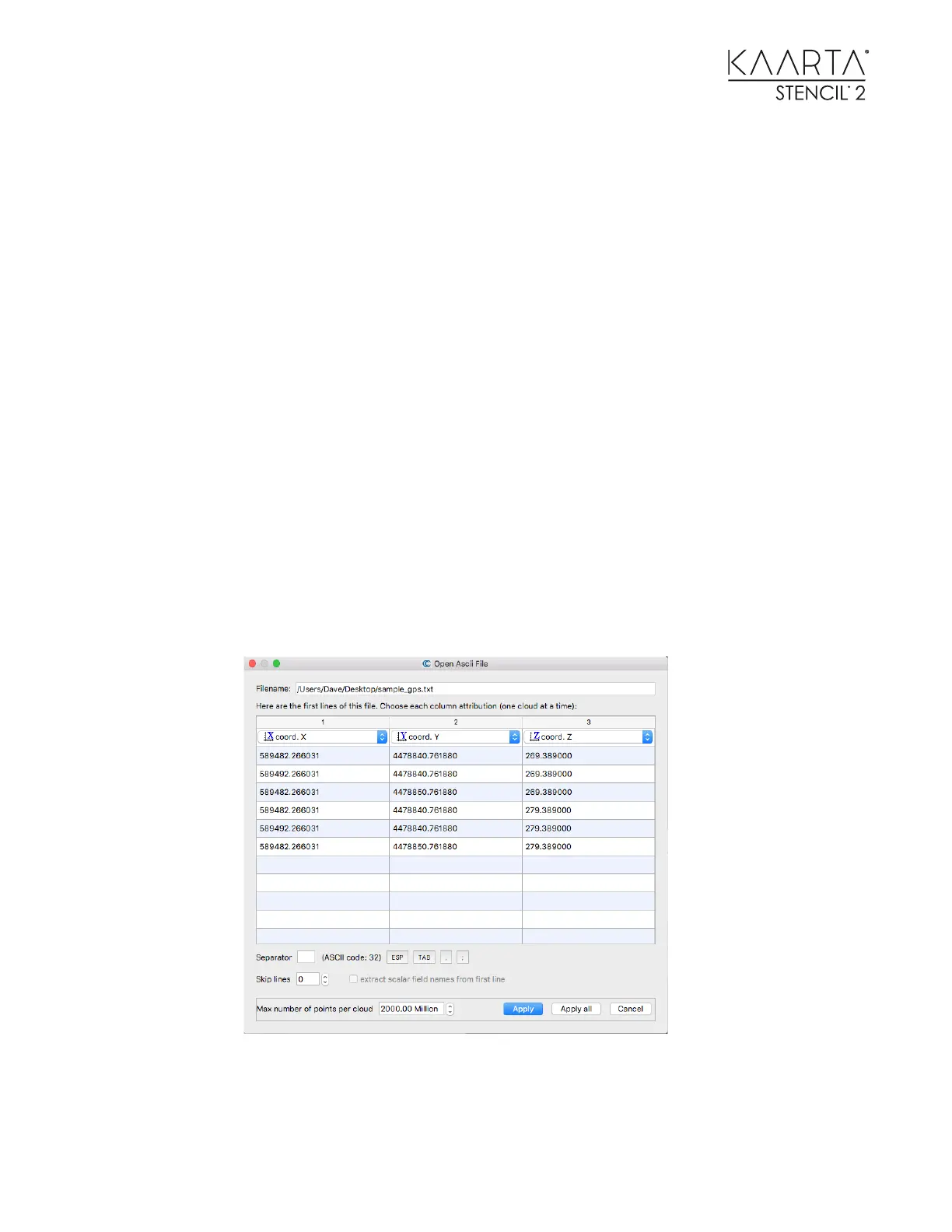
Create a text file with the x, y, z coordinates of each GCP such as this.
589482.266031 4478840.761880 269.389000
589492.266031 4478840.761880 269.389000
589482.266031 4478850.761880 269.389000
589482.266031 4478840.761880 279.389000
589492.266031 4478840.761880 279.389000
589482.266031 4478850.761880 279.389000
13. Load it into CloudCompare as a point cloud.
14. Load the point cloud you want to geo-locate into CloudCompare. Once you have
identified the physical features in the point cloud that align with the GCPs in the text
file, use CloudCompare to align them as described here.



 To Next Page