95
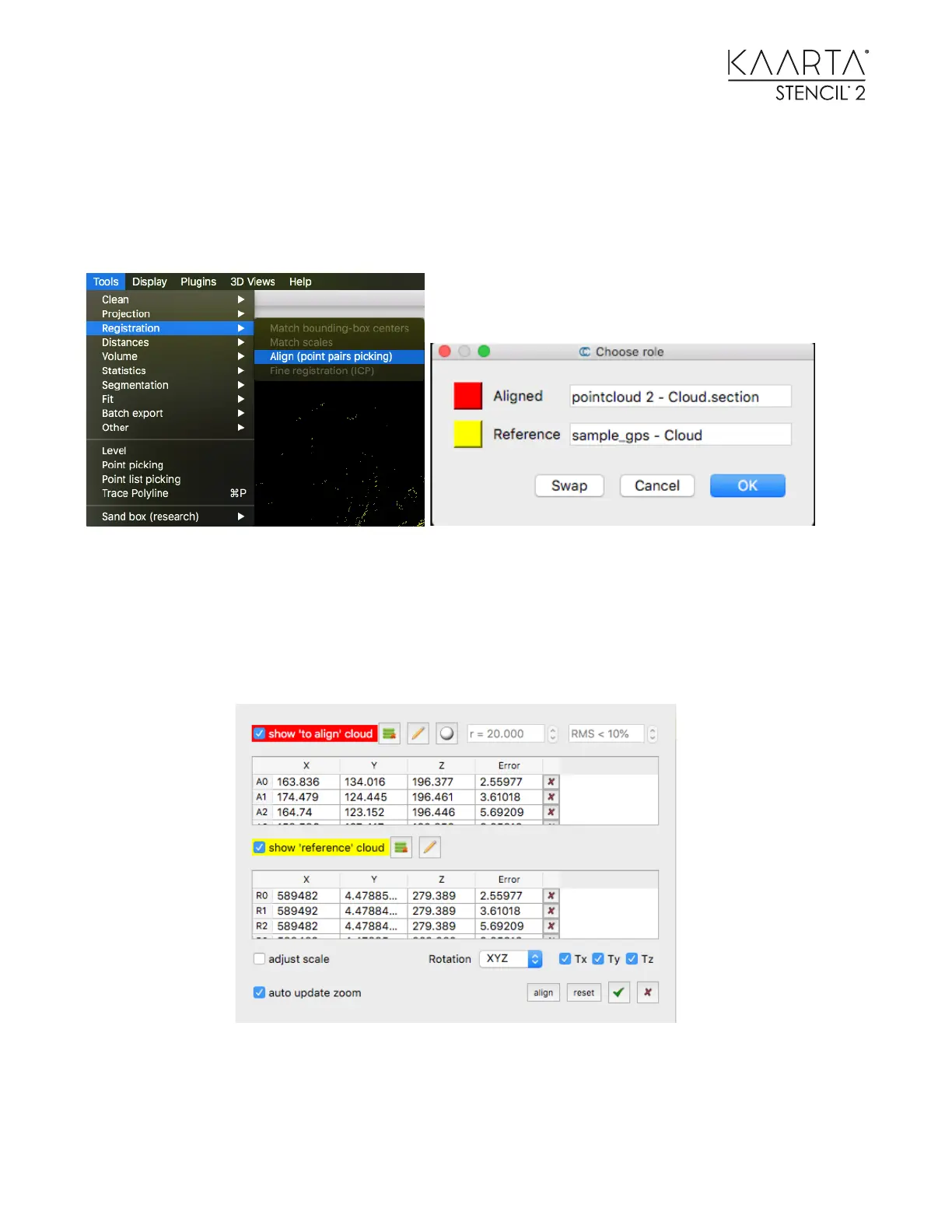
15. Select both point clouds in the left menu box then use the Align (point pairs picking)
tool under the Registration submenu to associate the GCP with the corresponding
point in the point cloud.
16. Be sure the GCPs are labeled as the Reference.
17. Start picking the corresponding points in each cloud. When you have the
corresponding pairs selected, you can see the effect of scaling on the error terms and
choose to add scaling to the geo-location process.
18. As a rule, do not scale as it distorts the finished cloud to match the points more
closely.
You can also set what rotation or translation is allowed when you align the clouds. When you are
finished, be sure to save the geo-referenced cloud in your desired format.



 To Next Page