53
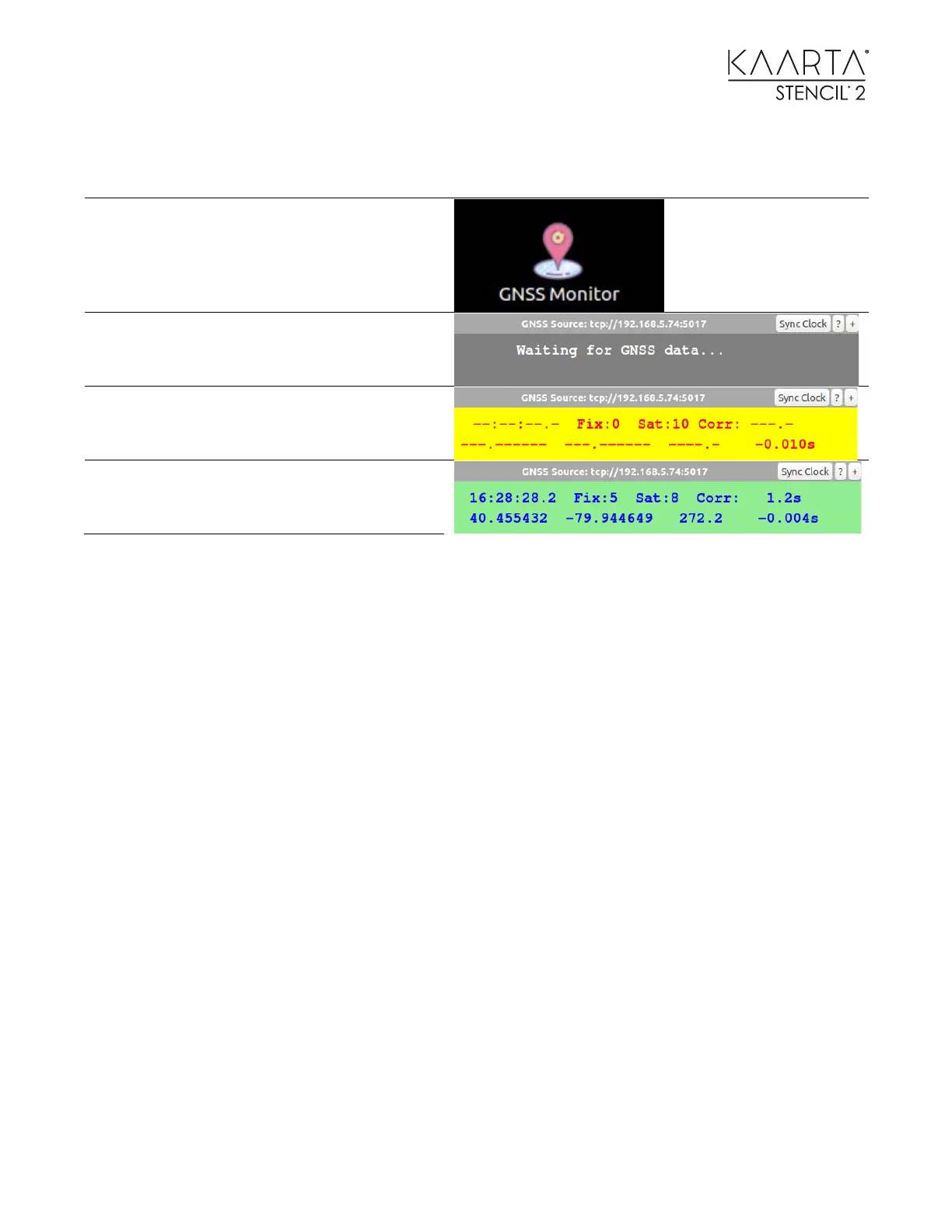
Data received if fix quality is 0
Fix quality if greater than 0
SYNCING STENCIL CLOCK TO GNSS TIME
Once a fix has been obtained, the Stencil clock can be set to match the GNSS time by clicking on
the Sync Clock button on the GNSS monitor. You should not do this while scanning as it will
definitely mess up the timestamps. You should see the time GNSS / Stencil difference (lower right
corner of the GNSS monitor window) change from a larger number to something like 20 – 25
milliseconds. Prior to syncing the clocks, you also need to consider the impact on chrony if you
have set it to true for synchronizing your computer with Stencil.
FINDING THE USB PORT ON STENCIL 2 , IF NOT KNOWN
If the GNSS device is not on the default ttyACM0 port, you may be able to access it on
/dev/ttyACM1, /dev/ttyUSB0, or /dev/ttyUSB1 using the cat < /dev/ttyXXXX as shown above where
XXX is the port number. Once you have determined the correct port number you can select the
GNSS Monitor Icon and enter it in the dialogue box.
Note: Some GNSS units only work over RS232, which may not register immediately on Stencil 2. To
verify that the USB-Serial adapter port is found, type lsusb in a terminal window. If you are still not
sure if it is there, remove the GNSS connector and type lsusb again to see if one of the devices is
removed. Once you have determined the USB-Serial adapter is present, type dmesg | grep tty to
see which port the GNSS is attached to. Once the port is confirmed, select the GNSS Monitor Icon
and populate the dialogue box. For FTDI chips that require setting the baud rate you can enter the
following in a console window substituting your port for the ttyUSB1:
stty -F /dev/ttyUSB1 9600



 To Next Page