93
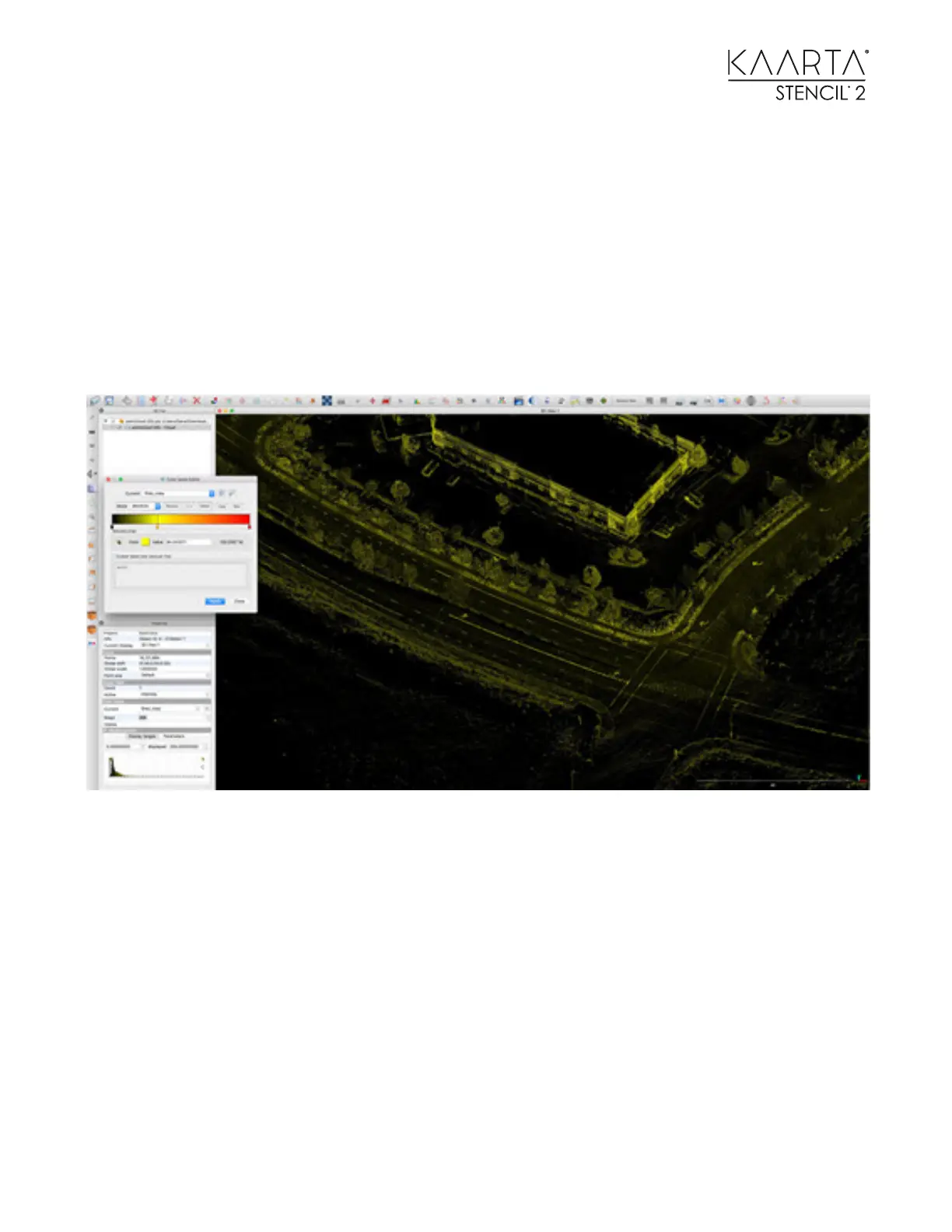
You can now set a custom colorization to highlight the intensity values. Start by clicking in the
middle of the grey color bar. A new crayon tip will appear. If you select the Color box below, you
can set this to yellow.
Clicking the crayon tip on the right will bring up the white Color box. You can set this to red, or
even set it to black if you want to dim the highest intensity values into the background. You can
drag the yellow color bar to set the gradient shading centered on an intensity value.
Your Color Scale Editor should look like the one on the right. You won’t see the effect until you
select Apply and then Yes on the Do You Want to Save Modifications? pop up. You can play with
this effect until the point cloud has the shading you want.
A quicker approach to better normalize the intensity values is to set the saturation maximum to
50 instead of the 255 that is shown normally. You can adjust this til the intensity values look the
way you want them to.



 To Next Page