168 Keysight M8194A 120 GSa/s Arbitrary Waveform Generator User Guide
7 Appendix
6 Select the “Channel Specific Frequency and Phase Response” check
box. This helps to improve flatness and linear phase distortions.
7 Ensure that the “Keep SR” check box is selected. This keeps the
sampling rate to a user-defined value, irrespective of any other defined
signal parameter.
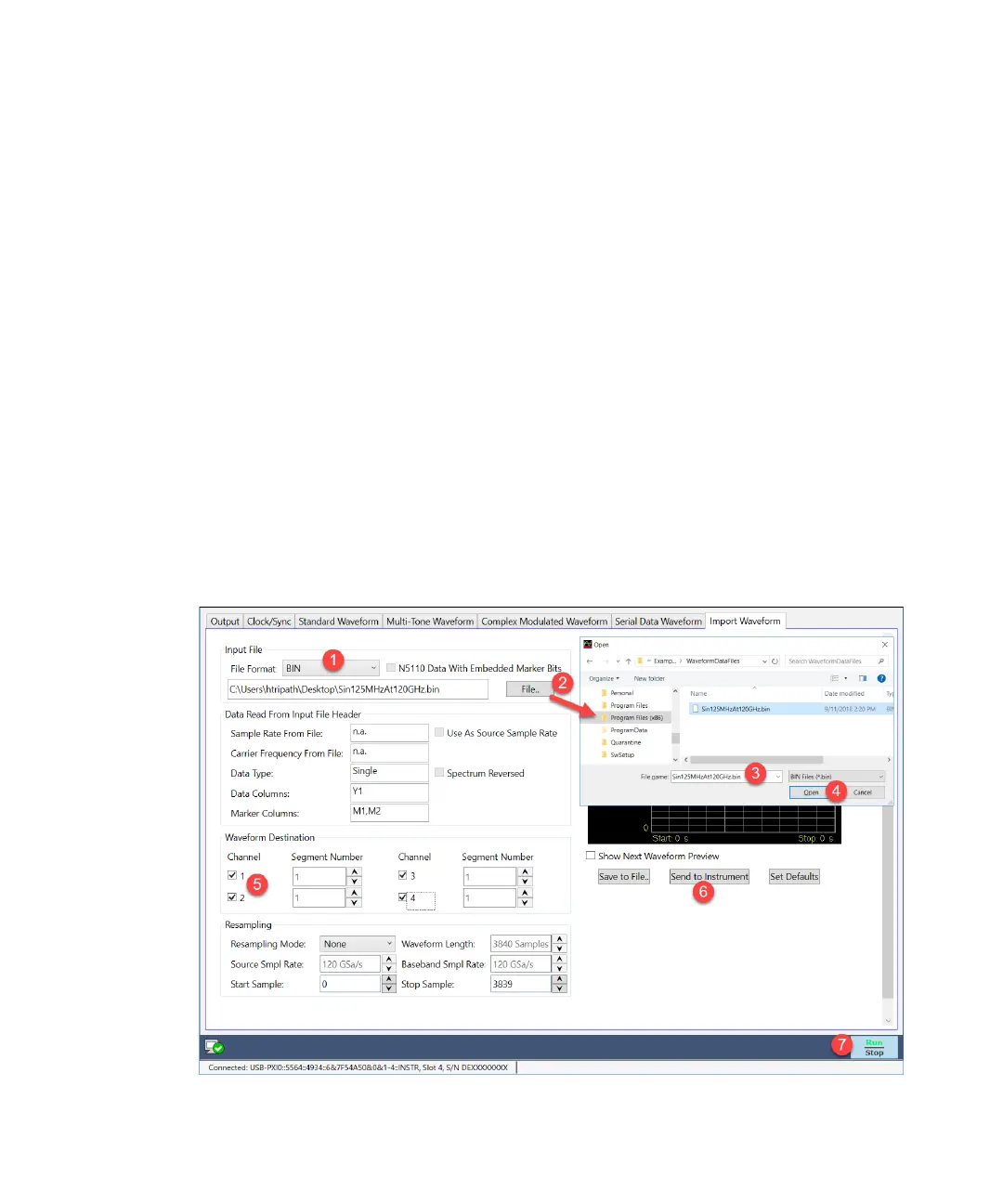
8Click “Send to Instrument” button. The signal will be transferred to the
selected segments of the selected channels.
9Click “Run” button to start a waveform generation on the selected
channels.
Importing Sample Waveform Data
The sample waveform data files are available for user in different formats.
These files can be simply imported using the Import Waveform tab and
can be sent to the instrument to view the waveform preview. For details on
Import Waveform tab, see Import Waveform Tab on page 85. The sample
waveform data can be found at the location: Start > All Programs >
Keysight M8194 > Keysight M8194 Examples > WaveformDataFiles
Follow the given steps to view the sample data file waveform preview:



 To Next Page