A75UM2E3 (Ver. E.2)
2-14
[Setting the sheet media to the printer]
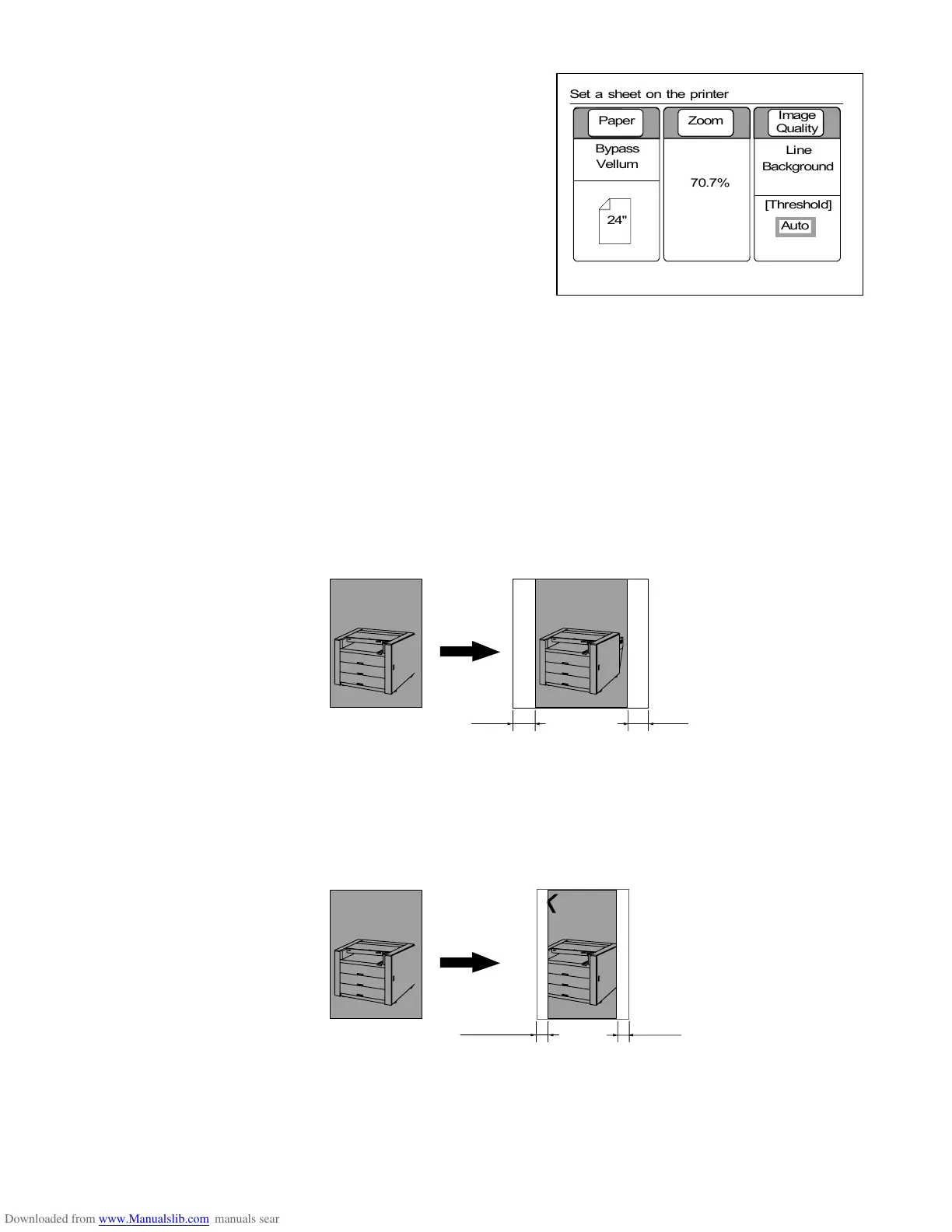
1. If scanner’s speed and printer’s one are same, the
LCD indicates “Set a sheet on the printer” when you
set the original to the scanner.
So, set the media to the printer, and then push the
Start Key.
Both original and sheet media are transported at the
same time and copying is started.
2. If scanner’s speed and printer’s one are different, set
the original to the scanner and then push the Start
Key to scan it.
The LCD indicates “Set a sheet on the printer” after
scanning.
If you set the media to the printer, it is automatically transported and copying is started.
(Note)
If the size of used sheet media is different from the sheet size setting, the copy will not be printed
successfully but be as follows.
1. When you use a larger (wider) sheet media than the sheet size setting, white margins will
provided to both sides of the copy.
(Result of copy)
2. When you use a smaller (narrower) sheet media than the sheet size setting, only the central
image of original will be copied.
(Result of copy)
KIPKIP
Margin Margin
Original Copy
KIP
Original Copy
IP
Lost image Lost image
0%
001


 To Next Page