Kramer Electronics Ltd.
VIA Connect² – For User: Connecting via VIA Connect²
Presenting from a VIA Pad
VIA Pad needs to have been paired with the VIA Connect² unit before it is used (see
Configuring VIA Pad Settings
on page 27).
The following instructions are for Windows and Mac OS users.
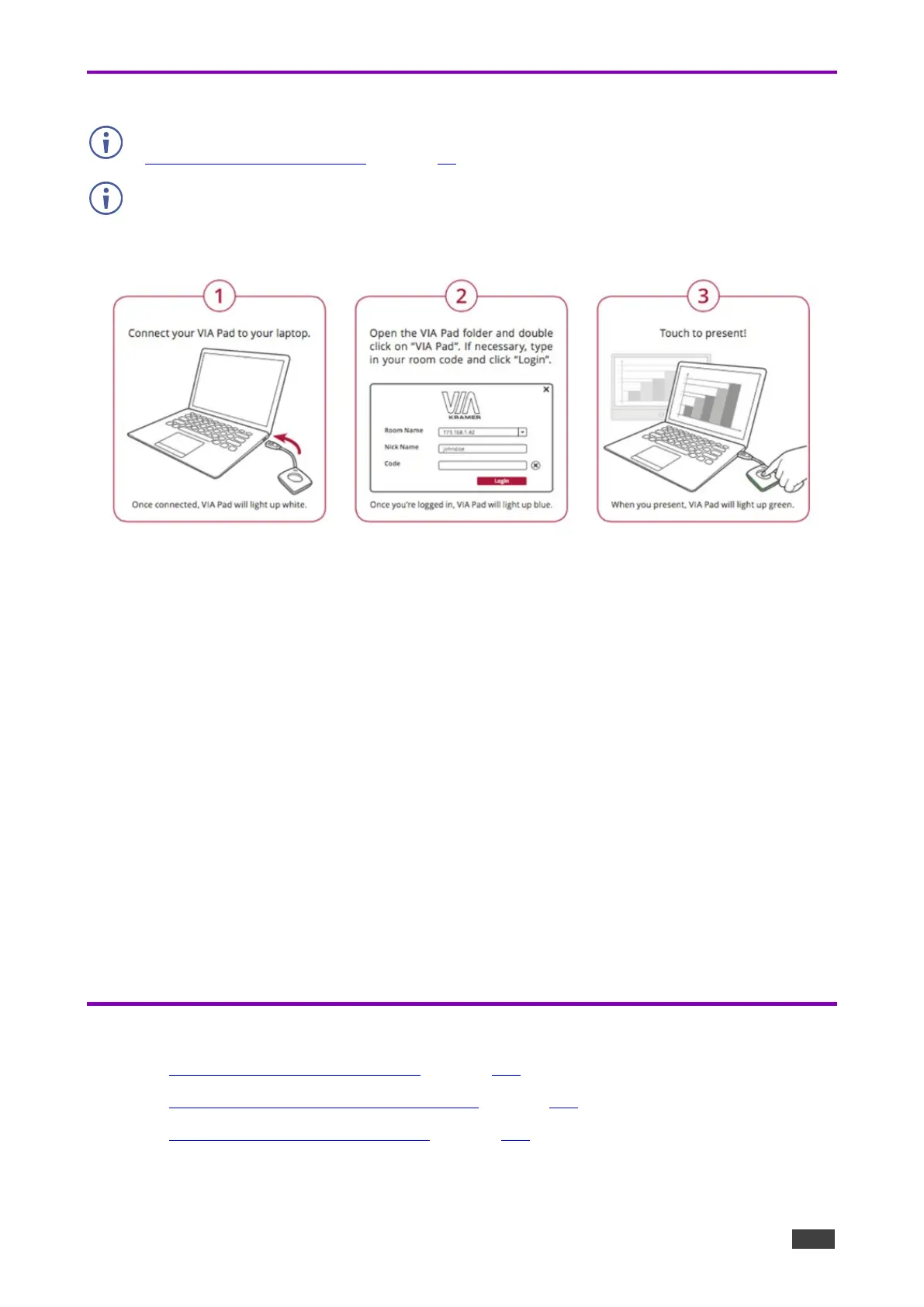
To join a meeting using a VIA Pad:
1. Connect your VIA Pad to a USB connector on your laptop.
2. Open the VIA Pad folder and double-click the VIA Pad app.
The Kramer VIA login window appears.
3. If necessary, type in your room code.
4. Click Join.
Your VIA Pad lights blue when ready.
The VIA User Dashboard and taskbar appear on your device screen.
5. Use VIA Pad to present:
Tapping once –Starts presenting or stops presenting your screen on the main
display. When you are presenting, the VIA Pad LED banner lights green. When you
stop presenting, the LED banner lights blue.
Tapping twice while presenting – Freezes or unfreezes your screen. When your
screen is frozen, the VIA Pad LED banner flashes green.
Long press – Displays your screen in full screen mode on the main display,
displacing any other participant screen.
Other Presentation Methods
• Presenting from an HDMI Source on page 102.
• Presenting by Casting (Screen Mirroring) on page 102.
• Presenting with Extended Desktop on page 104.



 To Next Page