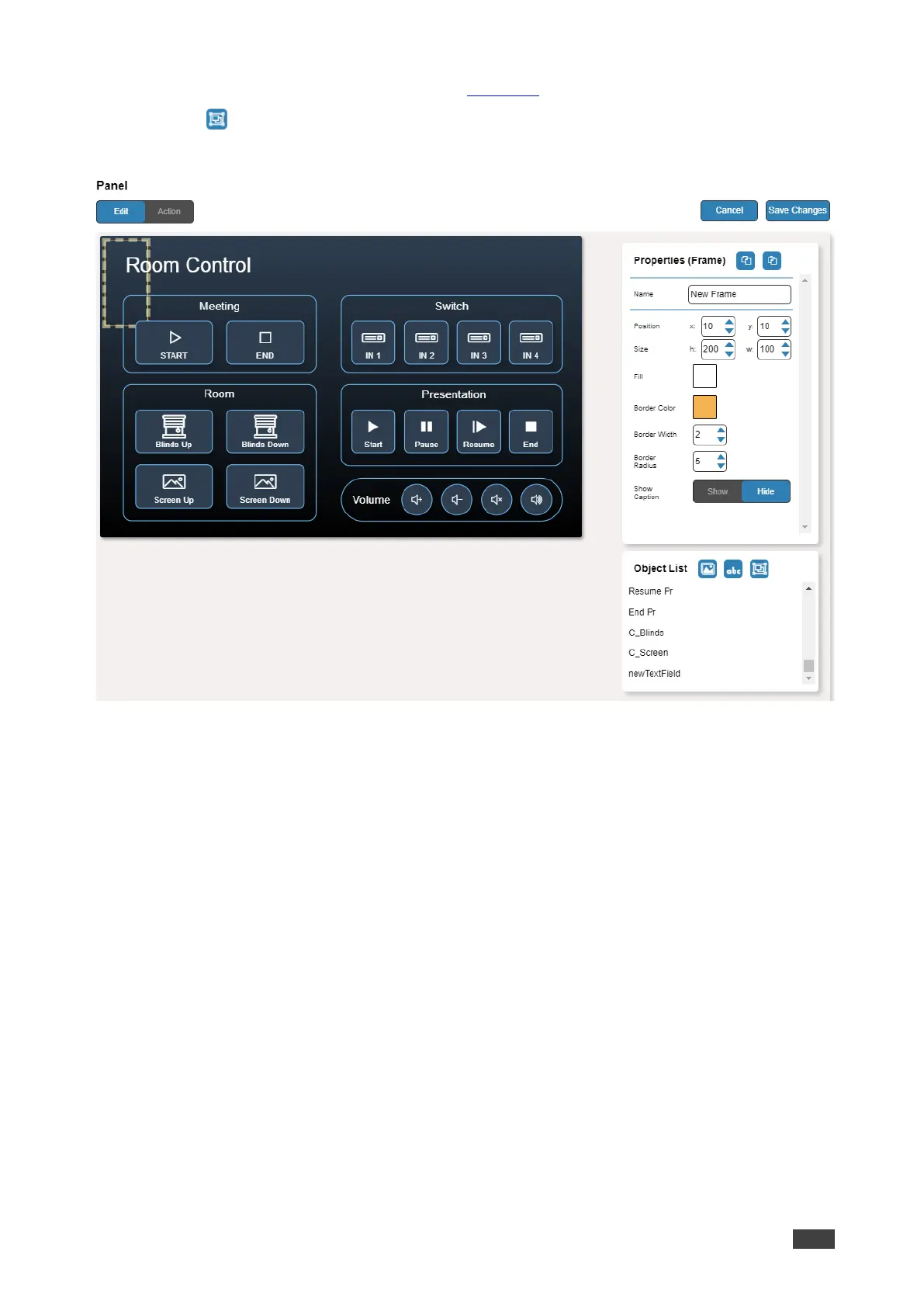
3. Click Edit. The Edit panel appears (see Figure 44).
4. Click (add a frame) to add a new frame to the panel. A new frame is added to the top
left side of the panel.
Figure 54: Adding a New Frame
5. Enter the frame name. For example, use “Meeting frame” to define meetings on/off area.
6. Design the frame appearance by selecting its:
▪ Position and size.
▪ Border color and background fill.
▪ Border width and radius.
7. Click Show/Hide to show or hide the frame. When showing the Caption, define:
▪ Caption text and size.
▪ Caption text color, background color and border color.
▪ Caption offset.
8. Click Save Changes.
A new frame is added.



 To Next Page