6-7
Sending > Preparation for Sending a Document to a PC
Creating a Shared Folder
Create a shared folder to receive the document in the destination computer.
1
Create a folder.
1 Create a folder on the local disk (C).
For example, create a folder with the name "scannerdata" on the local disk (C).
2 Right-click the scannerdata folder and click Share and Advanced sharing. Click the
Advanced Sharing button.
In Windows XP, right-click the scannerdata folder and select Sharing and Security... (or
Sharing).
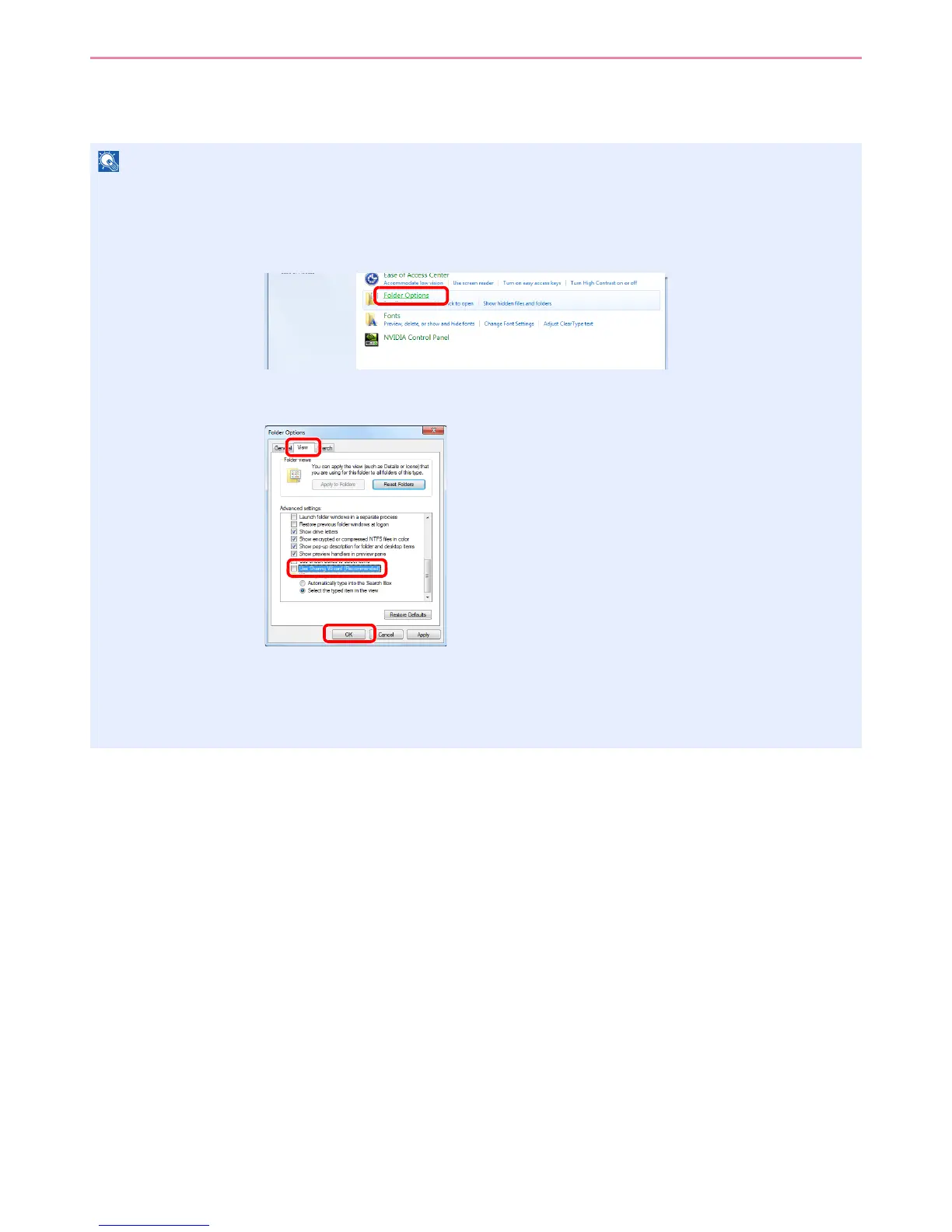
If there is a workgroup in System Properties, configure the settings below to limit folder access to a specific user or
group.
1 From the Start menu, select Control Panel, Appearance and Personalization, and
then Folder Options.
Windows XP, click My Computer and select Folder Options in Tools.
2
Remove the checkmark from Use Sharing Wizard (Recommended) in Advanced
settings.
In Windows XP, click the View tab and remove the checkmark from Use Simple File
Sharing (Recommended) in Advanced settings.


 To Next Page
 Loading...