8-14
Status / Job Cancel > Checking the Remaining Amount of Toner and Paper
Checking the Remaining Amount of Toner and
Paper
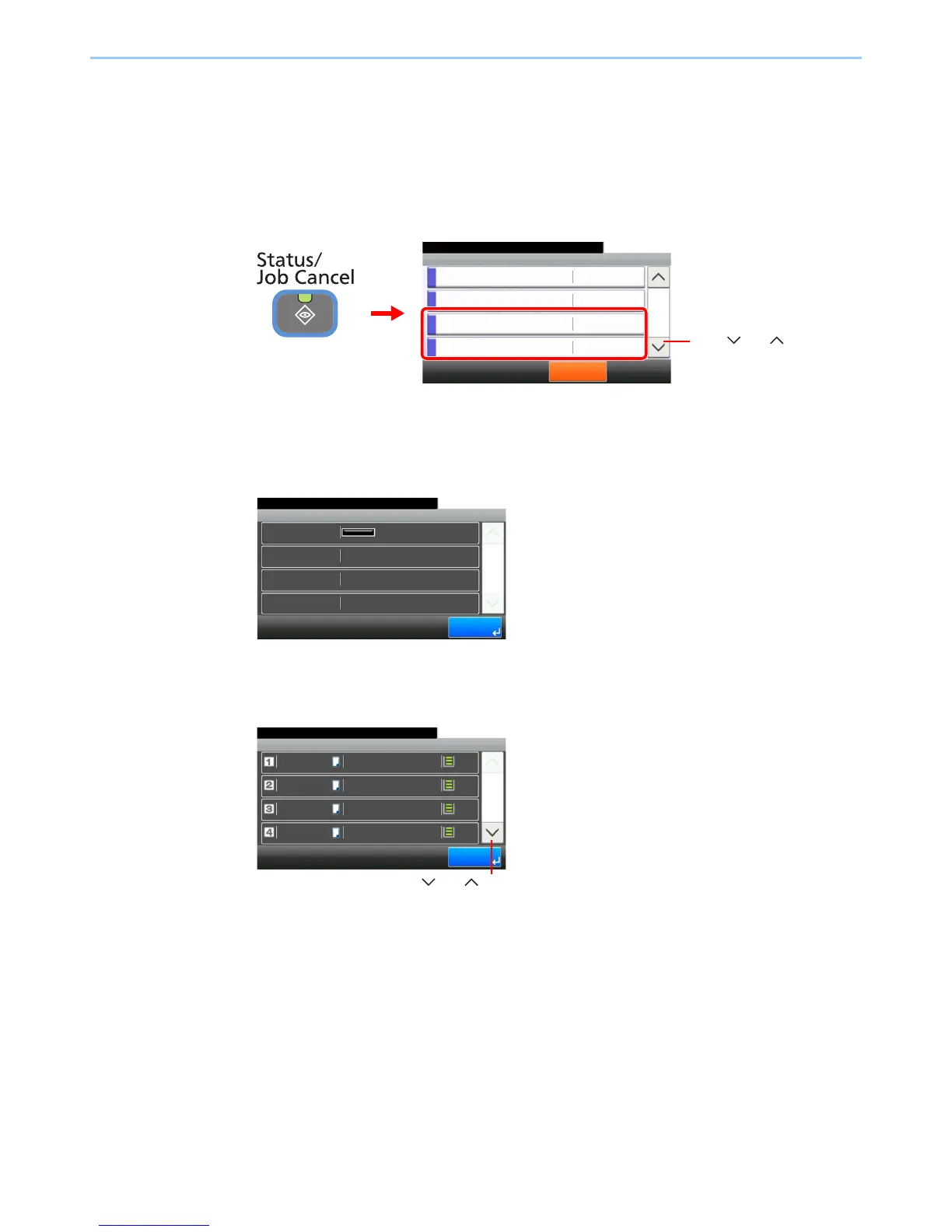
Check the remaining amount of toner and paper on the touch panel.
1
Display the screen.
Select the consumable you wish to check.
2
Check the status.
Toner Status
You can check the remaining amount of toner as one of 11 levels from 100 to 0%, and check
the status of waste toner box.
Paper Status
You can check the size, orientation, type, and remaining amount of paper in each paper
source. The remaining amount of paper is shown by four levels as 100%, 70%, 30%, and 0%
(none), however, the paper in the multi purpose tray is shown by two levels as 100% and 0%.
If there is no paper in either cassette, the paper status will be shown as No Paper.


 To Next Page
 Loading...