EasyManua.ls Logo

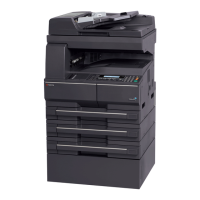
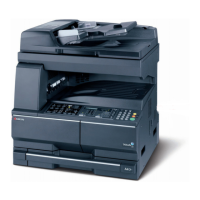
Kyocera TASKalfa 180 - User Manual

Kyocera TASKalfa 180
164 pages
Print Icon
To Next Page IconTo Next Page
Loading...
7$6.DOID

Table of Contents

Other manuals for Kyocera TASKalfa 180

Questions and Answers

  • H
    Heather MeyerSep 2, 2025
    Why are my Kyocera TASKalfa 180 printouts wrinkled?
    • Y
      yguzmanSep 2, 2025
      If your Kyocera All in One Printer produces wrinkled printouts, the paper separator of the paper feed unit might be dirty; clean the paper separator. Also, if the paper is damp, replace it with new paper.
  • L
    Lisa StaffordSep 1, 2025
    What to do if Kyocera TASKalfa 180 ejects blank sheets?
    • D
      Donald MartinezSep 1, 2025
      If your Kyocera All in One Printer ejects blank sheets, when placing originals on the platen, make sure to place them face-down and align them with the original size indicator plates. When placing originals in the optional document processor, place them face-up.
  • J
    Jaclyn FosterAug 31, 2025
    How to remove black lines from Kyocera TASKalfa 180 document processor printouts?
    • J
      Jacob SmithAug 31, 2025
      If you see black lines on printouts from the document processor of your Kyocera All in One Printer, it's likely that the slit glass is dirty. Clean the slit glass to resolve this issue.
  • H
    Heather McculloughAug 30, 2025
    Why are images skewed on my Kyocera All in One Printer?
    • I
      ihernandezAug 30, 2025
      To resolve images being skewed on your Kyocera All in One Printer, ensure the originals are placed correctly against the Original Size Indicator Plate when placing the original on the platen. When using the optional document processor, align the original width guides securely before placing the originals. Also, check the position of the paper width guides to ensure the paper is loaded correctly.
  • C
    cphillipsAug 29, 2025
    How to adjust darkness on Kyocera TASKalfa 180 printouts?
    • D
      duncankathrynAug 29, 2025
      If your Kyocera All in One Printer's printouts are too dark, and the machine is in Auto Density mode, set the correct density level. If the machine is in Manual Density mode, use the Image Quality selection key to set the correct density level.
  • M
    Marc AguirreAug 28, 2025
    What to do if pressing Start key on Kyocera TASKalfa 180 doesn't make copies?
    • T
      Tammy HodgesAug 28, 2025
      If pressing the Start key on your Kyocera All in One Printer doesn't produce copies, it could be due to a message on the touch panel. Determine the appropriate response to the message and respond accordingly. Alternatively, the printer might be in Sleep mode. Press the Power key to recover the machine from Sleep mode, and it will be ready to copy within 1 second.
  • D
    Diana PetersAug 27, 2025
    What to do when Kyocera TASKalfa 180 says 'Add toner'?
    • C
      Catherine MyersAug 27, 2025
      If your Kyocera All in One Printer indicates 'Add toner', replace the toner container with a new one.
  • T
    Tanya JacksonAug 25, 2025
    Why are the printouts from my Kyocera TASKalfa 180 dirty?
    • V
      vanessagoodmanAug 26, 2025
      If your Kyocera All in One Printer's printouts are dirty, the platen or the original cover might be dirty. Clean the platen or the original cover. Also, the transfer roller might be dirty, so brush the transfer roller clean.
  • A
    Alyssa BrownAug 25, 2025
    How to fix light printouts on Kyocera TASKalfa 180 All in One Printer?
    • J
      James VargasAug 25, 2025
      If your Kyocera All in One Printer's printouts are too light, and the machine is in Auto Density mode, set the correct density level. If the machine is in Manual Density mode, use the Image Quality key to set the correct density level. Make sure the toner is distributed evenly within the toner container by shaking it from side to side several times. Replace the toner container if there's a message indicating the need for toner. Replace damp paper with new paper. Clean the electrical charge section using the Cleaning Rod after opening the front cover. Also, disable EcoPrint mode.

Summary

Safety Conventions in This Guide

Preparation before Use

Basic Operation

Copying Functions

Basic Copying Procedure

Step-by-step instructions for performing basic copying operations.

Adjusting Density

How to manually adjust the copy density for desired output.

Zoom Copying

Adjusts the magnification to reduce or enlarge the original image.

Duplex Copying

Instructions for making two-sided copies from originals.

System Menu

Procedure for Changing the Default Settings

Guides users on how to modify the machine's default settings.

Job Accounting

Overview of Job Accounting

Provides an overview of the job accounting features and capabilities.

Maintenance

Troubleshooting

Kyocera TASKalfa 180 Specifications

General IconGeneral
Duplex printingNo
Print technologyLaser
Maximum resolution2400 x 600 DPI
Economical printingYes
Time to first page (black, normal)5.7 s
Print speed (black, normal quality, A3)8 ppm
Print speed (black, normal quality, A4/US Letter)18 ppm
SafetyTÜV/GS, CE
Media thickness0.11 mm
Dimensions (WxDxH)568 x 546 x 502 mm
All-in-one functionsCopy, Print
Compatible operating systemsWindows 98 SE/ME/2000/XP/Vista
Maximum duty cycle- pages per month
Copier resize25 - 400 %
Maximum copy resolution600 x 600 DPI
Maximum number of copies999 copies
Grayscale levels256
Optical scanning resolution- DPI
Total input capacity300 sheets
Total output capacity250 sheets
Maximum input capacity1300 sheets
Multi-Purpose tray input capacity100 sheets
Maximum print size297 x 420 mm
Paper tray media typesPlain paper
Non-ISO print media sizesFolio
ISO A-series sizes (A0...A9)A3, A4, A5, A6
Maximum ISO A-series paper sizeA3
Display-
Market positioningBusiness
Standard interfacesUSB 2.0
USB 2.0 ports quantity1
Processor familyARM9E
Processor frequency150 MHz
Sound pressure level (printing)65.3 dB
AC input voltage220 - 240 V
AC input frequency50 - 60 Hz
Power consumption (standby)60 W
Power consumption (average operating)424 W
Sustainability certificatesENERGY STAR

Related product manuals