2big NAS User Manual 20
ACCESS AND TRANSFER FILES
ABOUT DEFAULT SHARES
Your 2big NAS has two shares (similar to folders) by default: Share and Public
The following table sums up the differences between them:
Name Accessibility Login Availability
Share
Private, accessible only to
admin by default
Password-protected
When connected to the network (Ethernet) and to
networked computers
Public
Public, accessible to any
user on the network
None
When connected to the network (Ethernet) and to
networked computers or UPnP/DLNA-certified
players/adapters (if multimedia service is activated
at the global and share level)
It is also possible to create new shares and/or to delete the default shares. See Drive Information for details.
ACCESS SHARES
You have several options for accessing shares on your 2big NAS.
Option 1
Launch LaCie Network Assistant.1.
Windows Users:
■
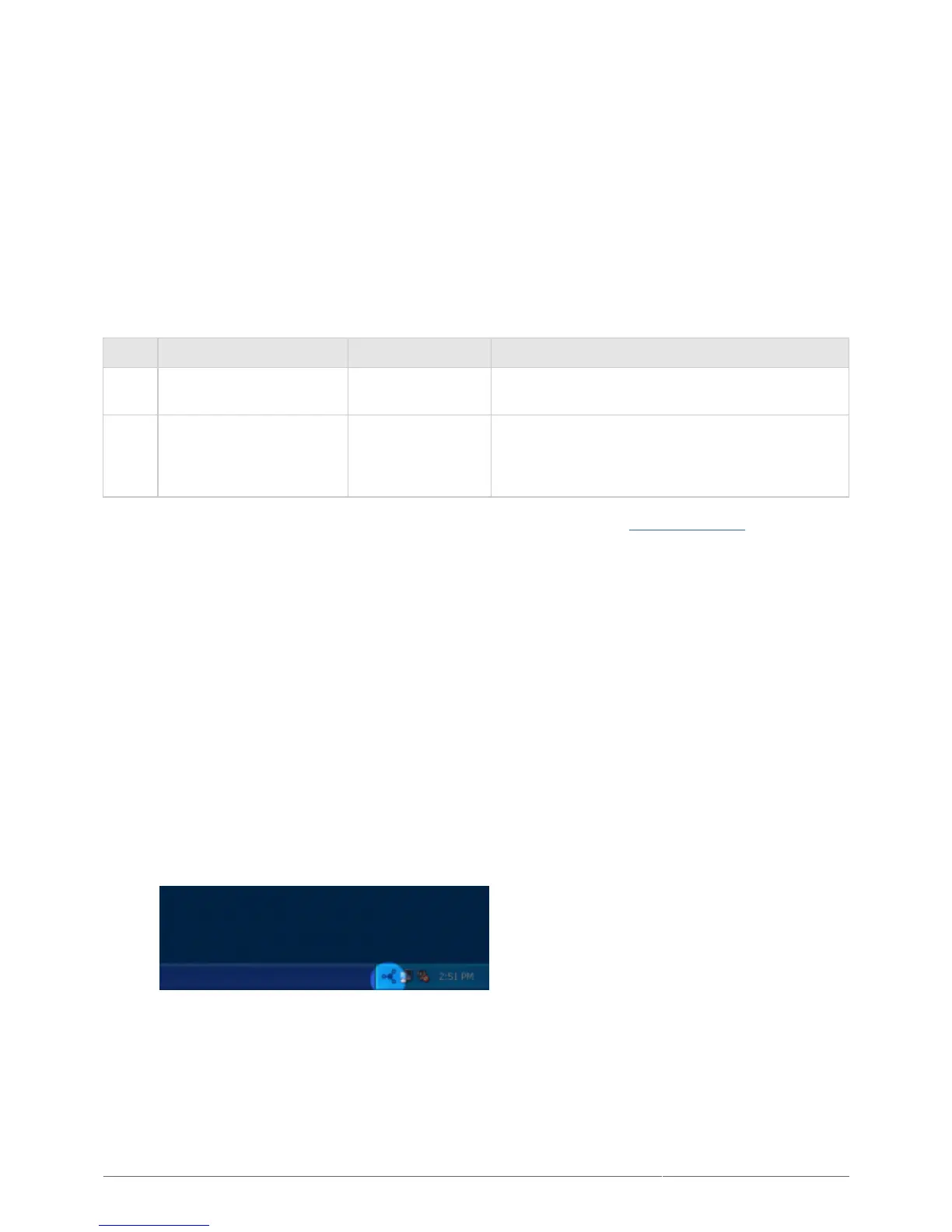
Select LaCie Network Assistant in Start/Programs. A Network Assistant icon will appear in the system1.
tray and LaCie Network Assistant will automatically detect your LaCie product on the network.
Right-click on the icon in the system tray.2.
Mac Users:
■
Select LaCie Network Assistant in your Applications folder. A Network Assistant icon will appear in the1.
menu bar and LaCie Network Assistant will automatically detect your LaCie product on the network.
Click on the icon in the menu bar.2.



 To Next Page