23
Manikin SetupSystem SetupSimulation SetupClinical FeaturesMaintenanceTroubleshootingSpare Parts
System Setup
Disabling / Enabling WLAN
When using a manikin in aircrafts or other environments where use of WLAN transmitters is prohibited: Contact your local Laerdal
representative for instructions on how to turn off radio transmission.
The Instructor PC
The Instructor PC uses the Instructor Application software to manage simulations. The Instructor Application runs in two modes:
•
Auto Mode, for running pre-programmed, validated patient cases.
•
Instructor Mode, for on-the-fly, customized patient scenarios.
The Instructor Application supports the 3 different manikins:
• SimMan 3G
• SimMan Essential
• SimMan Essential Bleeding.
Only SimMan Essential is covered in this Directions for Use. The Instructor application will adapt the user interface according to the
manikin selected or connected to.
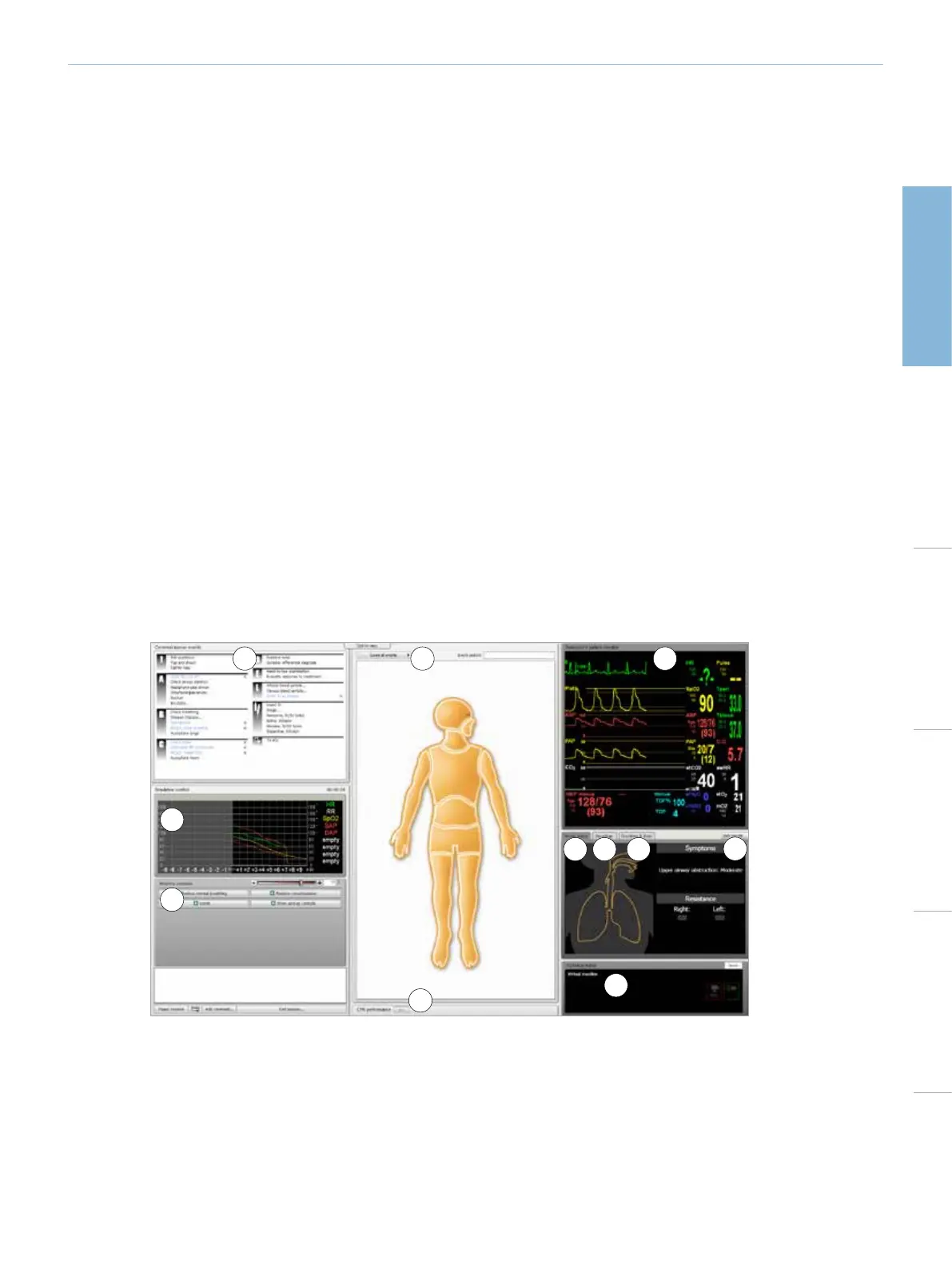
Auto Mode Overview
For more information on software and system setup, please see the Help files:
Click Windows <Start> <All programs> <Laerdal SimMan 3G > <Documentation>
1 - COMMON LEARNER EVENTS
<Common learner events> window lists all required events for a selected patient case. Clicking the events in the list records them in
the Session Log, together with the time that each event was performed by the learner.
All other events available to the learner can be found under <All learner events>
2 - SIMULATION CONTROL GRAPH
<Simulation Control Graph> illustrates the patient parameters in terms of past, current, and predicted future trends throughout the
simulation.
3
4
5
6
7 8 9
11
10
1
2












 To Next Page