25
Manikin SetupSystem SetupSimulation SetupClinical FeaturesMaintenanceTroubleshootingSpare Parts
System Setup
Instructor Mode Overview
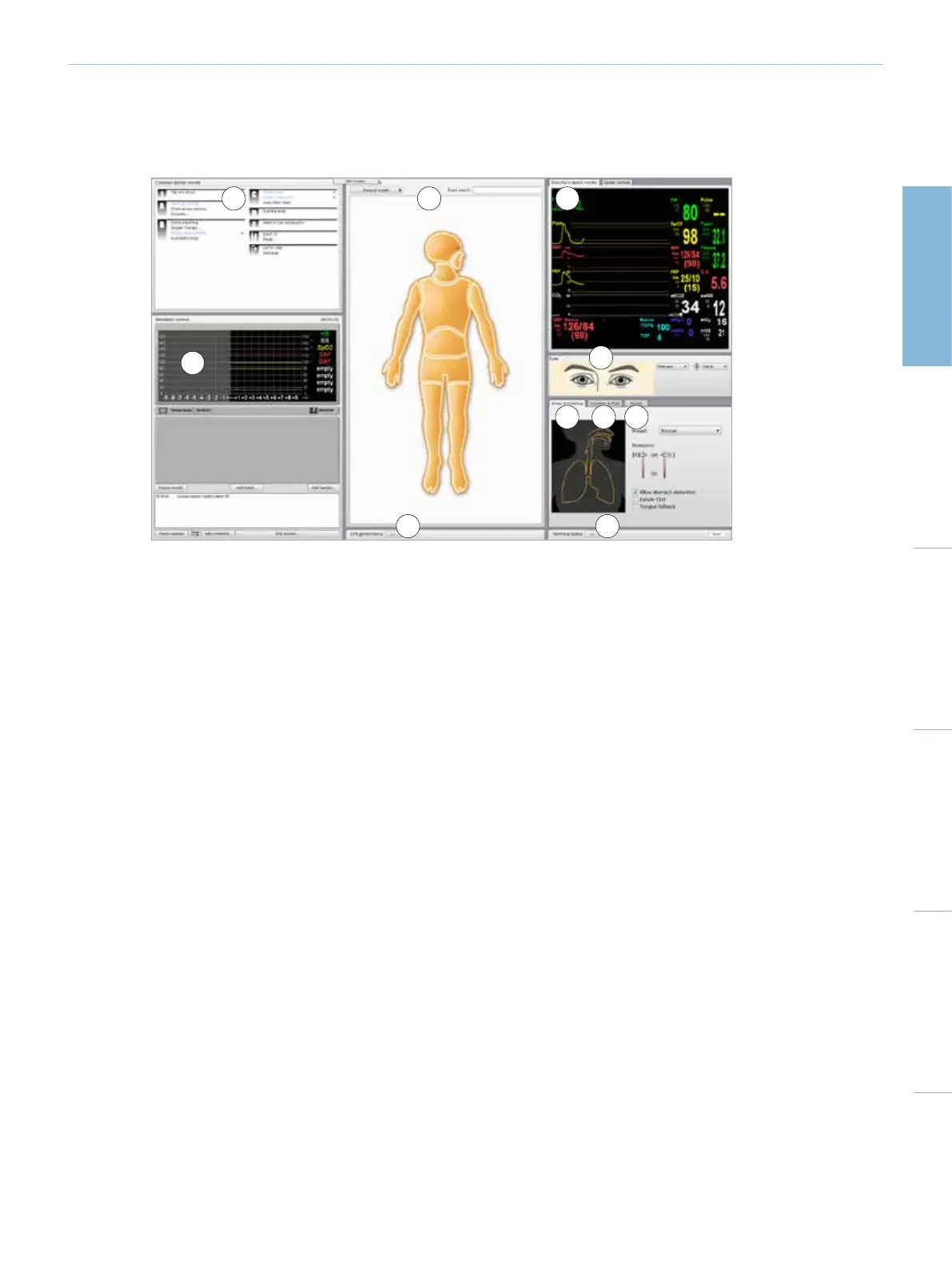
1 - COMMON LEARNER EVENTS
<Common learner events> window typically lists the learning objectives specific for the current scenario. It also lists the learner events
required to proceed from one scenario frame to another, as well as Learner events included in any rules from an active Handler.
Clicking the events in the list records them in the Session Log, indicating the time that each event was performed by the learner.
All other events can be found in <All learner events>.
2 - SIMULATION CONTROL AND SESSION LOG
In <Instructor Mode>, the Simulation control is used in managing all pre-programmed aspects of the selected patient case:
Scenario progress
• Trends
• Handlers
<Session Log> records information about patient responses and Learner events that occur during simulation. This information is then
made available in debrief files at the end of the simulation session.
* For more information on Trends and Handlers, see section: Customizing Scenarios.
3 - ALL LEARNER EVENTS
<All learner events> menu is used to register the events performed by learners during a simulation, and contains all events which can
be registered. For easy access, the events necessary to treat the selected scenario correctly are listed in <Common Learner events>.
4 - PERFORMANCE
<Performance> window, below the manikin figure, shows the effectiveness of learner ventilations and compressions during the
simulation.
Learner performance data can be viewed either as an average or in real-time. The window is minimized as a default. To view the full
display, Click the <expand> button to open the window.
3
2
6
5
7 8 9
10
1
4









 To Next Page