33
Manikin SetupSystem SetupSimulation SetupClinical FeaturesMaintenanceTroubleshootingSpare Parts
System Setup
Transferring Media Files
During a session, the Instructor can make media files available to
learners. Media files include Radiology, Video and Lab reports.
To transfer media les to the learner’s patient monitor:
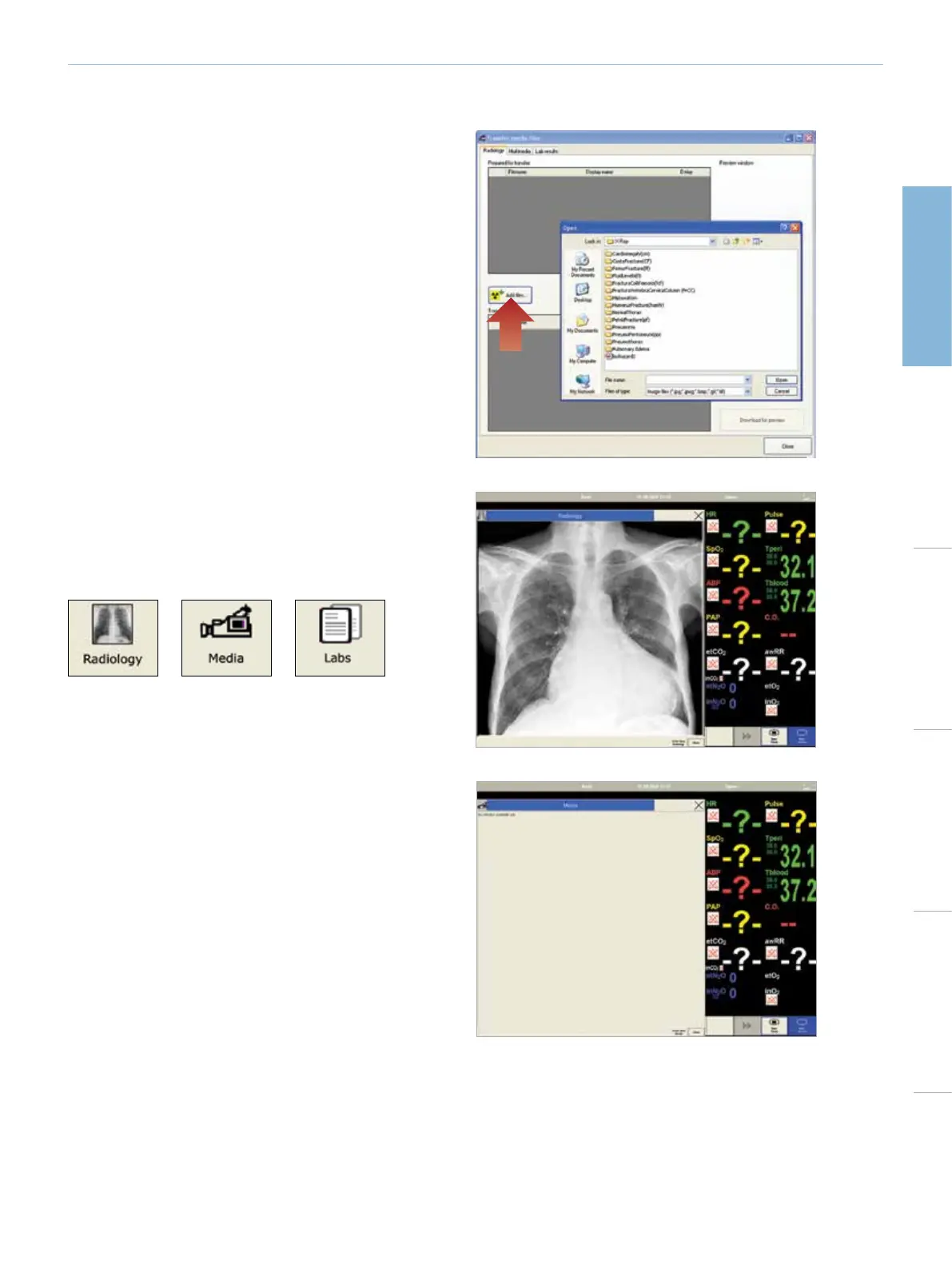
1 In the Instructor Application, click <File> <Transfer media files>
2 The Instructor may upload any of the existing media files or browse
to upload their own media files.
3 To add media files: Click <Add files> and browse to select a file.
4 The Instructor can upload as many media files as required.
5 The Instructor may wish to display the media file(s) immediately, or
after a pre-selected time delay.
FOR A DELAYED DISPLAY:
Click the drop down menu icon below <Delay> to select a time delay.
INSTANT DISPLAY:
Media files show immediately when transferred.
For an overview on patient monitor menus, see section System Setup -
Patient Monitor Menus.
ORDERING RADIOLOGY, MEDIA OR LABS
The learner can order Radiology, Media, or Labs by clicking on any of
the relevant menus in the Patient Monitor Application.
1 Click <Order New > in the dialog box.
2 The system will then notify the Instructor of the order via the
Instructor Application.
The learner may also click on any of the relevant menus to check if the
Instructor has made any media files available for viewing.











 To Next Page