35
Manikin SetupSystem SetupSimulation SetupClinical FeaturesMaintenanceTroubleshootingSpare Parts
System Setup
INSTRUCTOR CHANNELS
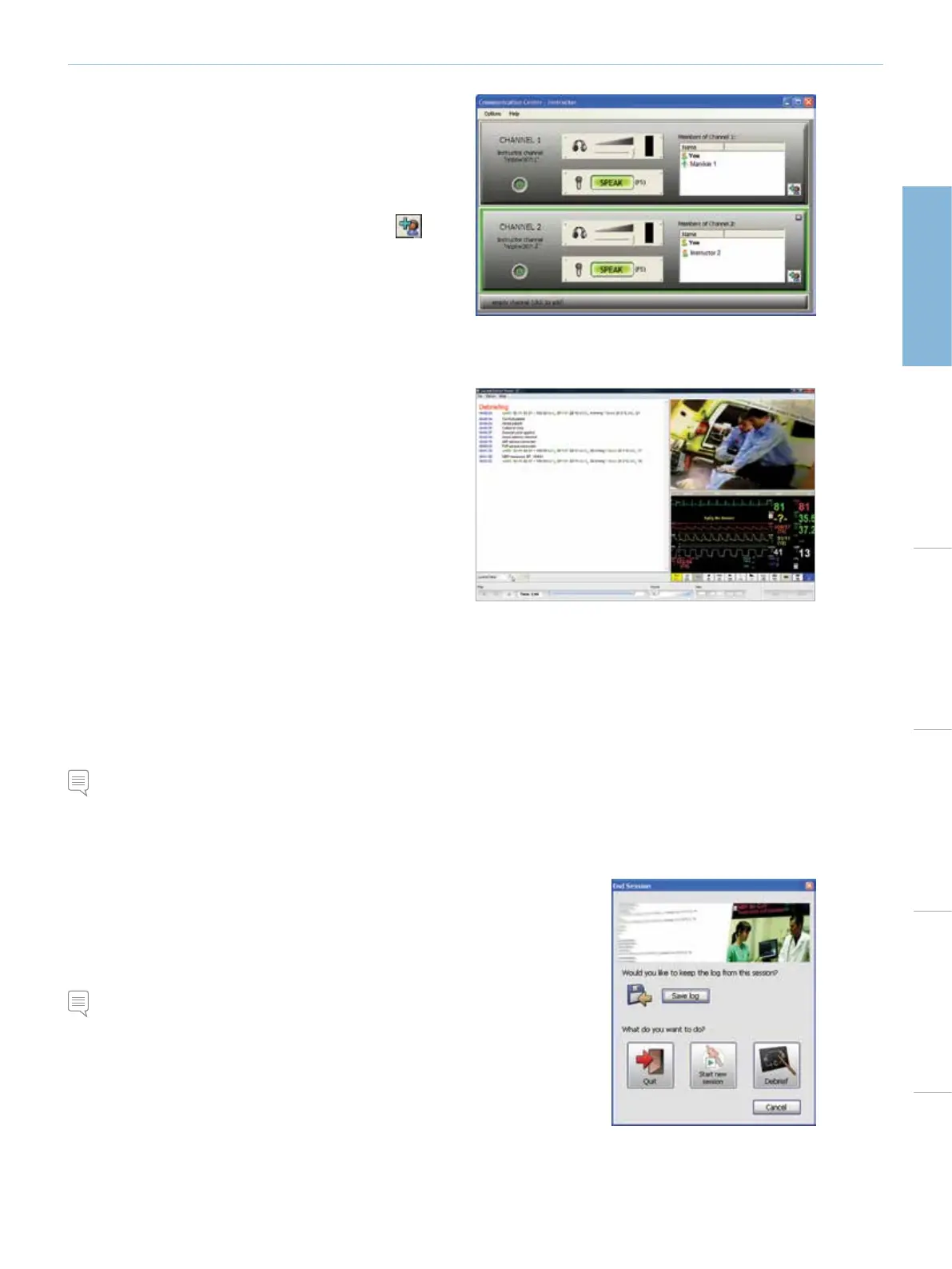
Click the empty channel bar to add an Instructor channel. This channel
allows communication with other instructors who are connected to
the network and have the Voice Conference Application active on their
computer.
ADD MEMBERS
To add members to an Instructor channel, click the icon
. Select
from the available members in the list.
For more information on using the Voice Conferencing Application, see the
Voice Conference software Help file.
The Laerdal Debrief Viewer
The Debrief Viewer is a debriefing tool that allows you to
open and review a saved simulation session.
The debriefing file consists of the following information logged during
a simulation:
SESSION LOG
Data and events are recorded and time stamped throughout the
simulation session. Instructor comments are included.
PATIENT MONITOR
Patient Monitor display can be recorded as a video file.
WEB-CAMERA
Video signals from a Web-camera connected either to the Instructor’s computer or the Patient Monitor computer
MICROPHONE INPUTS
Voice and sound recording from the Web-camera’s built-in microphone is recorded.
REVIEW COMMENTS
Comments can be edited or added to the <Session Log>, during review in the <Debrief Viewer>.
Note: The sources are all recorded to the same timeline and are always played back simultaneously.
ACCESSING THE DEBRIEF VIEWER
The Laerdal Debrief Viewer can be accessed in two ways:
1 - from the Instructor Application:
• Click <End Session>
• Click the <Debrief> icon in the <End Session> dialog box.
• The Debrief files from the session are then transferred and made available in the <Laerdal
Debrief Viewer>
Note: It is important to save the debrief files for later review.
2 - From Windows Start menu:
• Click the Windows <Start> button.
• Go <All Programs>
• Select the <Laerdal Debrief Viewer> program folder
• Click the <Laerdal Debrief Viewer> icon.











 To Next Page