HDMI-TPS-RX110AY – User's Manual 29
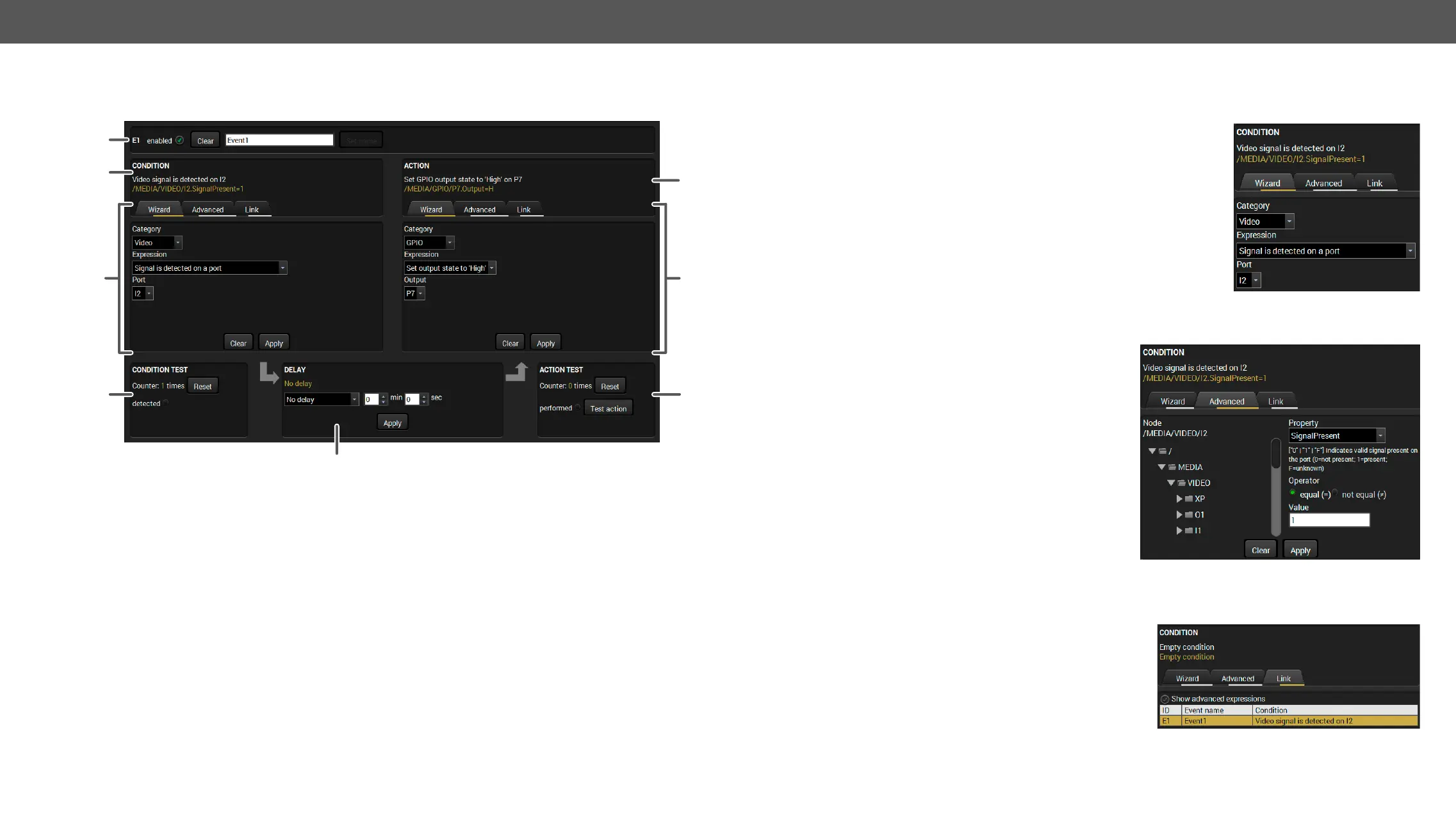
The Event Editor
Press the Edit button in the desired Event line to open the Event editor window.
1
2
4
5
3
1
Event header The name of the Event is displayed. Type the desired name and press the Set
name button. The Event can be cleared by the Clear button. Use the tick mark
2
Condition header
protocol expression (yellow colored text) can be seen. If the advanced mode
3
Condition panel
The parameters and settings are displayed below the buttons.
4
Condition test The set condition can be tested to see the working method in the practice.
5
Delay settings The action can be scheduled to follow the condition after the set time value.
6
Action header
protocol expression (yellow colored text) can be seen. If the advanced mode
7
Action panel
parameters and settings are displayed below the buttons.
8
Action test The set action can be tested to see the working method in the practice.
Create or Modify an Event
Wizard Mode
Step 1. Click on the Edit button of the desired Event; the Event editor is
displayed.
Step 2.
Category
Step 3. Select the desired Expression from the drop-down menu. If any
other parameter is necessary to set, it is going to be displayed.
Step 4. Press the Apply button to store the settings of the Condition.
Advanced Mode
protocol. Advanced mode allows almost all of it.
Step 1. Click on the Edit button of the desired Event; the
Event editor is displayed.
Step 2.
Advanced
displayed showing the list of the properties in the
drop-down menu. Navigate to the desired node.
Step 3. Select the desired Property from the menu. The
manual of the property is displayed below to help
to select the necessary property and to set the
value.
Step 4. Set the desired value and operator, then press the
Apply button to store settings.
The Link Tool
The new interface allows creating more actions to the same condition. In that case, a condition can trigger
Step 1. Click on the Edit button of the desired Event; the
Event editor is displayed.
Step 2.
Link button.
Step 3. conditions
Show advanced expressions option allows showing
the exact path and set the value of the given property.
Step 4. Select the desired Condition and press the Apply button to store the settings.



 To Next Page