Operating Controls
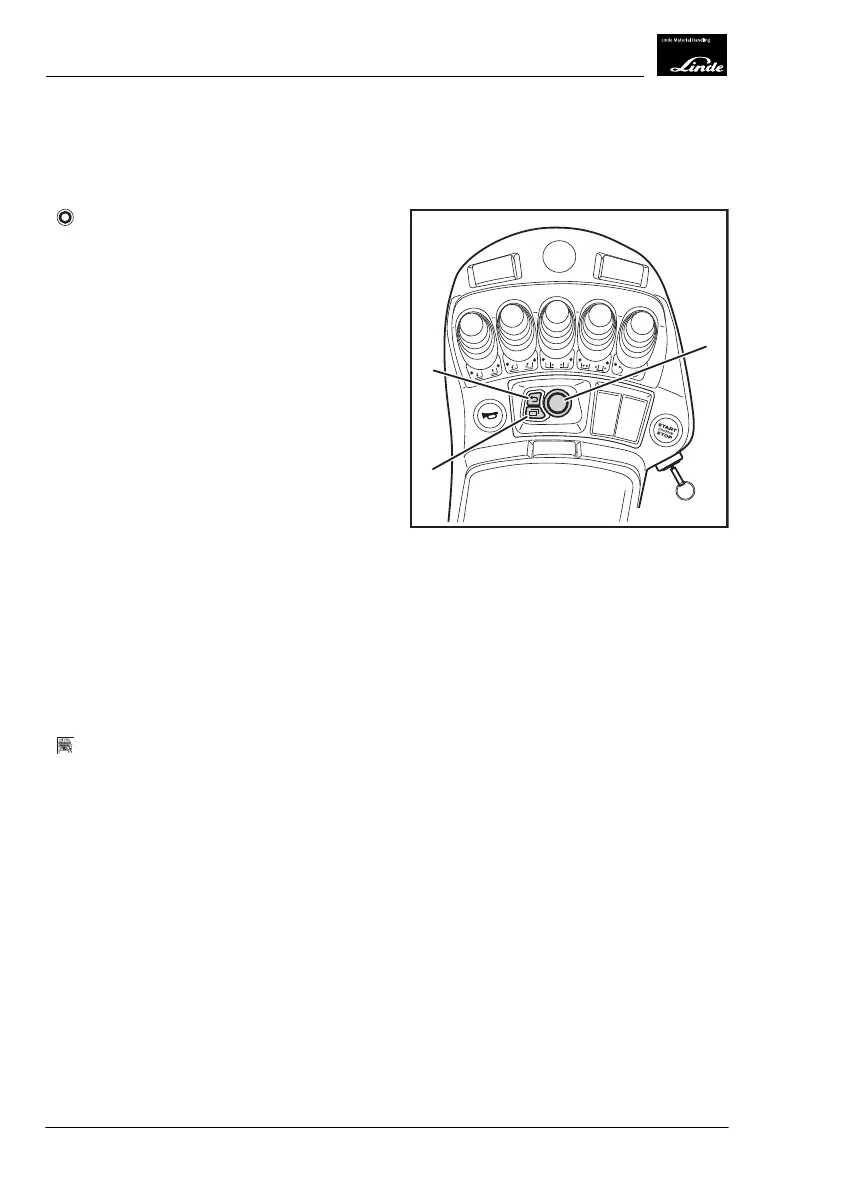
The rotary-push button and two control but-
tons are required to operate the display unit.
Rotary-push button (1)
Briefly press the "rotary-push button" to per-
form the following actions:
●
Dock, remove, clear or replace favorites
●
Select the highlighted menu level
●
Select/activate the highlighted menu item
●
Switch on or off, activate or start functions
●
Confirm an entry
●
Jump back to the menu level from the dis-
play menu
●
Activate the camera full screen (special
equipment)
●
Confirm a message
Press and hold down the "rotary-push button"
to perform the following action:
●
Open the context menu at the bottom menu
level (optional in the "Functions" menu)
Turn the "rotary-push button" to the right or left
to perform the following actions:
●
Scroll between displays
●
Scroll between menu items
●
Scroll through the context menu
●
Select/change settings (e.g. digits, numeric
values and brightness)
3
2
1
1202 02172022-02
Back button (2)
Briefly press the "Back" button to perform the
following action:
●
Jump to the main menu
●
Exit the main menu
●
Jump from the bottom menu level back to
the next higher menu level
●
Jump back to the menu level from the dis-
play menu
●
Jump back to the menu level from the con-
text menu
●
Deactivate the camera full screen (special
equipment)
Press and hold down the "Back" button to per-
form the following action:
●
Variant 1: Jump to the first position in the
main menu
●
Variant 2: Jump to the displays
3
2
1
1202 02172022-02
4
Operation
Premium Display Unit (optional equipment)
100 Operating Instructions-1202 series LP 12028011590US-11/2022 - 04


 To Next Page