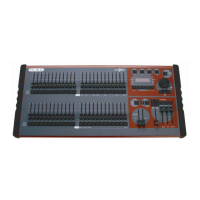
maXim Operator Manual Scenes
LSC Lighting Systems (Aust) Pty. Ltd. Page 27 of 66
[F/A] (scene number)
The default name is automatically deleted or the existing name is shown and the blinking cursor on
the display is ready for you to enter characters. Either rotate the edit wheel or press the yellow bank
[F/A] buttons for the desired characters as labelled below the buttons. On the S & M models where
several characters are printed below each button, multiple presses select the next character in a
similar fashion to mobile telephone buttonpad. Press [<] or [>] to move the cursor and press
[remove] or [add] to remove or add characters or spaces. Names may be up to 15 characters long.
When finished, press [ok].
8.3 SCENE PLAYBACK
Scenes may me replayed on the:
• Red Playbacks (in Scene mode)
• Blue Playbacks (L, XL & XXL models)
• Grab master (S & M models).
SCENE MODE AND PAGES
• When you set the red bank mode to “scene”, the scenes (or stacks or chases) in the current
red page are assigned, in order, to their respective red playbacks, 1 to 12 (24, 36, 48, 60).
• When you change red pages the scenes (or stacks or chases) in the selected red page are
assigned, in order, to their respective red playbacks, 1 to 12 (24, 36, 48, 60). Any one of the
9 red pages may be selected using the [red page] button.
• When you change blue pages the scenes (or stacks or chases) in the selected blue page
are assigned, in order, to their respective blue Playbacks, 1 to 6 (18,30). Any one of the 9
blue pages may be selected using the [blue page] button.
• Press [red page] or [blue page] to increment to the next page, or to switch directly to a page
press and hold [red page] or [blue page], tap [F/A] (Page number).
Note; Mode/Page freeze rules apply. See the “MEMORY STRUCTURE” chapter for more details.
CONTROLLING A SCENE
To reveal a scene on the output;
If the scene was recorded on the red bank, press [mode, red bank] until its “scene” LED lights. If
necessary, select the page containing the scene using [red page]. Fade up the red Playback
containing the scene and also the red master.
If the scene was recorded on the blue bank, select the page containing the scene using [blue
page]. Fade up the blue Playback containing the scene and also the blue master.
The scene can be faded in or out as required or the scene may be “Flashed” (soloed or bumped)
via its F/A button.
FADE TIMES
To control the fade times of the scene you can either select the playback controlling the scene or
edit the memory containing the scene.
• “Select” allows you to change the RUN TIME conditions (in time and out time) on the
selected Playback. Press;
[Select]
[F/A] (scene to control)
[FUNCTION]
The IN(S) indicator lights. The display prompts you then shows the IN fade time. The fade time may
be changed by rotating the EDIT wheel. When a time is set lower than 0 seconds, it is controlled by
the “in time” manual fader. Press;
[FUNCTION]
until the OUT(S) indicator lights. The display prompts you then shows the OUT fade time. The fade
time may be changed by rotating the EDIT wheel. When a time is set lower than 0 seconds, it is
controlled by the “out time” manual fader.
When you have finished adjusting the time press;
[Select]



 To Next Page