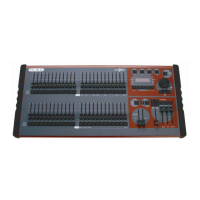
maXim Operator Manual Utilities
LSC Lighting Systems (Aust) Pty. Ltd. Page 56 of 66
DIAGNOSTICS MODE
To select diagnostics mode,
press and hold [function], tap [ok] release [function].
Several unlabelled red bank [F/A] buttons flash to show they are active.
LED AND BUTTON TEST
Press red[F/A] (1).
All LEDs should be lit.
To test a button, press it and its LED will go off.
To exit, press and hold [function], tap [ok] release [function].
FADER TEST
Press red[F/A] (2).
To test a fader, press the [F/A] button for that fader then move the fader. Use the [<] button to
select the IN fader and the [STEP/STOP] button to select the OUT fader. The display reads from 0
to 255 as the fader is moved through its range.
To exit, press and hold [function], tap [ok] release [function].
EDIT WHEEL TEST
Press red[F/A] (3).
Rotate the EDIT WHEEL to test it. The display should smoothly count up or down as the wheel is
rotated.
To exit, press and hold [function], tap [ok] release [function].
BATTERY TEST
Press red[F/A] (5).
The display will show the battery voltage. It should lie between 5.8 and 6.4 volts approximately.
Press [ok].
The display will show the state of the battery, charging or charged.
To exit, press [ok].
MEMORY TEST
Press red[F/A] (12).
The display will show the percentage of memory used.
Press [ok].
The display will show the percentage of heap used. (Maintenance use only).
Press [ok].
The display will show the memory capacity.
To exit, press [ok].
To exit diagnostics mode press;
[no].
16.6 SOFTWARE UPDATES
The maXim operating system (firmware) can be upgraded using the mLINK kit which consists of a
connection cable and installation software. If you do not have an mLINK kit either contact LSC or
one of their distributors or you can also make your own cable (see below) and you can download
the installation software from the LSC website.
You will also need the latest version of the maXim software. This can be obtained from
http://www.lsclighting.com.au/downloads/maxim/index.htm
or by emailing
techsupp@lsclighting.com.au
To receive e-mail notification when a new version of maXim software has been released, simply
send an email to:
lists@lsclighting.com.au
with
SUBSCRIBE maXimUpdate
as the first line of the message. The subject line may be left blank.



 To Next Page