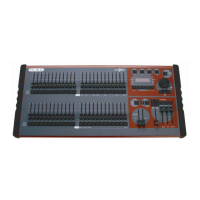
maXim BASIC QUICK REFERENCE
To see the type of object recorded in each memory, press and hold either [page red bank] or [page blue bank].
The playback flash/assign buttons in that bank containing Scenes will light, playbacks containing Chases flash
quickly, playbacks containing Stacks flash slowly and empty playbacks are not lit.
When you press [edit] or [assign copy] or any [record] button, all Playback flash/assign buttons flash twice, then
show their contents as above. If you change pages whilst in “edit”, “assign copy” or “record” modes, the
contents of each page is shown.
RECORD A SCENE
To record the current output as a Scene, press
[record scene]
[F/A] (scene number) (any of the red bank or blue bank flash/assign buttons).
GRAB THE OUTPUT IN GRAB MASTER (S & M models only)
To record the current output into the Grab master, press
[record scene],
[F/A] (grab master)
RECORD A CHASE
To record a Chase in the current page, press
[record chase]
[F/A] (chase number) (any of the red bank or blue bank flash/assign buttons) (or the grab F/A button on S & M models
only).
Each step of a chase consists of a either a previously recorded scene or a snapshot of the maXim output.
• To add a scene as a step, press
[F/A] (scene number) (any of the red bank or blue bank flash/assign buttons).
• To record a snapshot (of the current maXim output) as a step press
[record scene]
• Continue to add steps as above.
When all steps have been recorded, complete the chase by pressing
[record chase].
PLAYBACK A SCENE OR CHASE
If the scene or chase was recorded on the red bank, press [mode, red bank] until the “scene” LED lights. If necessary,
select the page containing the scene using [page, red bank]. Fade up the red Playback containing the scene or chase
and also fade up the red master.
If the scene or chase was recorded on the blue bank, select the page containing the scene or chase using [page, blue
bank]. Fade up the blue Playback containing the scene or chase and also fade up the blue master.
CONTROLLING A SCENE OR CHASE
The [select] button is used to take control of a playback. The recorded memory is not changed, only the way that it is
currently being played back.
Press [select], [F/A] (playback to control). Repeatedly press [function] to cycle though the parameters that you can
control. When finished, press [select] again to de-select it. You can save the changes to memory. If you do not save the
changes they will be retained in the playback until you load a different page onto the playback. The changes will then be
discarded.
The [edit] button is used to permanently change the parameters of a memory. The changes are also seen live on the
playback. To edit a memory, press [edit], [page] (optional) [F/A] (memory to edit). Repeatedly press [function] to cycle
though the parameters that you can edit. When finished, press[edit] to de select it. Changes are automatically saved.
CHASE MODES
To change the settings of a chase press either ,
[select] or [edit] (see above for differences)
[F/A] (Chase number)
To control the RATE, rotate the edit wheel.
To change the FADE between steps, press [function] until “in” & “out” LEDs light, then rotate the edit wheel.
To change the MODE or DIRECTION use the 3 buttons below the Edit wheel as described below.
BUTTONS ACTION
[step/stop] STOPS a running chase.
STEPS a stopped chase (in the direction indicated by the flashing [>] or [<] direction button).
[>] (Forward) Changes the DIRECTION of a reverse running chase (runs it forward).
Changes the DIRECTION of a STOPPED reverse chase (prepares it to run or step forward).
STARTS a stopped forward chase.
[<] (Reverse) Changes the DIRECTION of a forward running chase (runs it reverse).
Changes the DIRECTION of a STOPPED forward chase (prepares it to run or step reverse).
STARTS a stopped reverse chase.
Hold [>], Tap [<] Selects BOUNCE mode.
[>] Deselects Bounce mode (runs forward).



 To Next Page