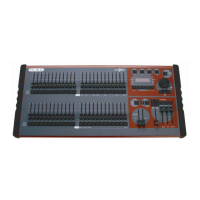
maXim Operator Manual Layout
LSC Lighting Systems (Aust) Pty. Ltd. Page 10 of 66
3.2 RECORDING AND EDITING
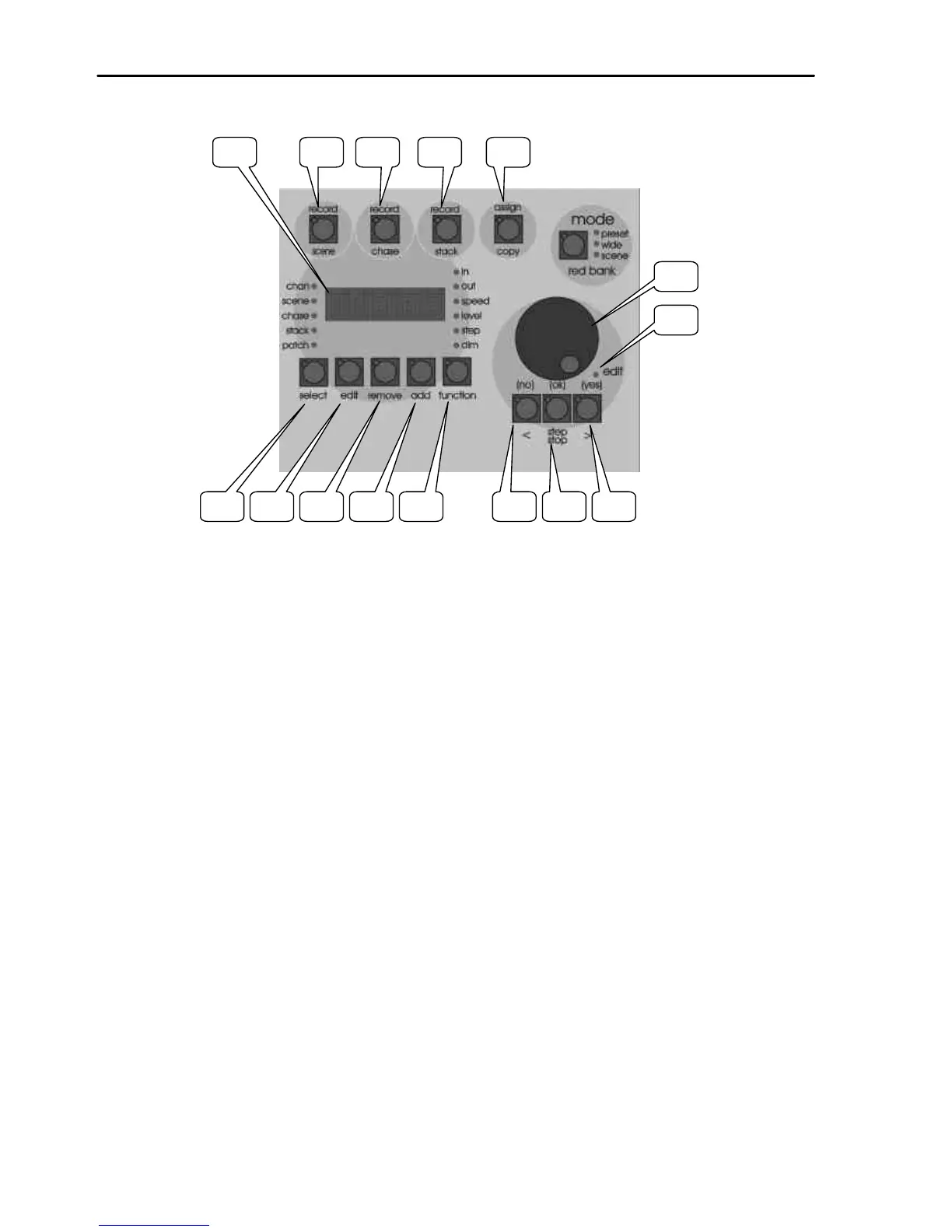
23. Dot Matrix Display and LEDS
The display is used to scroll messages and prompts and to show names and numbers. The small
labelled LEDS beside the display are used to define the numbers shown on it. For example;
• If the CHAN LED is lit, then the number displayed is a channel number.
• If the LEVEL LED is lit, then the number displayed is a channel level.
Comprehensive information (including these messages) are also shown on the video output.
24. Record Scene Button
Used to select RECORD SCENE mode or to record a snapshot of the output of the maXim as a
step in a stack or a chase or into the Grab master.
25. Record Chase Button
Used to select RECORD CHASE mode and to complete the recording of a chase when all the
desired steps have been added.
26. Record Stack Button
Used to select RECORD STACK mode and to complete the recording of a stack when all the
desired steps have been added.
27. Assign Copy Button
Used to:
• Assign a stack to the stack master.
• Copy scenes, chases or stacks from one memory location to other.
• Copy scenes, chases or stacks to or from the Grab master. (S & M models).
• Copy a Snapshot from the Grab master to a memory. (S & M models).
28. Select button
Used to take control of a playback. The recorded memory is not changed, only the way that it is
currently being played back. Press [select], [F/A] (playback to control). Repeatedly press [function]
to cycle though the parameters that you can control as indicated by the LEDs beside the display.
When finished, press [select] again to de-select it. You are asked if you want to save your changes
to memory. To do so press [yes]. If you do not save the changes (press [no]), they will be retained in
the playback until you load a different page onto the playback. The changes will then be discarded
from the playback.
HINT: If you do not want to save your changes to memory, as a shortcut press [select] twice. This is
the same as pressing [select], [no].



 To Next Page