maXim Operator Manual Layout
LSC Lighting Systems (Aust) Pty. Ltd. Page 9 of 66
14. ADD/SOLO button
Toggles the Add/Solo mode between “Add” and “Solo” as shown by a red indicator in the Add/Solo
button which flashes in SOLO mode.
• In ADD mode, when a FLASH/ASSIGN button is pressed, the channels that are being flashed will
come on (at the level of the FLASH level master), and normal output is not affected.
• In SOLO mode, when a FLASH/ASSIGN button is pressed, the channels that are being flashed
will come on (at the level of the FLASH level master), and the normal output of the maXim will be
blacked out, leaving only the channels that are being flashed on stage.
Note: Multiple Flash/Assign buttons may be pressed at the one time.
15. Page Red Bank Button and Display
• In SCENE mode it is used to select the current page (1 to 9) of red memory that is loaded into
the red bank of playbacks.
• When recording, editing or copying scenes, stacks or chases, it is used to select the required red
page (1 to 9) for the scene, stack or chase.
Repeated presses of the Page button will step through the pages.
To directly select a page;
Hold [page red bank] then quickly tap [F/A] (red 1 to 9).
The displays shows the red page number as selected by the “page red bank” button.
16. Page Blue Bank Button and Display
• Used to select the current page (1 to 9) of blue memory that is loaded into the blue bank of
playbacks.
• When recording, editing or copying scenes, stacks or chases, it is used to select the required
blue page (1 to 9) for the scene, stack or chase.
Repeated presses of the Page button will step through the pages.
To directly select a page;
Hold [page blue bank] then quickly tap [F/A] (blue 1 to 9).
The displays shows the blue page number as selected by the “page blue bank” button.
Hint: The maXim can show the types of object recorded in each page. If you press and hold either
[page red bank] or [page blue bank], playback flash/assign buttons in that bank containing Scenes
will light, playbacks containing Chases flash quickly, playbacks containing Stacks flash slowly and
empty playbacks are not lit.
17. Notes area / PATPAD (OPTIONAL)
Use this area for writing notes. The optional PATPAD is fitted in this area (L, XL & XXL models).
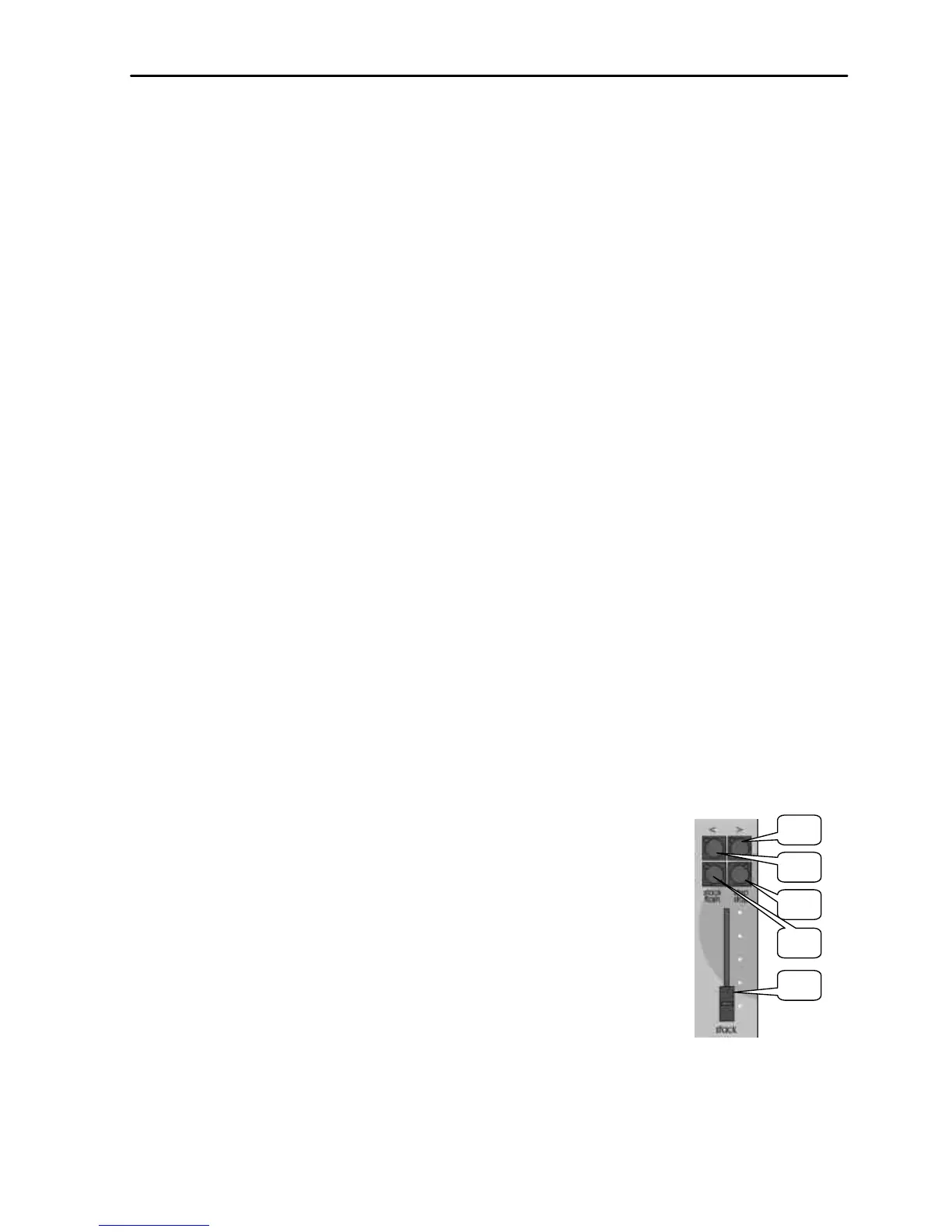
18. Stack Master
It controls the overall level of the stack playback.
19. Stack Flash
It is a multi purpose button and can be used to;
• Select the stack master when assigning, editing or copying a stack.
• FLASH (bump) the contents of the stack master. (See also FLASH level and
ADD/SOLO button).
The brightness of its LED shows the level of the master at the output of the maXim.
20. > (Stack)
It starts a crossfade from the current step to the next step. In conjunction with the step/stop
button (below) it steps (snaps) a stack in the forward direction.
21. < (Stack)
It starts a crossfade from the current step to the previous step. Only one reverse crossfade is
allowed. In conjunction with the step/stop button (below) it steps (snaps) a stack in the
reverse direction.
22. step/stop (Stack)
It stops a crossfade. It momentarily runs a stopped crossfade when held down. In conjunction with the > and < buttons it
steps (snaps) a stack in the either direction.



 To Next Page